
Yes, a hacked Vita on firmware 3.60 can control a Nintendo Switch over Bluetooth using Vita NS Controller. The established PC alternatives use USB or Wi-Fi instead of ordinary Bluetooth pairing.
Start with the device you want to control. Installing a plugin that connects a controller to the Vita does the opposite job, and won't make the Vita appear as a gamepad on your computer.
Match the project to the device receiving the controls
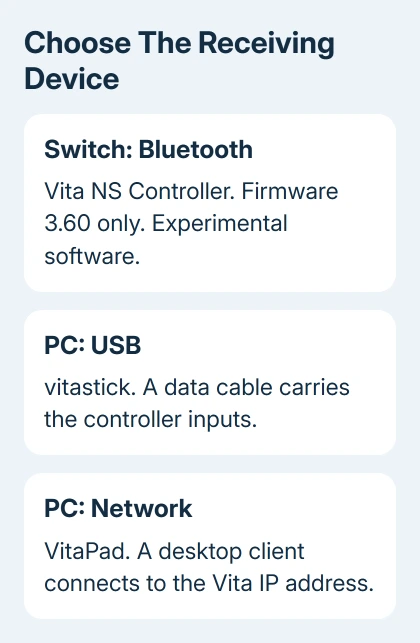
Vita NS Controller sends the Vita's controls to a Switch or Switch 2. It's experimental software, so check which hardware and firmware it was tested with.
Vita NS Controller's release notes confirm hardware testing with a Vita on firmware 3.60 and a Switch 2.
vitastick makes the Vita a USB game controller. VitaPad sends controls to a Windows or Linux computer over a network. Wireless in that project's description doesn't mean Bluetooth.
Projects such as ds4vita receive a controller's inputs on the Vita. Use those when you're playing on the Vita with another controller. They won't send the Vita's built-in button presses to another machine.
Open Settings > System > System Information on your Vita and check its firmware version. Don't load Vita NS Controller on another firmware; its kernel plugin uses addresses specific to 3.60.
The ordinary Vita Bluetooth settings manage Bluetooth devices connected to the handheld. They aren't a switch that turns the handheld itself into a universal PC gamepad.
Prepare Vita NS Controller on a compatible handheld
This route assumes your Vita already runs taiHEN and has VitaShell. taiHEN loads system plugins; VitaShell manages files and installs Vita apps. Keep a copy of the active plugin configuration before editing it.
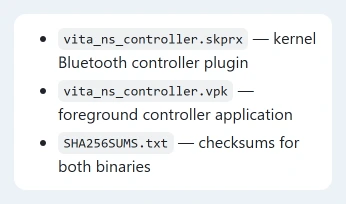
Open the project's release page. Get vita_ns_controller.skprx and vita_ns_controller.vpk from the release assets. The .skprx file is the system plugin; the .vpk file installs the app you'll open. You need both for this setup.
Copy the .skprx file to ur0:tai/. Then edit the configuration taiHEN actually uses. The current project instructions say ux0:tai/config.txt takes priority when it exists; otherwise use ur0:tai/config.txt.
Find the existing *KERNEL section. Add ur0:tai/vita_ns_controller.skprx on its own line before the next section beginning with an asterisk. Keep the existing entries and don't create a second *KERNEL heading.
Remove or comment out entries for other plugins that alter Bluetooth, including ds4vita. An older development installation may also have scebt_probe.skprx; replace that entry rather than loading both versions.
Install vita_ns_controller.vpk with VitaShell, then reboot. Launch Vita NS Controller from LiveArea, the Vita's application screen. The application needs to stay open while it sends controls.
Register it on Switch, then reconnect with an input
On Switch, open Controllers > Change Grip/Order. In the Vita app, hold HOLD: NEW PAIR until its progress bar completes. Wait for a Pro Controller to appear on the Switch.
When Pro Controller appears, the Switch has registered it. Moving around the Vita's own menus isn't a test of the connection. Try a button in the Switch interface after the controller has appeared.
For later use, return to the Vita app, wake the Switch and press a Vita button or touch one of the mapped controls. A button press or touch starts reconnection, so just waiting in the app won't start it.
Touch controls supply buttons the handheld doesn't have physically, including ZL, ZR, stick clicks, Capture and Home. Open FULL CONTROLS for the larger touch layout. The app's SETTINGS can swap L/ZL and R/ZR independently.
The current release doesn't send motion or gyroscope inputs, which track how you move or tilt the handheld. A game that needs those inputs therefore needs another control method. To leave the app, hold Select+Start for two seconds.
Use USB when the receiving device is a PC
For the wired route, follow vitastick's installation instructions. Put vitastick.skprx in the configured plugin location and add its path under *KERNEL, then install vitastick.vpk.
The project's example uses ur0:tai/vitastick.skprx. Match the path to the actual file. Finish loading the installed plugin through your normal taiHEN startup, then open the vitastick app and connect a data-capable USB cable.
The app switches the Vita into USB controller mode. On Windows, use the game controller input panel to see whether the buttons and sticks reach the computer before configuring a game.
Once Windows sees the controller, check whether your game supports it. Windows games can use different controller interfaces, so a recognized USB gamepad isn't automatically an Xbox-compatible controller in every title.
I'd check that input panel before spending time changing the game's mappings. If the computer receives nothing, the cable, active plugin and Vita app are the parts to check first.
Choose VitaPad for the PC network route
VitaPad has a Vita app and a desktop client. Install its VPK, open VitaPad on the handheld, then open the PC client and enter the IP address displayed by the Vita. The computer needs network access to that address.
The project's setup instructions cover Windows and Linux. Its repository is archived, so use those listed platforms and don't assume planned Mac support became a released feature.
Its normal mappings can send keyboard and mouse actions. Optional gamepad modes use additional Windows drivers and settings. Choose how you want to send the controls before treating this as a game detection problem.
For Vita3K on a computer, installing a game in the emulator is a separate task. Controller input must reach the PC and be assigned in the emulator as well.
If Vita NS Controller shows Kernel input gate: ERROR, check its plugin path and reboot. For a boot loop after installing it, the project's recovery step is to hold L during startup to skip taiHEN plugins, then remove its entry.
For a remaining fault with Vita NS Controller or vitastick, open an issue on that project's repository with firmware, receiving system, plugins and the error. VitaPad's repository is archived, so search its existing issues instead.
Tell the developer whether pairing fails, reconnection fails or particular buttons don't respond. That tells them which part needs attention.
The Short Version
Switch Bluetooth is possible with experimental Vita NS Controller on firmware 3.60. For PC use, choose vitastick over USB or VitaPad over the network. Check the direction of the plugin and test received inputs before adjusting a game.
Checked November 9, 2026.

Isaac Smith is the founder and editor of PC Glance, a website that covers computers, laptops, and technology. He is a tech enthusiast and a computer geek who loves to share his insights and help his readers make smart choices when buying tech gadgets or laptops. He is always curious and updated about the latest tech trends.