Outlook's Resend command opens an editable copy of a sent email, with its content and attachments. Find the email in Sent Items, open its message actions and choose Resend, then review the new draft before sending.
New Outlook shows this feature only when its primary account is a Microsoft 365 work account. With a personal account, the command can be missing even when you're looking in the right menu.
In this guide
Choose resend when you need another editable copy
Resending is useful when someone needs the same document again, an address was mistyped or the first message needs a small correction. The new draft lets you change the recipients, attachments and wording before sending.
It sends another message. It doesn't remove the earlier copy from anyone's inbox. If you need to withdraw something already delivered, the Outlook recall conditions explain when that separate feature can work.
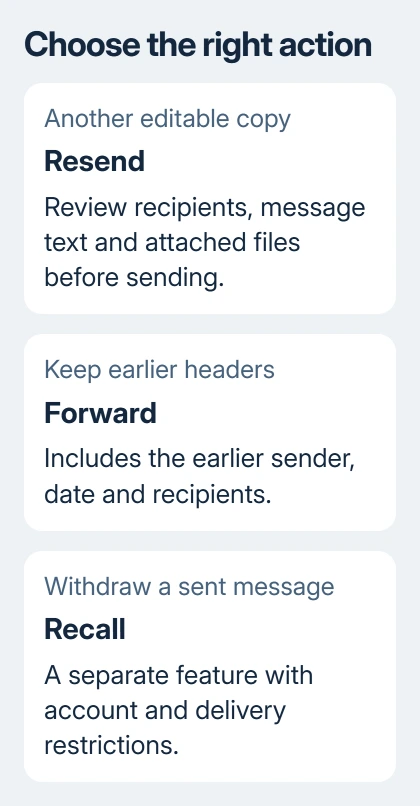
Resend also differs from Forward. A forwarded message includes the earlier message's header information, such as the sender, date and recipients. Resend copies the sent email's content without adding those header details.
I'd use resend for an unchanged attachment going to the same person again. For a correction, add a short explanation in the new draft so the recipient knows which version to use. The command copies the email; it doesn't explain why.
Use new Outlook's message menu
Open Sent Items in the folder pane for the account that sent the email. Select the original message and open its More menu, shown as three dots. Choose Advanced actions > Resend message.
Review the draft that opens. Remove anyone who doesn't need another copy, correct a mistyped address and add any new recipient. Check Cc and Bcc as well as To before sending a message originally addressed to a group.
Add or remove attachments and change the contents as needed. When everything is ready, select Send. Opening the resend draft alone doesn't deliver another email; it still waits for that final Send command.
Microsoft says new Outlook requires a Microsoft 365 work account as primary for this feature. Personal accounts won't show the option there.
If Advanced actions appears without Resend message, check the account before changing the layout. A personal Microsoft account isn't a work account, even when both appear in the same app.
Without the command, start a new email, copy the text and attach the files again, or use Forward if keeping the earlier header is acceptable. Review the draft, since copying and forwarding give different results.
Open the sent email in classic Windows Outlook
Select Sent Items in classic Windows Outlook, then double-click the email. It needs to open in its own window. Selecting it only in the reading pane shows different ribbon controls.
On the opened message's Message tab, find the Move group and choose Actions > Resend This Message. Outlook opens a new draft containing the message so you can make your changes.
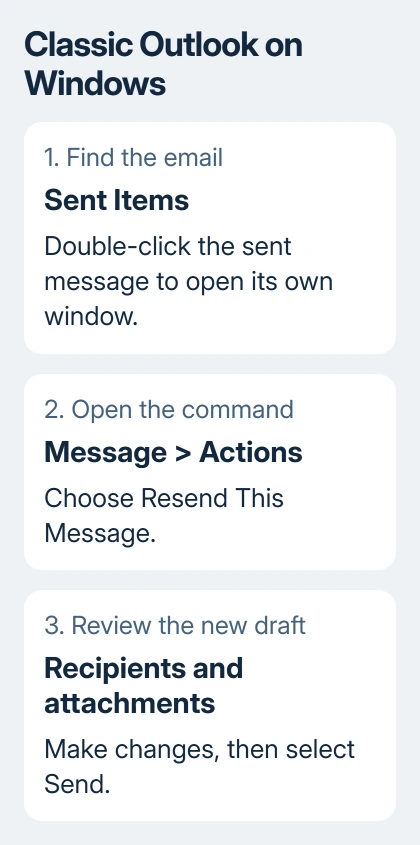
Remove recipients who shouldn't receive it again. To remove a recipient, select the name in the address field and delete it. Add the right address and check the attachment list before sending the new copy.
If Actions isn't visible in the area you're checking, confirm that the sent message is open in a separate window. The mailbox's Home tab isn't the same as the Message tab in the opened email.
These steps work in Outlook for Microsoft 365 and classic releases including Outlook 2024, 2021, 2019 and 2016. Windows 10 and Windows 11 use the same Outlook command here; the Outlook version decides which steps to use.
Find the command in a browser mailbox
In Outlook.com or work webmail, select the email in Sent Items. Open its three-dot More menu and choose Advanced actions > Resend message when offered. Use this browser menu instead of the classic Windows ribbon.
Review the new message before choosing Send. Correct the recipients, replace an attachment or edit the text as needed. If you're sending to a different person, check that everything in the old email is suitable for them.
Resend one email at a time in the web mailbox. To send several again, open each email and repeat these steps. This menu doesn't offer a bulk resend command.
Use the More menu belonging to the selected message. A browser's own menu controls the browser, and it won't contain Outlook's Resend command. If the wrong menu opens, close it and return to the email.
Use the Mac's Message menu
On Outlook for Mac, open Sent, then select the email you want to send again. Choose Message > Resend from the menu bar. Edit the new message and send it when the recipients and contents are correct.
The Mac menu uses Resend, while classic Outlook for Windows uses Resend This Message. On a Mac, use that menu instead of looking for the Windows ribbon's Move group.
If the message contains files, check their names in the new draft. A document attached to an old email can be an earlier revision. Replace it with the current file when the reason for sending again is an updated document.
For forwarding a complete email as evidence instead, the attach-an-email guide explains that separate task. It keeps the original email as an attachment rather than turning its body into the new message.
Check the address and delivery result before repeating it
When resending after a delivery failure, read the failure message first. A misspelled or invalid recipient needs correcting. Sending the same copy again to an unchanged invalid address won't fix the address.
If the earlier message is still in Outbox, treat that as an unsent message rather than making several copies from Sent Items. Check the connection and the account's sending error before creating duplicates that might all send later.
After sending the new copy, check Sent Items for that new message. That shows Outlook has filed it as sent, but it can't confirm that the recipient has read it. Ask them to confirm receipt when the document is urgent.
If a supported work account lacks the option, give your Microsoft 365 administrator the Outlook version, account type and missing menu name. Include any sending error so support can check delivery separately.
The Short Version
Use Advanced actions > Resend message in new Outlook and browser mailboxes. Classic Windows Outlook uses Message > Actions > Resend This Message; Mac uses Message > Resend. Review every recipient and attachment before sending the new copy.
Checked November 10, 2026.