
Word can launch from a Mac desktop alias without opening the document it points to. Open the file through File > Open Recent to get back to work, then check whether the original file opens directly in Finder.
That worked for the person who reported this problem in Word 2016. It doesn't repair the launch problem, but it helps separate a bad alias from Word failing to open the requested document.
In this guide
1. Open the document from Word's menu
Click Word in the Dock to bring its menus into the Mac menu bar. Choose File > Open Recent and select the document. A running Word app can have a menu bar and a Dock dot without an open document window.
If the file isn't in Recent, choose File > Open and find its actual folder. Select the document itself rather than the desktop alias. Give Word time to open it before trying another route.
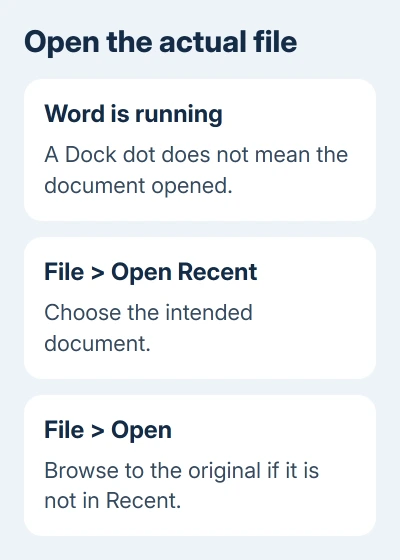
Once the document appears, check its name and contents before editing. A blank document opened by clicking the Dock icon isn't the missing file, and typing into it won't recover your existing work.
One owner on Microsoft's forum confirmed that Open Recent worked when their desktop aliases didn't. They also found that another double-click could eventually open the file, but repeatedly waiting for a response interrupted their work.
I'd use the menu route for the current editing session. It lets you select the file directly instead of guessing whether another double-click has reached an app that's still starting.
If Word reports a damaged or unreadable document through this route, use the Word document-opening repairs. That error needs a file-recovery check rather than a replacement alias.
2. Compare the alias with its original file
Return to Finder and locate the document in its real folder. Double-click that file while Word is already open. Then quit Word normally and compare opening the original again from a fresh launch.
Note what happens in each case: opening a file in an app that's already running and opening it while the app starts aren't the same test. Tell support which attempt leaves you with no document window.
If the original opens reliably but the alias doesn't, create a fresh alias. Select the original in Finder, choose File > Make Alias, then move the new alias to the desktop. Use a different name while comparing it with the old one.
Apple's alias instructions explain that an alias points to an original item. Removing an unwanted alias doesn't remove the original, but check which item you're selecting first.
Open the new alias and confirm that it reaches the intended document. If it does, remove the obsolete shortcut. If both aliases fail and the original also fails intermittently, stop rebuilding shortcuts and check Word itself.
The original poster later reported the same problem when opening actual files in Finder. Their problem wasn't limited to desktop aliases, so replacing an alias alone wasn't a confirmed fix for their case.
3. Match the update method to your installation
Save open work before updating. In Word, select Word > About Word and note the version. For Office installed from Microsoft, choose Help > Check for Updates and install available updates through Microsoft AutoUpdate.
If Word came through the Mac App Store, open the App Store, choose Updates, and update Word there. A Store copy gets its updates there, so a missing AutoUpdate option doesn't mean you can't update Word.
After the update completes, quit and reopen Word. Compare the original file and then the new alias. A successful menu opening remains useful, but the launch problem is fixed only when the method that failed now opens the right file.
The old report involved Office 2016 on macOS High Sierra. The owner was already using Word 15.39 and found no available updates at the time. That number describes their old setup; it isn't an update recommendation for today's Macs.
Don't replace a current Office installation with Office 2011 to copy the accepted answer. The author ultimately chose that rollback, but it isn't a current fix to recommend for a Mac used for everyday documents.
If your Mac can't run an available Office update, tell support the macOS version as well as Word's version. Advice for a current Microsoft 365 installation may not apply to an older Mac kept on an older operating system.
4. Check whether one document or every document is affected
Use two existing documents that you know are valid. Open each from Word's File > Open menu, then compare the original files in Finder. Don't change the documents' contents just to test the launch behavior.
If only one alias fails, focus on that shortcut and its target. If several original files open from Word's menu but fail from Finder, tell support. That points to how Word opens files, rather than damage in every document.
If the document lives in a cloud folder, check whether it has finished downloading before opening it. Compare an already downloaded local document so a delayed download doesn't get mixed up with the alias test.
A document that opens from the menu gives you a usable route while the launch problem is checked. Keep saving through the same document and location; making several new copies can leave you unsure which file contains the latest edits.
For a separate save-location problem, choose the right folder when saving Word on Mac. Opening through a desktop alias doesn't make the desktop the document's storage location.
Report the menu and Finder results together
Use Help > Feedback when available in your version, or contact Microsoft Support for Word for Mac. Describe the empty screen after launch, not just that Word won't open: Word has started without displaying the requested file.
Include your Word and macOS versions, whether the document is in a local folder or a cloud service, and whether File > Open works. Mention whether the failure happens only after quitting Word or also while it's already running.
Keep a short record of which original files and aliases fail. If support needs a sample, use a nonprivate document with the same problem. Explain that the menu route works, but the original way of opening the file still fails.
The Short Version
Use Open Recent or File > Open to reach the document. Compare the original with its alias, rebuild a failing shortcut and update Word. Tell support whether opening from the menu works when Finder fails.
Checked November 16, 2026.





