
Recurring business PC problems can come from a shared service, a recent change, or one overloaded machine. For several failing PCs, check the shared service first. For one slow PC, restart it and inspect its apps and storage.
Separate slow performance, app crashes, lost connections, and shutdowns: each needs different checks. This sequence suits a small Windows office. If IT manages your PCs, involve them before changing company software or security settings.
1. Compare one PC with the rest of the office
Save work and restart one affected PC through Start > Power > Restart. Then repeat the exact task that failed: open the same application, load the same business page, or print the same document. Note whether the restart changed it.
Ask another employee to try the same task on their computer. If both machines fail during the same task, the shared application, account system, server, or connection needs checking before you reinstall either PC.
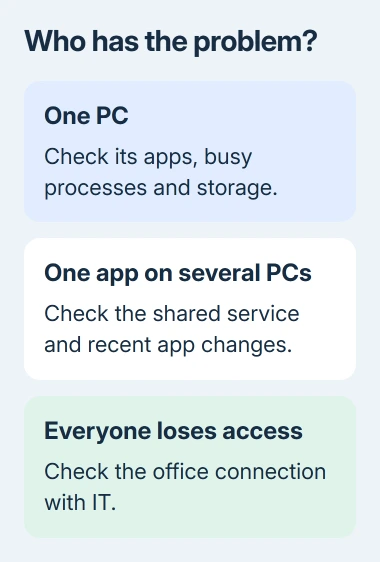
Try an ordinary website alongside the failing business service. If other pages load, check that service and its access settings. When several devices lose all access together, check the office connection first.
Record the time, error, affected people, and any difference between wired and wireless PCs. Give that incident record to IT or the internet provider. Resetting each workstation won't repair a shared service outage.
If one computer is still slow while others complete the task normally, check that computer next. Keep one short incident note for that PC so the next repair starts from what already happened.
2. Check storage and busy apps on the slow computer
Press Ctrl + Shift + Esc to open Task Manager while the problem is happening. In Processes, compare CPU, Memory, and Disk usage. Select a column heading to bring the busiest apps into view.
A backup, update, or large export can explain temporary high activity. Ask IT to identify unfamiliar processes that stay busy. Don't end security, backup, or management software just to lower the percentage.
Microsoft recommends checking storage and background apps in its performance guidance for Windows. Use Settings > System > Storage to inspect available space and the categories consuming it.
On Windows 11, review Temporary files before choosing what to remove. Windows 10's Storage also offers temporary-file cleanup. Check the selected categories, especially Downloads, for files you still need.
Move completed projects to your company's approved archive instead of keeping their only copy on a crowded drive. Repeat the slow task after cleanup and compare another PC. If nothing changed, check updates and the affected app.
For a broader performance problem on that single machine, use the slow-PC checks. The office-wide comparison still matters: more RAM in one workstation won't fix the office connection to a failing server.
3. Finish approved updates and check recent changes
On Windows 11, open Settings > Windows Update. On Windows 10, open Settings > Update & Security > Windows Update. Install approved updates and complete any requested restart at a time set aside for maintenance.
Open Update history and compare installation dates with the first incident. A fault that began after a driver or business-app update gives IT a useful starting point. A date match alone doesn't tell you which change needs undoing.
If several PCs developed the same fault after the same change, ask IT to check that update's known issues and the app vendor's compatibility notes. Give them the update name, application version, and the first affected task.
Don't leave automatic updates disabled as a permanent fix. The free Windows 10 support period closed on October 14, 2025. Those PCs need a supported upgrade or appropriate extended security coverage.
I'd try a major app change on one PC used for typical office tasks before applying it across the office. Open your real document templates, accounting workflow, and printer setup there first, with a way to return to the approved version.
4. Repair the application when only that app fails
If the desktop, browser, and other programs work, focus on the failing app. Open that file on a second PC, then a different file in the affected app. Compare the results: does the fault follow the file, or does the app fail generally?
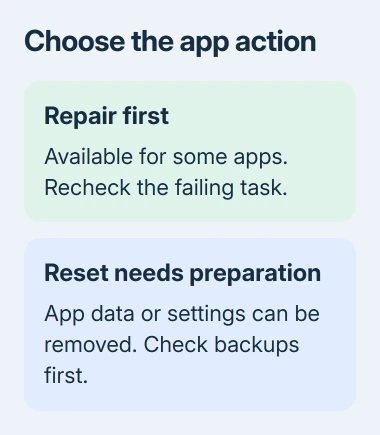
For a supported app on Windows 11, open Settings > Apps > Installed apps. Select its three-dot menu, choose Advanced options when offered, then select Repair if available.
On Windows 10, open Settings > Apps > Apps & features, select the app, and look for Advanced options > Repair. Not every program offers this control; some use Modify or their own installer instead.
The app repair procedure distinguishes Repair from Reset. Try Repair first. Reset can remove app data or settings, so check the app's backup and sign-in requirements before using it.
For Word, Excel, or Outlook failing as part of the same installed suite, use the Office repair workflow. A general Windows app-reset button isn't the right control for every Office installation.
Repeat the failed action after repair, then try a second file. If only one document fails, send its error and format to the support team your company uses for that app. Reinstalling the entire suite again is unlikely to help that file.
5. Check security alerts before assuming worn-out hardware
Open Windows Security > Virus & threat protection and review the protection status. On an unmanaged PC using Microsoft Defender, select Quick scan. For a fuller check, open Scan options and choose the scan that fits the problem.
Follow the Windows Security scan options. If your business uses another security product, run its checks and follow your IT team's process.
Unexpected encryption messages, missing business files, or security alerts need prompt IT attention. Report what appeared and stop ordinary troubleshooting. Removing protection to run an app can make the incident harder to contain.
For unexplained freezes, ask IT about software conflicts and a controlled clean boot, which starts Windows with fewer background programs. Disabling company services can interrupt backups, remote support, or required access controls.
6. Turn repeat failures into a repair or replacement decision
For repeated shutdowns, disk errors, or failures before Windows starts, ask the maker or repair provider for hardware tests for your exact model. Supply the serial number, symptoms, and diagnostic codes.
Keep a list of incidents by machine, including downtime and the repair already tried. A PC that repeatedly interrupts work after proper repair may cost more in lost time than replacing it, even when it still turns on.
For shared faults, ask IT to record the cause, repair, and follow-up check. Agree who handles backups, scheduled updates, and testing whether backups restore correctly. That replaces repeated emergency visits with planned maintenance.
The Short Version
Compare another PC, then address the shared service or affected machine. Check resources, approved updates, app repair, and security. Repeated hardware faults need diagnostics and a recorded repair or replacement decision.
Checked November 8, 2026.

Isaac Smith is the founder and editor of PC Glance, a website that covers computers, laptops, and technology. He is a tech enthusiast and a computer geek who loves to share his insights and help his readers make smart choices when buying tech gadgets or laptops. He is always curious and updated about the latest tech trends.