
You ran sfc /scannow, waited for 100%, and it ended on this: "Windows Resource Protection found corrupt files but was unable to fix some of them." Your PC may seem fine, or it may be why you ran the scan.
I would run DISM and then SFC a second time before anything heavier. That pair fixed it for owners, and Microsoft's own page puts DISM first.
1,200+ people share the oldest Microsoft Q&A question about it, from 2010. A 2024 one has 200+.
Why SFC gives up
SFC repairs from a store of spare copies. Microsoft's System File Checker page says it will "replace corrupted files with a cached copy".
When that cache is damaged too, there is nothing clean to copy from. DISM fills the gap. Microsoft says: "DISM provides the files required to repair your corrupted files."
Ours: the message does not mean Windows is about to fail. It means a repair is unfinished.
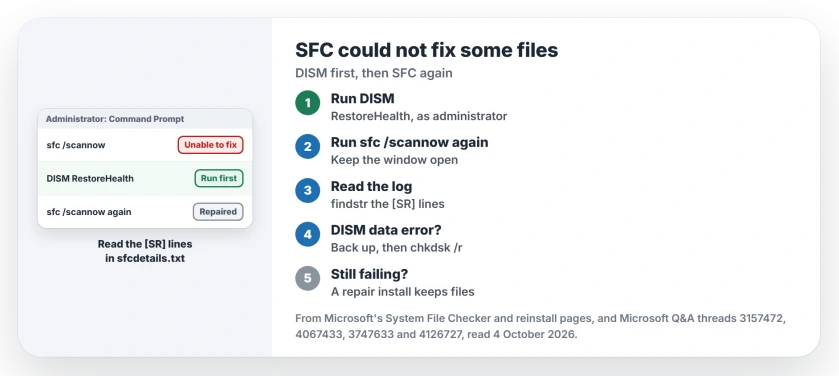
Status: checked 4 October 2026. Owners cleared it by running DISM and then SFC again, and one by a repair install that kept files and apps.
Run DISM, then SFC a second time
Open Command Prompt as administrator, type DISM.exe /Online /Cleanup-image /Restorehealth and press Enter.
Microsoft's order is plain: "You should run DISM prior to running the System File Checker." It also says DISM "uses Windows Update as the source to provide the necessary files".
If an update still fails with 0x800f0991 after a clean scan, owners added a third DISM command.
When DISM finishes, run sfc /scannow again. Microsoft adds: "Do not close this Command Prompt window until the verification is 100% complete."
An owner on a 60+ thread did exactly that. Their reply: "Worked great!" The second scan read "Windows Resource Protection found corrupt files and successfully repaired them."
On a 10+ thread another owner wrote: "following steps 1 and 2 got it fixed, I did not need to do an in-place upgrade." Owners report this pair working on both threads.
Read the log before you worry
Sometimes the message overstates the problem. On the 200+ thread, an adviser read the asker's log and found this: "SFC was successful, as per the supplied CBS log. No corrupt files were found and no replacements were made."
The asker had asked the right question: "should i ignore this". You can check your own log with one command from Microsoft's page:
findstr /c:"[SR]" %windir%\Logs\CBS\CBS.log >"%userprofile%\Desktop\sfcdetails.txt"It writes sfcdetails.txt to your desktop. Microsoft notes the file "contains details from every time that the System File Checker tool has been run on the computer", so read the newest dates.
Ours: look for lines saying Cannot repair member file. Those name the files SFC left broken. I would read them before running anything bigger.
When every 32-bit program fails with 0xc000007b, SFC is the first fix, as one owner found on a 900+ thread.
If DISM fails too
DISM can also stop for a reason outside Windows files. The 10+ asker got this error twice: "Data error (cyclic redundancy check)."
Ours: that error means part of the drive could not be read. Back up first, then run chkdsk C: /r, restart and try DISM again.
If Windows Update itself is broken, Microsoft's page gives a /Source switch. It points DISM at installation media instead of the internet.
If you ran SFC because your PC feels slow, two other checks come first. Ours: a damaged file is only one possible cause there.
A repair install keeps your files
When DISM and SFC still disagree, reinstall Windows over itself. On a 100+ thread an adviser said: "Since SFC found corrupted files but was unable to repair some of them, your best option is to perform an In-place Upgrade."
The asker's reply was short: "Thanks! It worked."
Microsoft calls it an in-place installation, "which essentially reinstalls Windows without affecting your personal files, settings, or installed applications".
On Windows 11, the Reinstall now button does this from Settings. It does not always finish. A later owner on that thread saw theirs fail at the restart, and the system "rolls back to it's original state".
What not to do
Do not download single system files from DLL sites. Microsoft's manual method takes a good copy "from another computer that is running the same version of Windows as your computer".
The DLL people most often go hunting for, MSVCP140.dll, is not a Windows file at all, and Microsoft's Visual C++ package puts it back.
One owner on the 60+ thread was firm about repair tools as well: "I don't download any software repair programs I'm not familiar with."
Ours: I would treat any download that promises to fix SFC errors as a risk, not a shortcut. DISM and a repair install are already on your PC.
When the missing file is cmd.exe itself, Microsoft's steps start in the very tool you lost. Open Terminal as admin and restore it from the store.
Can I just ignore the SFC message?
Not until you have read the log. One adviser found an asker's log clean. Run DISM and SFC again first.
How long does DISM RestoreHealth take?
Microsoft says: "It may take several minutes for the command operation to be completed." Ours: if the counter pauses, leave it running.
The one exception is a title starting with Select: a stray click has paused the window, and pressing Esc lets the scan carry on.
Does DISM need the internet?
By default, yes. Microsoft says it uses Windows Update as the source. Without a connection, its page gives the /Source option for installation media.
The Short Version
- SFC could not repair some files from its own cache.
- Run DISM /Online /Cleanup-image /Restorehealth first.
- Then run sfc /scannow again; owners report it fixed.
- Pull the [SR] lines into sfcdetails.txt before you worry.
- A DISM data error points at the drive. Back up first.
- Still stuck? A repair install keeps files and apps.
Where to Next
Open Command Prompt as administrator now and run the DISM command, then SFC again. If the second scan still fails, pull the [SR] lines out and read the newest ones.
What did your second scan say? Post its last line in the comments, and whether DISM finished.

Isaac Smith is the founder and editor of PC Glance, a website that covers computers, laptops, and technology. He is a tech enthusiast and a computer geek who loves to share his insights and help his readers make smart choices when buying tech gadgets or laptops. He is always curious and updated about the latest tech trends.