CRITICAL_PROCESS_DIED means an essential Windows process stopped. Start by disconnecting newly added hardware or reversing a recent driver change, especially if the crashes began straight after that change.
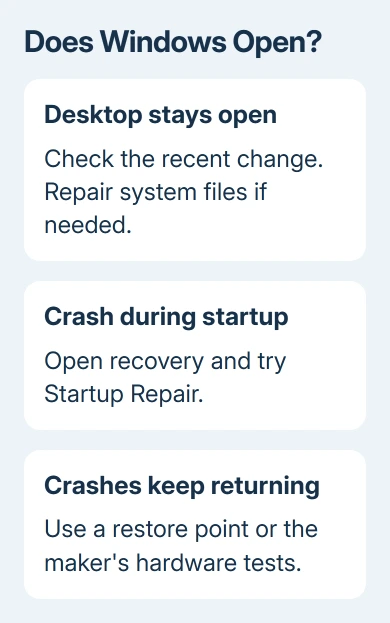
Damaged Windows files or failing hardware can also cause it. Follow the desktop repair steps if Windows stays open; use recovery tools for a startup crash loop.
In this guide
1. Remove the recent change and protect your files
Disconnect a newly added dock, USB drive, or other external accessory, then restart. Leave the usual keyboard, mouse, and display connected.
If Windows starts normally, reconnect the new accessory only after checking its driver and compatibility.
Note when the crash began: after a driver install, new hardware, a Windows update, or no clear change. Use that timing to decide which change to undo. Removing unrelated drivers makes it harder to tell what's helping.
Before starting recovery work, save your documents to spare storage while the desktop still opens. A Windows repair doesn't replace having an up-to-date copy of your documents.
Microsoft's 0xEF stop-code guidance lists recent hardware, drivers, system services, and system-file damage among the checks.
The stop code alone doesn't identify which one failed.
I'd follow a clear recent change before running a long collection of commands. A crash that began immediately after installing one device deserves a check of that device first.
2. Open the recovery tools for a startup loop
At the Windows sign-in screen, hold Shift while selecting Power > Restart. If the desktop works, Windows 10 also offers Settings > Update & Security > Recovery > Advanced startup > Restart now.
The blue recovery screen presents Choose an option. Select Troubleshoot > Advanced options to reach repair tools. If your drive is encrypted, you may need your BitLocker recovery key to unlock Windows for repair.
When Windows repeatedly fails to start, it may open automatic recovery itself. If it never reaches recovery, make Windows installation media using a working PC, boot it on the affected machine, and select the option to repair the computer.
The Windows USB startup guide helps if the computer ignores that installer. A USB stick visible in File Explorer isn't automatically a working bootable recovery device.
In Advanced options, choose Startup Repair for a machine that can't start. Let it finish and read its result. This tool addresses startup problems; it isn't a general cure for a crash that occurs only after hours of normal work.
If Windows starts afterward, check the next sections for the original trigger. If Startup Repair can't repair the PC, move to the recent-change or restore options instead of rerunning it without a different result.
3. Reverse the driver or update that started it
When Windows works normally or in Safe Mode, open Device Manager by right-clicking Start. Find the recently changed device, open Properties > Driver, and look for an available Roll Back Driver button.
Use rollback if the crashes began with that driver update. A grayed-out button means this control has no saved driver available to restore. Get the correct package from the PC or device manufacturer instead.
For Safe Mode, open recovery's Troubleshoot > Advanced options > Startup Settings > Restart. Choose Safe Mode with the 4 key (or F4). That starts Windows with a reduced set of drivers and services.
If the PC stays stable in Safe Mode, focus on recently added drivers, services, or software. It narrows the next checks, but hardware can still behave differently under a lighter workload.
When a Windows update immediately preceded the first crash, recovery's Advanced options > Uninstall Updates can offer removal of the latest quality update. Read the option carefully; it differs from removing an app in Settings.
After any rollback or uninstall, restart normally and repeat the activity that previously caused the crash. Record any return of CRITICAL_PROCESS_DIED. The next choices are file repair and restoring an earlier system state.
4. Repair Windows files from a working session
If the desktop is usable, search Start for cmd, open Command Prompt's right-click menu, and select Run as administrator. Accept the permission prompt. Keep the laptop on power while the repair runs.
Run DISM.exe /Online /Cleanup-image /Restorehealth first. DISM repairs the Windows component files used by the next tool. Wait for its result, then run sfc /scannow to examine Windows' protected system files.
These are commands for the Windows installation you're currently running. Don't paste the same online command into recovery's Command Prompt and assume it will repair the Windows installation on your disk.
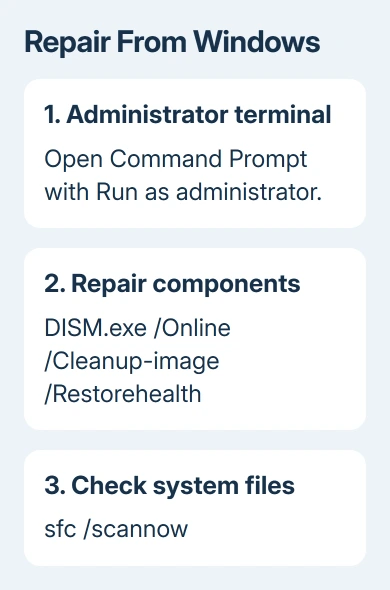
If SFC repairs files successfully, restart Windows before repeating the activity that was crashing. A no-integrity-violations result means SFC found no damage among the protected files it scanned. Driver and hardware checks still matter.
Save the final error if DISM stops unsuccessfully or SFC leaves damaged files unrepaired.
Microsoft's system-file repair instructions explain the results and repair-source options.
Use the SFC and DISM guide for the fuller repair workflow. Don't download individual Windows DLL files from unrelated download sites to replace files named in a crash report.
5. Restore an earlier state or check the hardware
In recovery, select Troubleshoot > Advanced options > System Restore when you have a point saved before the crashes started. Review the date and affected programs.
System Restore undoes system changes; it isn't a backup for your personal documents.
With desktop access, inspect Event Viewer > Windows Logs > System around the crash time. Record repeated disk or device errors that occur before the restart, along with the stop code and any named driver.
Run the PC maker's hardware diagnostics, especially storage and memory tests. If the storage test fails, focus on protecting your files and arranging a repair. Reinstalling Windows won't repair a physically failing drive.
If the tests pass but crashes persist, ask the manufacturer or a qualified repair service to examine crash dumps and the recorded events. Give them the full PC model, Windows build, recent changes, and the steps that reproduced the error.
Reset or reinstall Windows only after checking the backup and hardware results. Reset's keep-files choice still removes apps and settings, and a clean installation can remove everything.
Make sure you're comfortable with what that recovery method will remove before starting.
Windows 10 reached its free-support cutoff on October 14, 2025. After recovery, check your PC's extended security coverage or its eligibility for a newer, supported Windows release.
Decide about upgrading after checking the drive. An upgrade won't fix a failing drive.
The Short Version
Start by reversing the hardware, driver, or update change. Use recovery tools for a startup loop, DISM then SFC for a usable Windows session, and hardware tests if crashes continue. Preserve files before resetting or reinstalling.
Checked November 16, 2026.