
You open Task Manager and Antimalware Service Executable sits at 30 or 80 percent. The fan runs flat out. It is not a virus: it is Microsoft Defender, and the answer with the most votes tells you to exclude it from itself.
I would find out what Defender keeps scanning instead. Microsoft ships a recorder for the job. The owner who marked their own thread solved excluded two other programs, not Defender.
Your antivirus stays on the whole time.
A 2019 thread on Microsoft's Q&A carries 3,900+ Same question votes.
Why it runs so hard
Defender checks files as programs open them. Microsoft's exclusions page says it runs "scanning files and processes that you open or download looking for malware."
High use during a scan is normal. Hours of it with nothing open points at some program that keeps handing Defender files. That program is what you are looking for.
OneDrive can sit in the same kind of loop, where a program writing into a synced folder keeps it busy.
WMI Provider Host works the same way, answering for another program, and its own log names the program asking.
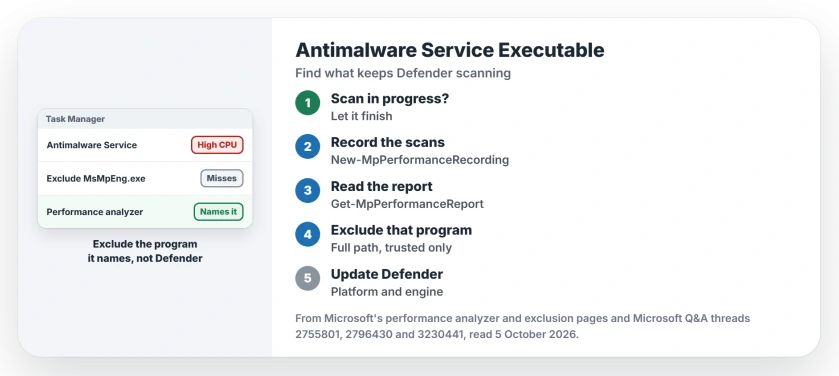
Status: checked 5 October 2026. One owner fixed it by excluding the two programs Defender kept scanning. Excluding MsMpEng.exe changed nothing for owners in 2018 and 2026.
Is a scan running?
Open Windows Security and choose Virus and threat protection. A scheduled or quick scan in progress shows there, and the load drops when it ends.
Microsoft caps scans by default. Its PowerShell page says of the scan limit: "The default value is 50." It adds that this is "not a hard limit but rather a guidance" for the engine.
Why excluding MsMpEng.exe misses
On the 1,800+ thread, the answer with 700+ helpful votes tells you to exclude MsMpEng.exe. Later replies say otherwise: "It's doesn't solve the problem." A February 2026 asker listed it among the things that failed.
Microsoft explains what a process exclusion does: "any file opened by that process will be excluded from real-time scanning." Ours: it names whose files to skip, so it cannot tell Defender which program is causing the scans.
A reader on that thread with 200+ helpful votes asked the obvious question: "Like some kind of recursion bomb?" It was reported working by a 2014 owner on Windows 8, so results vary.
Record what Defender is scanning
Microsoft's tool is the performance analyzer, built into Defender on Windows 10 and 11. Microsoft says it "helps you determine files, file extensions, and processes that might be causing performance issues".
Open PowerShell as administrator while the fan is loud, then start a recording:
New-MpPerformanceRecording -RecordTo C:\defender.etlWait a minute or two. Microsoft's instruction is "Press ENTER to stop and save recording". Then read the result:
Get-MpPerformanceReport -Path C:\defender.etl -TopProcesses 10 -TopFiles 10The process list is the useful part: those are the programs whose files Defender keeps scanning. One 2024 reader said the report command did not work, and another reader explained why: there was no recording yet. Record first.
Exclude the program it names
That owner found theirs by checking old exclusions. They had excluded older versions of Visual Studio and SQL Server, not the new ones. They added the two new programs and rebooted: "I finally have my machine back again!"
Add yours in Windows Security: Virus and threat protection, Manage settings, Add or remove exclusions, Add an exclusion, then Process.
Microsoft's exclusion steps advise the full path: "It's recommended that you use the full path and file name to exclude a specific process."
Exclude only programs you trust. Microsoft warns "Excluding a file or process from antivirus scanning can make your device or data more vulnerable." Its list of processes never to exclude includes cmd.exe, powershell.exe and svchost.exe.
A 2023 owner saw Defender near 30 percent whenever Firefox loaded a page and excluded Firefox. Ours: I would not exclude a browser, because it opens everything you download.
Update Defender
A Microsoft employee answered a May 2026 asker in one line: "Ensure you are on the latest platform and engine". Open Virus and threat protection, Protection updates, then Check for updates.
Some cases cleared with time. A 2023 owner wrote that the CPU use "has returned to normal" after two weeks, and the 70+ asker reported the same in June 2026.
What not to do
Turning real-time protection off leaves you unprotected. A 2018 owner found that switching it off was all that helped, then added: "which doesn't feel like a very good solution."
Defender switched off is a bigger problem than a busy fan.
The Task Scheduler trick, unticking the scan conditions. A reader with 200+ helpful votes called it "a difficult and fragile hack". An owner who tried it with the exclusion wrote: "However, after a restart the issue persists."
Can I end Antimalware Service Executable in Task Manager?
No, and you will see access denied if you try. A 2026 reader whose account was an administrator wrote: "I cannot figure out why access is denied when I try to stop the process." Ours: Windows protects it so that malware cannot stop it either.
Why does it use so much memory?
Some use is normal. A Microsoft volunteer moderator wrote: "In an idle state, it's perfectly normal to see msmpeng.exe consuming 100-130 MB of memory." Memory use in general reads higher than it is.
Should I install another antivirus to stop it?
Ours: that swaps one scanner for another, and the program triggering your scans will trigger those too. I would find the trigger first.
Before replacing the security product, check what Windows already provides. Extra features and scan performance are different reasons to buy.
The Short Version
- A scan in progress? Let it finish.
- Excluding MsMpEng.exe misses the cause.
- Record with New-MpPerformanceRecording, read Get-MpPerformanceReport.
- Exclude the trusted program it names, by full path.
- Update Defender's platform and engine.
- Leave real-time protection on.
Where to Next
When the fan starts again, open PowerShell as administrator and record two minutes with the analyzer. The top process in the report is your trigger.
Which program was it for you? Name it in the comments, because other owners of that software will hit it too.

Isaac Smith is the founder and editor of PC Glance, a website that covers computers, laptops, and technology. He is a tech enthusiast and a computer geek who loves to share his insights and help his readers make smart choices when buying tech gadgets or laptops. He is always curious and updated about the latest tech trends.