

To start Windows 11 in Safe Mode, use Startup Settings in the recovery menu. If tapping F8 only starts Windows normally, use Shift + Restart instead, then choose Troubleshoot > Advanced options > Startup Settings > Restart and press 4.
A recovery-key prompt, a missing Startup Settings tile, and a password rejected at sign-in are different blocks. Start with the screen your PC is showing before changing boot settings.
In this guide
1. Use a one-time restart from Windows or the sign-in screen
Save your open work. From the desktop, open Settings > System > Recovery. Beside Advanced startup, select Restart now and confirm the restart when asked.
Without access to Settings, open Start > Power, hold Shift, and select Restart. The same Shift and Restart combination works from the power button on the Windows sign-in screen, so you don't have to sign in first.
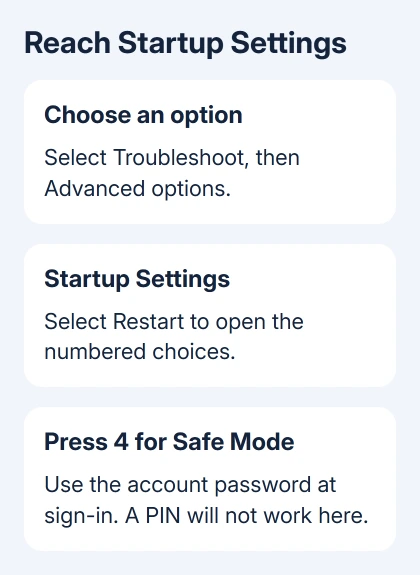
Wait for Choose an option, then open Troubleshoot > Advanced options > Startup Settings. Select Restart there. Safe Mode is chosen on the next screen, not by clicking Startup Settings alone.
If the PC returns directly to ordinary Windows, try the Settings route if you used the keyboard route, or the keyboard route if Settings failed. Both open recovery without setting the PC to start in Safe Mode every time.
The Windows 10 Safe Mode procedure uses a different Settings location. In Windows 11, Recovery belongs under System, so older Update & Security instructions won't match your screen.
2. Choose the numbered option after the second restart
On the numbered Startup Settings screen, choose 4 (or F4) to request Safe Mode. Use the number key if F4 operates a brightness or volume control. For networking support, select 5 or F5 instead.
Option 6 starts Safe Mode with Command Prompt. It replaces the usual desktop with a command window. Choose ordinary Safe Mode if you need the usual desktop controls for the repair.
Pressing Enter starts Windows normally. If you reached the numbered screen but accidentally used Enter, repeat the recovery route and choose 4. That behavior doesn't mean Safe Mode is broken.
Microsoft's Startup Settings instructions describe these numbered choices. After sign-in, Safe Mode normally has a simpler-looking desktop and identifies itself in the screen corners.
Networking mode adds network drivers and services. It doesn't repair a failed internet connection by itself. If plain Safe Mode starts but networking mode crashes, report that difference when asking for driver help.
3. Treat BitLocker and sign-in passwords as separate requests
The BitLocker recovery screen needs the drive's recovery key, rather than your password or daily sign-in PIN. Retrieve that key through the PC owner's account or the organization managing it.
The key's identifier helps you choose the correct entry when several devices are listed. For an organization-owned PC, ask IT for the key matching that identifier before continuing with recovery tools.
At the Windows Safe Mode sign-in screen, use the account password. PIN, fingerprint, and face sign-in aren't available there. Knowing the everyday PIN doesn't mean you know that password.
I'd check the account password while ordinary Windows still works. Return there to sort out sign-in access first. If you reach Safe Mode but can't log in, work on account access rather than startup repair.
If the password itself needs recovery, use the account provider's password-reset process. Reinstalling Windows to get past a password prompt is far more disruptive than resolving the account access problem.
4. Open recovery when Windows won't reach sign-in
If Automatic Repair already appears, select Advanced options and use the Startup Settings route. Use the recovery screen that's already open. Another interrupted boot won't help.
For a failing startup, switch on and watch for the manufacturer or Windows logo. Hold Power until the PC turns off. Interrupt two starts this way, then leave the third start running.
Windows should enter automatic repair. Select Advanced options > Troubleshoot > Advanced options > Startup Settings, select Restart, then choose 4 when the numbered list appears.
Use those forced shutdowns only for an already-failing startup, never during a BIOS or firmware update. A working sign-in screen gives you the gentler Shift and Restart method from section 1.
If the PC has no logo or display at all, start with the black screen startup checks. Safe Mode can't fix a display or power failure that prevents the machine from reaching Windows startup.
5. Use recovery tools when Startup Settings isn't available
Some recovery screens won't offer the tile you expect. Check Advanced options for any additional recovery choices. Leave Reset this PC alone while looking for startup options. It can remove installed applications.
An external recovery drive or installation USB can open repair tools when built-in recovery fails. Create official Windows media on another PC, then use your computer maker's boot-menu instructions to start from that USB.
Select Repair my PC or Repair your computer, depending on the installer, rather than the installation command. A USB drive won't necessarily show every tool available in the PC's built-in recovery menu.
For an ongoing startup failure, try Startup Repair if available. If Startup Settings stays absent, ask the PC maker to help restore recovery access.
Before trying commands that change how Windows starts, tell the maker whether recovery came from a USB drive or the PC itself, and which tiles you see.
6. Escalate a crash inside Safe Mode with the exact result
Safe Mode still loads essential Windows components and drivers. If it crashes too, photograph the stop code and say whether the crash occurs before or after sign-in. That gives the repair team the error and the point where it happens.
If the PC starts in Safe Mode, check whether the original problem still happens, then restart normally. If every restart keeps returning to Safe Mode, open Windows+R, type msconfig, and clear Safe boot on the Boot tab.
Ask the maker or IT team about keeping your files during recovery. Send the stop code, whether you have the recovery key, and the Startup Repair result. Copy important files somewhere safe before authorizing reset or reinstallation.
The Short Version
Open recovery using Shift with Restart or System > Recovery. Choose Startup Settings, restart again, and select 4. Keep drive recovery keys separate from sign-in passwords. Missing tools or repeated crashes need startup recovery.
Checked November 15, 2026.
 If you have any business, I can build it online






