
Forza can ignore a controller that's already connected to your PC when another device or controller-mapping app gets in the way. Start with one gamepad plugged directly into the computer, then check whether its buttons work outside Forza.
If its buttons respond in Windows, check the game's settings next. If the pad only lights up, check its connection first. This tells you whether the trouble starts before the game receives any input.
1. Launch Forza with one controller connected directly
Close the game before changing connections. Disconnect other gamepads, steering wheels and unnecessary USB accessories. Connect your pad to the computer's own USB port, keeping the keyboard and mouse available.
Skip a dock, hub or USB switch for this check. Choose a USB cable with data support; a charging light tells you the pad has power, but doesn't show that its button presses reach Windows.
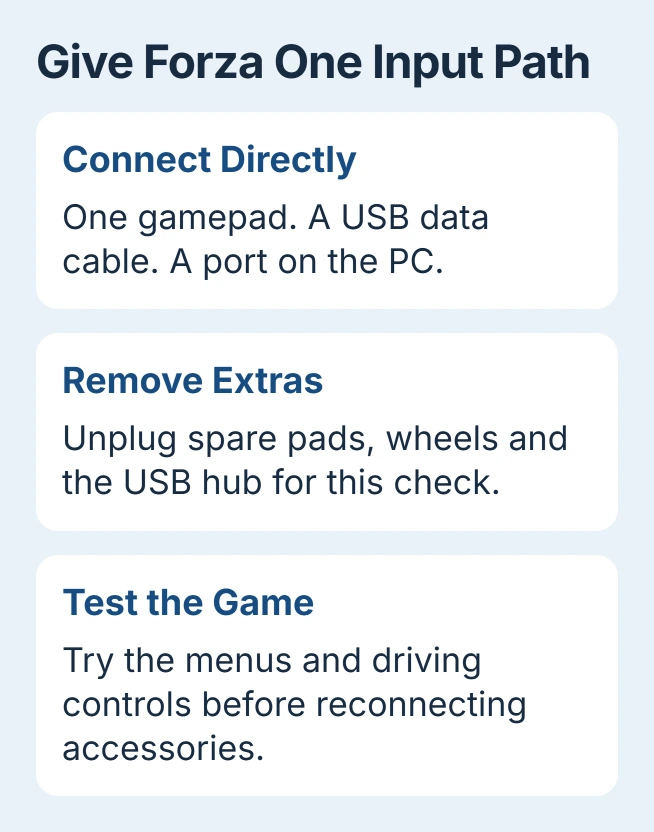
Start the game again and try the controller in its menus. If it responds, test steering, braking and acceleration during play too. Menu navigation alone won't show whether every driving control is assigned correctly.
If removing the extra devices helped, reconnect them separately between tests. Keep track of which addition brings the fault back. That's more useful than leaving every accessory disconnected permanently.
Forza's controller guide lists direct USB connections, different ports and disconnecting other devices. I'd make this comparison before reinstalling a large game.
2. Check what Windows receives from the pad
Open the Windows controller input panel and select your gamepad. In its Properties window, try the input test. Move the sticks and press buttons while watching the indicators.
The test looks different depending on your controller's driver. Watch whether each indicator changes when you use that control. Seeing the device's name in a list isn't enough; its buttons need to respond too.
If nothing responds, try another USB port and a known data cable. If the pad still doesn't appear or respond, check its connection or driver before changing Forza's settings.
If the controls work in that window, move on to the game checks. Windows is receiving your button presses; next, check how Forza or a mapping app handles them.
An Xbox controller that never connects wirelessly needs the Xbox pairing and model checks. Some older pads require a cable or compatible wireless adapter rather than Bluetooth.
3. Rebuild Bluetooth pairing when USB works
Try this only if your controller works over USB but fails over Bluetooth. On an Xbox pad, hold its Xbox button for five to ten seconds until it turns off. Wait briefly, then turn it on again.
If the wireless connection still fails, open Settings > Bluetooth & devices > Devices in Windows 11. Find the controller, open its options and choose Remove device. Then put the pad into pairing mode using your model's instructions.
Choose Add device > Bluetooth and select the controller again. On Windows 10, manage Bluetooth devices through Settings > Devices > Bluetooth & other devices. Test Forza after pairing finishes.
The Windows Bluetooth pairing controls handle the PC connection. If your controller uses a dedicated wireless receiver, follow that receiver's pairing steps instead.
If the same pad keeps working wired, use that connection while you check its wireless support. Keep the game's settings as they are while you sort out Bluetooth.
4. Remove competing Steam controller conversions
Close Forza and open Steam > Settings > Controller. Check the support and layout settings for the controller you're using. Also check whether a separate controller-mapping app is running.
Mapping software turns button presses into another controller type or keyboard input. When two apps do this at once, the game can receive input from a different device than the one you're holding. Check one setup at a time.
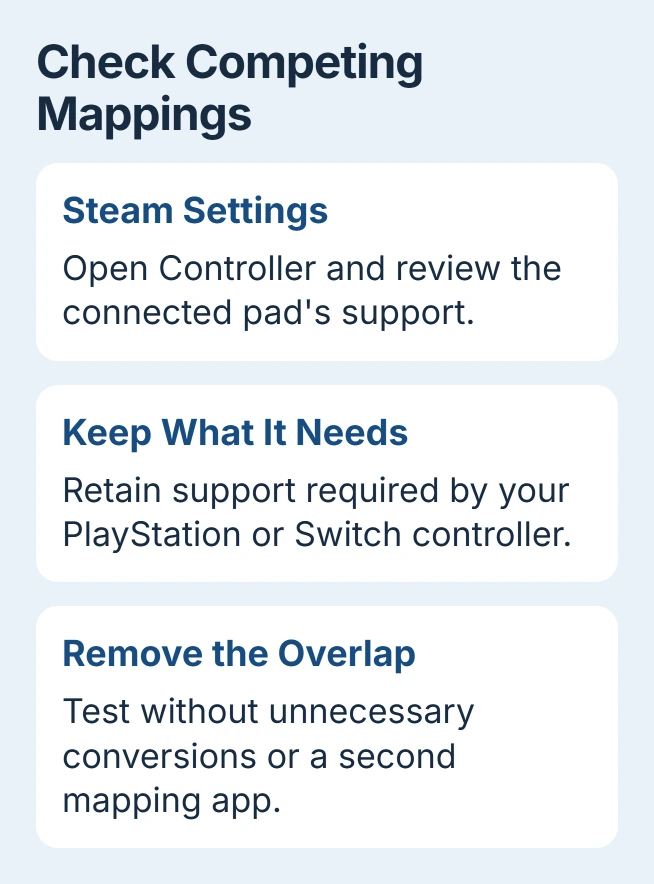
Turn off conversions you don't need, but keep the support your pad uses. A PlayStation or Switch controller may need its conversion to work with the game, so don't disable every controller option at once.
Open Forza again after the change. If it now responds, keep that setup before adding another mapping app or layout. If it still doesn't respond, undo that change and continue.
For a copy launched through the Xbox app, check whether Steam or another mapping app is running in the background. These apps can compete for your controller's input even when Steam didn't launch the game.
5. Update the controller's own software
For an Xbox controller, open Xbox Accessories on your PC and check the connected controller for an update. Connect it as the app directs and keep it attached until the update finishes.
This updates the software inside the pad, often called firmware. It's separate from installing a Windows driver. Updating one doesn't automatically update the other.
For a third-party controller, use its manufacturer's supported app and instructions. Xbox Accessories doesn't update every gamepad with an Xbox-style button layout.
After the update, close the app and repeat the same Forza test. If it still fails, note your controller model and firmware version for support.
6. Check the device driver and Windows updates
Open Device Manager from Start and find the controller. The category depends on your model; some pads won't appear under Xbox 360 Peripherals. Right-click the matching device and choose Update driver.
Select Search automatically for drivers, then follow the on-screen instructions. The driver update instructions also explain how Windows Update supplies hardware drivers.
In Windows 11, check Settings > Windows Update and install applicable updates. Restart if asked, then try the same controller, connection and game again to see whether anything changed.
7. Report a game-only failure with the useful details
If the controller works in Windows and other games but still fails in Forza, contact Forza Support. Include your exact game, Steam or Xbox app edition, controller model, connection type and any mapping software.
Say whether the menus work, whether only driving fails, and whether direct USB changes the result. For a wheel, use the game's wheel-support instructions; a working gamepad doesn't tell you whether your wheel is supported.
The Short Version
Plug one pad into your PC, test its buttons in Windows, and remove competing mappings. Fix Bluetooth pairing only if USB works. Update the controller and driver, then contact support if it still fails only in Forza.
Checked November 5, 2026.

Isaac Smith is the founder and editor of PC Glance, a website that covers computers, laptops, and technology. He is a tech enthusiast and a computer geek who loves to share his insights and help his readers make smart choices when buying tech gadgets or laptops. He is always curious and updated about the latest tech trends.