

Safari can get stuck reopening a tab that crashes the app before a usable window appears. Quit Safari, then hold Shift while opening it to start without restoring the previous windows.
That check helps you tell whether the old tabs are causing the crash. If Safari still won't open on your Mac, restart, install the available updates and try it in safe mode.
1. Quit the stuck copy and open without old windows
Press Option + Command + Esc to open Force Quit Applications. Select Safari, then choose Force Quit. If Safari isn't listed, close the dialog and continue with opening the app.
Force quitting can discard unsaved work in an open webpage, such as a form. Use it when Safari won't respond to an ordinary Safari > Quit Safari command.
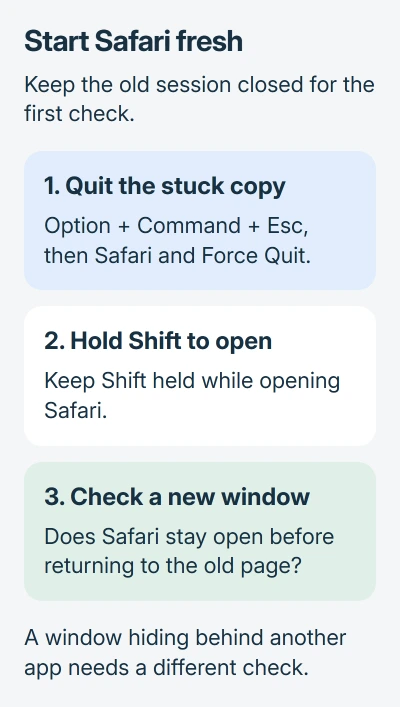
Hold Shift while clicking Safari in the Dock or opening it from Applications. Release Shift after the app opens. Apple's window-reopening instructions describe this way to leave the previous windows closed.
If a fresh window stays open, try a different page before returning to the one that was open during the crash. Check whether only that page causes the crash or Safari closes before it loads anything.
I'd try this before clearing browsing history because it leaves your saved browsing information alone. If it doesn't help, keep the old windows closed and restart your Mac next.
2. Check whether Safari is running without a visible window
Click Safari's Dock icon and look at the menu bar. If it says Safari, press Command + N to create a new window. An app can be running even when every browser window has been closed.
Check the Window menu for an existing window too. If selecting it brings a working page forward, Safari is already open. You were looking for its window, and the app hasn't crashed.
For a window that opens behind another one, check the Safari window-activation setting. It can explain why clicking a link seems to do nothing, but a crash needs a different fix.
If the new window opens and responds normally, keep browsing. If Safari disappears, shows a crash report or won't create a window, try the restart and update checks next.
3. Restart and install the Safari update your Mac offers
Save work in your other apps. Choose Apple menu > Restart and let the Mac start normally. Then open Safari directly, before reopening the pages or extra apps you were using when it failed.
If Safari still won't open, go to System Settings > General > Software Update. Install what's offered for your Mac, including a separate Safari update if one appears.
On older macOS versions, the route begins with System Preferences > Software Update. The Safari update guide explains the operating-system update route when the controls differ.
Safari comes with macOS. The official update instructions use Software Update rather than a separate installer downloaded from a search result.
Restart if prompted, then try opening Safari with Shift held again. If it opens, try the page that failed earlier. If it still closes, check whether you can get to its extension settings.
4. Turn off extensions if Safari stays open long enough
Open Safari > Settings > Extensions. Older versions call the settings window Preferences. Deselect each enabled extension, quit Safari normally and open it again.
Extensions add features such as content blocking, password filling or page tools. If turning them off stops the crash, check which one caused it before trying to repair Safari itself.
If Safari works, turn on one extension, reopen the app and repeat what caused the crash. Check each extension this way. Update the one that brings the crash back, or leave it turned off.
The Safari troubleshooting steps include this check. Use the same page for each extension so you can tell whether turning it on brings the crash back.
If Safari crashes before you can open Settings, go straight to safe mode. Trying to beat the crash by clicking faster won't help; safe mode lets you check how the app starts instead.
5. Compare Safari in safe mode
Safe mode leaves some startup software turned off and clears certain caches, which are temporary system files. Open the Apple menu and check About This Mac to see whether your processor is Apple silicon or Intel.
For Apple silicon, shut down your Mac. Keep its power button pressed. When startup options appear, select the startup disk. With Shift held, choose Continue in Safe Mode, then log in.
For an Intel Mac, turn it on or restart it, then immediately hold Shift until the login window appears. Sign in. Some Macs ask for a second login before the desktop finishes opening.
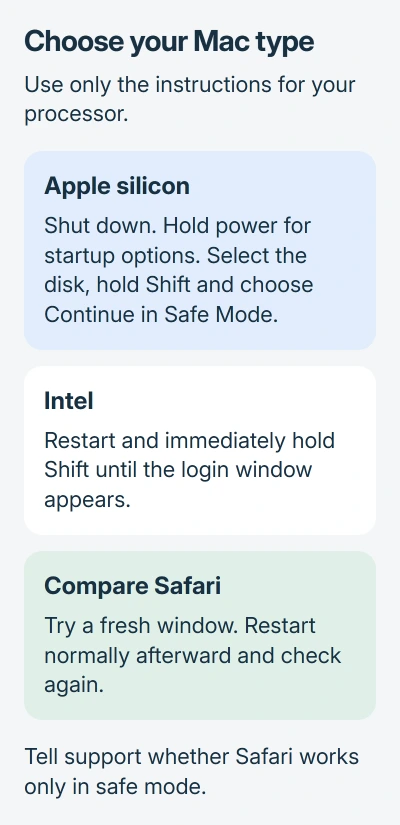
Open Safari and try creating a fresh window. Use the safe-mode procedure if your startup screen looks different or you're unsure whether safe mode is running.
Restart normally afterward. If Safari now works in both modes, the startup checks or cleared caches may have fixed it. If it works only in safe mode, mention that when getting help with login items or other startup software.
6. Escalate a startup crash with the useful details
If Safari still fails after updates and safe mode, contact Apple Support. Tell them your macOS version, whether holding Shift helped and whether Safari stayed open in safe mode. Include the crash report if one appeared.
Make a fresh backup if support recommends reinstalling macOS. Safari's installation may need repair, but deleting browser folders or resetting your Mac is a poor first step when you don't yet know why it's crashing.
If Safari opens normally and only one website fails, describe that as a page problem. Tell support whether a new private window works and whether another browser loads that page; don't report the whole app as unable to open.
The Short Version
Quit the stuck copy, then hold Shift while opening Safari. Check for a hidden window, restart and update, disable extensions if accessible, and compare safe mode. Give support the startup and crash results if it still fails.
Checked November 5, 2026.

Isaac Smith is the founder and editor of PC Glance, a website that covers computers, laptops, and technology. He is a tech enthusiast and a computer geek who loves to share his insights and help his readers make smart choices when buying tech gadgets or laptops. He is always curious and updated about the latest tech trends.