Safari can feel slow on a Mac because a website's stored data, an extension or the network is holding up page loading. Start by reloading the page, then compare a private window before clearing anything.
A page that takes ages to appear calls for different checks than choppy scrolling on a page that has already loaded, or a Mac where every app is struggling.
In this guide
1. Reload the page and compare a second site
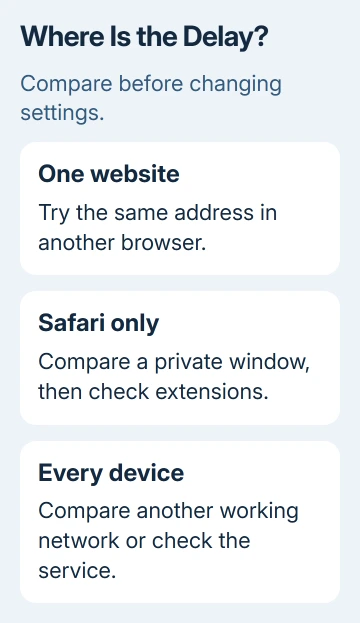
Press Command-R in the slow tab. If the page won't finish, open a different familiar website in another tab. Notice whether you're waiting for anything to appear or whether the page gets stuck after most of it has loaded.
A single slow website doesn't justify resetting the whole browser. Try that same page in another browser, if one is installed.
When several browsers struggle with the same site but other sites work, the problem points to that website's service or content.
If Safari itself won't respond to clicks, press Option-Command-Esc, select Safari and choose Force Quit. Open it again. Hold Shift while opening Safari if the same troublesome windows keep returning.
Force quitting can interrupt unfinished work in a web form, so copy any text you can still access first. Once the app responds, retry one page rather than restoring a large group of troublesome tabs immediately.
If all browsers are slow, jump to the network comparison in section 5. If only Safari is affected, continue with a private window. That saves you from clearing browser data when the connection is the problem.
2. Use a private window to check the site's saved data
Choose File > New Private Window, or press Shift-Command-N. Enter the slow page's address there. Private browsing gives the site a separate session, so it doesn't use saved data from your regular window in the same way.
If the page loads normally there, return to a regular window before making a permanent change. Private browsing is a useful comparison, not a reason to delete all your browsing history or assume the website is fixed.
Open Safari > Settings > Privacy > Manage Website Data. On older versions, the menu is Safari > Preferences. Search for the affected site, select it, choose Remove, then Done.
Make sure you know that site's login details first. Removing its data can sign you out and remove preferences it stored in the browser. Keep this targeted to the slow site instead of selecting every entry as the first attempt.
Load the website again outside private browsing and sign in again if asked. If the page now loads normally, clearing that site's data helped. If it is still slow, move to extensions rather than repeating the same removal.
Apple says to compare private browsing and stored data in its Safari troubleshooting steps. They also cover website permissions when a particular site needs a setting Safari currently blocks.
3. Turn extensions off without uninstalling them
Open Safari > Settings > Extensions, or Preferences > Extensions on an older Mac. Deselect each extension to switch it off, then reload the slow page. Keep the extension installed while making this comparison.
An extension can change what a page shows, filter its connections or add controls. Disabling it tests whether it's slowing the page without changing the website's files or your network settings.
If loading improves, enable each extension separately, reloading the page after each change. When the delay returns, update the extension you just enabled or leave it off. Check its own settings if it offers an exception for that site.
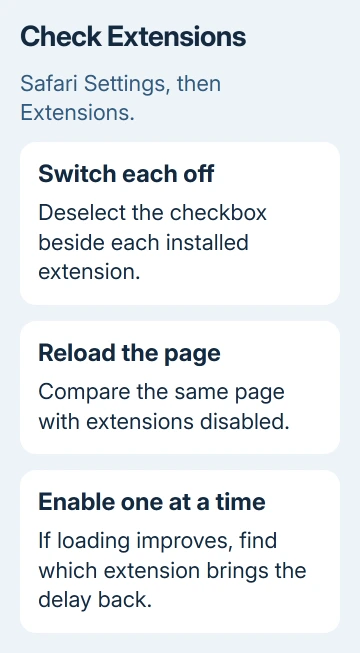
When all extensions are off and nothing improves, turn your needed extensions back on and continue. I'd check extensions before deleting browser data in bulk because it's easier to reverse and gives a more useful answer.
Don't assume that a private-window result has already ruled out extensions. An extension's permissions can differ between regular and private windows. Check Extensions settings directly instead of relying on the private-window result alone.
4. Check Private Relay and site-specific settings
For an iCloud+ account using Private Relay, open the slow page and choose View > Reload and Show IP Address if that item is available. It reloads this website without Private Relay for the comparison.
Safari offers this item when the network has Private Relay enabled. Its absence isn't another Safari fault. Continue to the next check instead of hunting for a missing switch.
If the page now works, Private Relay is affecting how that site loads. Avoid switching off every privacy control across the browser. Keep the comparison limited to this website so your other protections stay in place.
Check Safari > Settings > Websites when the page needs a feature such as pop-up windows or permission to download. Use the affected site's entry. These permissions matter when a page is waiting for an action that Safari is preventing.
A page that loads but scrolls unevenly belongs to the separate Safari scrolling-stutter checks. Removing website permissions won't correct every display or scrolling problem.
5. Compare the connection and update Safari
Visit the troublesome address from a different device connected to that Wi-Fi. Then compare a different working connection on the Mac if one is available. A phone hotspot can help, provided the plan has enough data for this comparison.
If every device struggles on the home network but works elsewhere, check the router or internet service. If only this Mac struggles across browsers, inspect any VPN or network-filtering software you installed.
Temporarily disconnect a personal VPN through its own app, then retry the page. On an employer's Mac, ask IT to check the filter instead of removing managed software.
If that changes the result, tell support which app or connection made the difference.
Safari updates arrive through macOS updates. Open Apple menu > System Settings > General > Software Update. Older macOS releases use System Preferences > Software Update. Apply the offered Mac updates and restart afterward.
The Safari update instructions explain why there isn't a separate current browser installer to download. Restarting after the update lets its background changes take effect too.
Report a delay that survives these checks
In Safari 26 or later, reload the affected website, open Page Menu from the address field and choose Report a Website Issue. Describe the loading problem and submit the report.
That item appears after reloading on supported versions.
For delays across many sites, contact Apple Support with your macOS and Safari versions, an example address, and the results from another browser and connection.
Tell support what changed during those checks so they can focus on Safari or the connection.
The Short Version
Compare another site, then a private window. Delete data for the troublesome website only, test extensions and compare Private Relay when available.
Check the connection when multiple browsers struggle, update through macOS and report persistent site-specific delays with the exact address.
Checked November 13, 2026.