A Mac can show Bluetooth headphones as connected while sending its sound to the built-in speakers or a monitor. Select the headphones in Sound output first, then check the playing app's own speaker choice if only that app stays silent.
Silence and thin, quiet audio need different fixes. If music quality drops when a call starts, the headset mic can be changing Bluetooth audio mode. For headphones missing from the output list, follow the connection and pairing steps.
In this guide
1. Send the Mac's sound to the headphones
Start a familiar audio file or song. Open Apple menu > System Settings > Sound, then select Output. Choose your Bluetooth headphones in the device list instead of the Mac speakers, display or another accessory.
On macOS Monterey and earlier, open System Preferences > Sound > Output. The settings window looks different, but the important choice is still the named listening device.
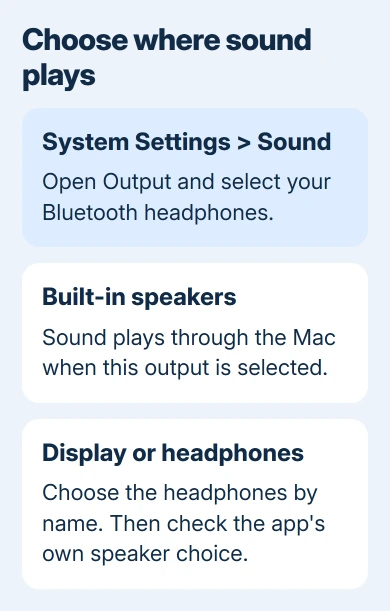
Set a moderate Output volume and clear Mute where those controls are offered. Also check the headphones' own volume control. Some accessories manage volume differently, so a missing Mac slider isn't a reason to remove the device.
Apple's sound output instructions explain the device selection and available volume controls. Play the audio again after changing the output, rather than relying on the Bluetooth connection label.
If sound moves from the speakers into your headphones, the Mac was sending it to the wrong device. If the headphones are selected but still silent, leave the music playing while checking the next controls.
2. Separate one silent app from system-wide silence
Try a second app with a known audio file. A song that plays in one app confirms the headphones can receive sound from this Mac, even if your meeting or browser is silent.
Check the silent app's own audio controls. In a calling app, open its audio settings and set its speaker or output to your headphones. The app can remember a different output from the one you've chosen for the Mac.
For a browser video, check the player's mute and volume control, then check whether the tab or site has been muted. Resume playback after changing it. A paused video won't tell you whether the new output works.
If every app is silent, switch Sound output briefly to the built-in speakers. If the speakers work, focus on the headphones' connection and output settings. Silent speakers too call for the broader MacBook sound checks.
I'd use this comparison before forgetting the headphones. It takes little effort and keeps a single muted app from turning into an unnecessary pairing session.
3. Confirm the headphones are connected to this Mac
Open System Settings > Bluetooth and find the headphones. For a disconnected entry, power on the headphones, then click Connect. A remembered device isn't necessarily carrying audio now.
Check the battery and the accessory's power indication. If the headset powers off or keeps announcing a low battery, charge it before changing more Mac settings.
If a nearby phone is using the headphones, pause its playback and disconnect that phone's Bluetooth connection to the headset for this comparison. Models with more than one connection can switch sources in different ways.
Return to Sound > Output and choose the headphones again. If they now play, reconnect the phone later and check the headset maker's instructions for switching between devices.
A device that repeatedly disconnects needs a connection check, while one that stays connected and plays quietly belongs in the next section. Tell support which of those problems you're getting.
4. Clear the quiet, low-quality call mode
Music that becomes thin, quiet or crackly when a chat app opens can mean the headphones are handling both listening and microphone input. Bluetooth changes modes to support that two-way audio.
Quit apps using the headphones' microphone, including video-call and voice-chat apps. Also close the Sound settings window, whether it's in System Settings or the older System Preferences. Try your music again.
Open Control Center > Sound. Choose the Mac's built-in speakers, then select the Bluetooth headphones again. This selects the headphones again after you've closed the apps using their microphone.
Apple's Bluetooth audio guidance gives this sequence for reduced sound quality. It explains why a headset can sound fine for music and change as soon as the microphone is in use.
For calls where you want to keep listening through the headphones, try the Mac's built-in microphone as the input in the calling app. The headphones remain the output. This depends on the app allowing separate input and output choices.
Check the result with another short recording or call. A clear music track after closing the call app fits this mode change; it doesn't explain a headset that never appears as an output device.
5. Pair again when the output stays missing
Put the headphones close to the Mac. In System Settings > Bluetooth, Control-click the device and choose Forget, then confirm. Have the headset's pairing instructions ready before removing the saved connection.
Follow the maker's button sequence to enter pairing mode. Wait for the headphones to appear under nearby devices, then choose Connect. Pairing mode is different from simply switching the headphones on.
On older macOS versions, remove the device from the Bluetooth pane in System Preferences, then pair it again there. The removal control can differ from the newer Control-click menu.
Once paired, select the headphones under Sound output and replay the same audio. Pairing again doesn't replace choosing the headphones as your sound output.
If the maker's instructions call for a headset reset after pairing fails, use the headphone reset guide to distinguish a reset from ordinary pairing. Don't borrow another model's button sequence.
6. Use the second-device result to choose support
Test the headphones on another compatible phone or computer. If they stay silent there too, ask the headset maker for help checking the device, controls and firmware. Include the exact model and connection behavior.
If they work elsewhere but not on this Mac, restart the Mac and check System Settings > General > Software Update for available macOS fixes. Older systems put Software Update in System Preferences.
For a persistent Mac-only failure, ask Apple Support about Bluetooth audio output. Give the macOS version, headphone model, whether it appears in Sound output, and whether the built-in speakers play the same file.
The Short Version
Choose your headphones as the Mac's output, then check the app's speaker choice. For quiet, poor-quality music, quit microphone-using apps and reselect the output. Re-pair missing headphones and compare another device before support.
Checked November 13, 2026.