One working USB port and one missing device usually point to the connection on that side, its power supply, or the accessory itself. Move the same device and cable between the MacBook's ports first.
If it works on the left but not the right, check System Information before changing Finder settings.
An empty port doesn't have to appear as a named item in Finder. The useful question is whether macOS detects the device connected to it. Older Intel MacBooks also need different power-reset steps from newer Apple silicon models.
In this guide
1. Compare the same device on both sides
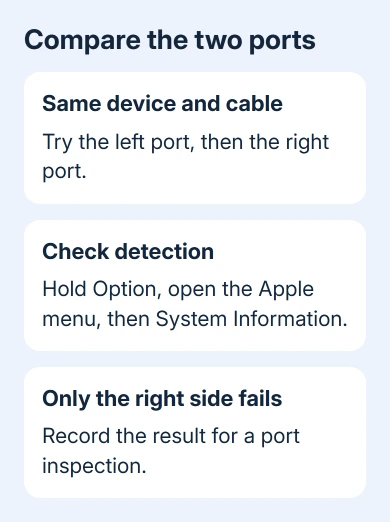
Eject a mounted storage device before unplugging it, then plug it straight into the right-hand socket. Remove hubs, extension cables and adapters where the connectors allow it. Keep the device and cable the same for the first comparison.
Try that pair in the left-hand port. A working connection there shows that the accessory and cable can communicate with this Mac. That points toward the right-hand connection, though the device's power needs can still matter.
Next try a second known-working USB device in the right-hand port. A simple wired mouse or keyboard is useful because it doesn't depend on Finder mounting a disk.
Check whether it actually responds, rather than only whether its light turns on.
If both devices fail only on that side, continue with the Mac checks. If one accessory fails on both sides, inspect its cable, power supply and compatibility instead. Don't buy a replacement port just because one drive failed to connect.
For ports that stopped working together immediately after Tahoe, the macOS USB failure guide covers that separate pattern. If one socket on your older Intel notebook has failed for a long time, compare the ports first.
2. Look for the connected device in System Information
Hold Option while opening the Apple menu, then choose System Information. Under Hardware, select USB. Look through the device tree for the accessory's name or manufacturer while it's connected.
Apple's Mac port checks recommend verifying detection here. This tells you whether the Mac recognizes your accessory before you look for it in Finder or another app.
A Thunderbolt accessory can appear under Thunderbolt or Thunderbolt/USB4, depending on the Mac and macOS.
A USB-C-shaped connector doesn't tell you which connection type the accessory uses, so check the accessory's connection type if it doesn't appear under USB.
Compare the result with the device connected to the other port. If necessary, reopen System Information after reconnecting so you're comparing a current device list. Write down the device name and which ports detect it.
If the disk appears here but not in Finder, check whether it mounts and whether its format is supported. The external-drive mounting steps explain that distinction. A missing icon can mean a mounting error even when the socket works.
3. Respond to a power warning before changing settings
An alert saying USB Devices Disabled or that a device needs more power calls for a power check. Disconnect and reconnect the device, then test another port. Connect the device directly instead of through an unpowered hub.
If the accessory or hub has its own power adapter, connect it to power. A hard drive or multiport hub can need more power than a small mouse. A mouse working on that connection doesn't mean it can power every other device.
The USB power troubleshooting also directs you to remove the hub from the connection. If a direct connection works, focus on the hub, its power adapter and attached devices before paying for MacBook repair.
Inspect the right-hand socket in good light while the Mac is off. Stop using a visibly bent, loose or heat-damaged connection. Don't force a plug into place or put metal tools inside the port to try to restore contact.
I'd keep using the working side temporarily for an important backup. Repair decisions are easier when the only copy of your files isn't on the device you're repeatedly reconnecting.
4. Restart the Mac and identify its power-reset procedure
Disconnect nonessential USB accessories and choose Apple menu > Restart. Test the right port after login. If it works again, reconnect accessories individually so you can notice whether one device or hub brings the failure back.
Open Apple menu > About This Mac and record the model and processor. A MacBook with rectangular USB-A sockets is an Intel model; newer USB-C MacBooks can be Intel or Apple silicon, so the connector alone isn't enough.
For Apple silicon, plug in the power adapter. Use Restart, or shut down the computer, then start it again. There isn't an Intel-style SMC key sequence to perform.
On Intel models, the system management controller (SMC) handles power-related functions.
For a T2 Intel notebook, shut down first. Press the power button and keep it held for 10 seconds. Release it, wait a few seconds, then turn it on. If the problem remains, use the T2 reset in the next section.
For a much older notebook with a user-removable battery, use its model-specific instructions before removing anything. The built-in-battery key sequence isn't a reason to open the case or disconnect an internal battery.
5. Reset the SMC only with the matching Intel steps
For an Intel MacBook without T2 and with a built-in battery, shut down. Hold left Shift + left Control + left Option on the built-in keyboard, then hold the power button with them. Keep all four held for 10 seconds.
Let go of the keys. Start the Mac with a fresh press of its power button. Reconnect the same known-working device to the right port after login.
Test the port afterward to see whether anything changed. The reset doesn't need to show a confirmation on screen.
For a T2 MacBook, shut down. Hold left Control + left Option + right Shift for 7 seconds. Keep holding them and add the power button for another 7 seconds. Release everything, wait a few seconds, then turn it on.
The combinations differ, especially which Shift key you hold. Check the Mac type before choosing one. A power reset may help a power-management fault; it can't straighten damaged contacts or repair a failed connector.
Arrange service when the right side still detects nothing
If multiple working accessories appear through the left port but never through the right, ask Apple or a repair shop to check whether that port can transfer data and supply power.
Share the MacBook model and the detection results you recorded in System Information.
Ask whether that model is still eligible for service and whether the fault involves a separate board or a larger assembly. The answer varies by model. Keep the backup current and ask for a repair estimate before approving replacement parts.
The Short Version
Compare one device and cable on both sides, then check System Information. Remove hubs and fix any power warning.
Restart, use the correct Intel SMC procedure if appropriate, and request a port inspection when only the right side keeps failing.
Checked November 13, 2026.