
Steep can ignore a controller that works perfectly in Steam because the game's selected layout sends the wrong inputs. Check that Steam receives your button presses, then try a standard gamepad layout for Steep before reinstalling anything.
If your Xbox controller disappears from Windows, fix its connection first. If it navigates Steam but stops at Steep's title screen, check the game's settings. These results point to different fixes.
1. Confirm that the controller reaches Steam
Close Steep and connect your controller before reopening the game. For a wired connection, choose a cable that supports USB data and connect it directly to the computer. A charging light alone doesn't show that the PC receives input.
Open Steam > Settings > Controller. Select the connected controller, then use Test Device Inputs and Begin Test where offered. Press several buttons, pull both triggers and move each stick while watching the test.
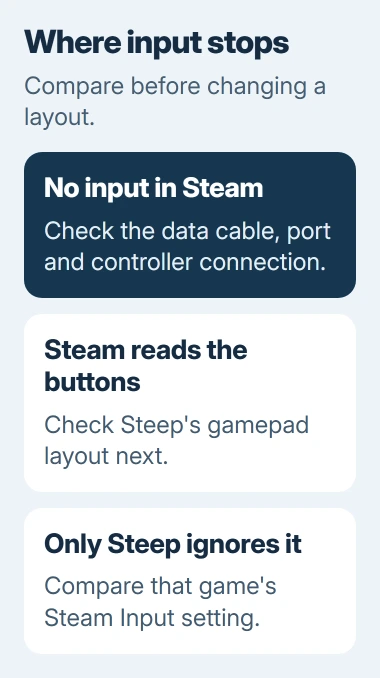
If the controls react here, move to the Steep layout check. If your controller isn't listed or nothing reacts, try another data cable or port first. Steep's settings can't fix a connection that Steam can't read.
For an original Switch Pro Controller or a third-party Switch-style pad, follow the PC connection and input checks. Some models need their own PC mode, and the correct setting depends on the controller.
Write down the device name shown in Steam for support. It helps them tell a generic gamepad from a virtual controller, which software creates to act like another physical pad.
2. Replace an unsuitable Steep controller layout
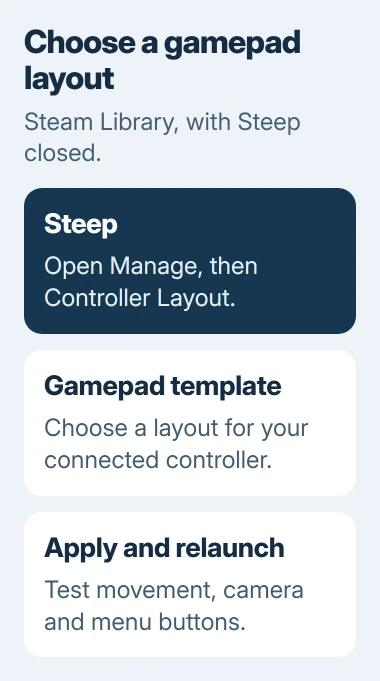
With Steep closed, find it in your Steam Library. Right-click its entry and select Manage > Controller Layout. Keep the controller connected so Steam can show the layout for that device.
Open the current layout's selection screen and look for a standard Gamepad template or a layout made for your controller type. Apply it, then launch Steep through Steam and test the title screen and actual movement.
One owner in a Steep support discussion fixed an Xbox controller by replacing the selected configuration with a community Xbox One layout. That report dates from 2020; the old Big Picture menu names have changed.
A layout can make a controller button act like a keyboard key or mouse action. That's useful for keyboard games, but Steep can receive the wrong commands when it's expecting ordinary gamepad buttons.
I'd start with a plain gamepad template before trying a heavily customized community layout. Check steering, camera movement, confirm, cancel and the sports menu. A working menu button alone isn't enough to judge the whole layout.
If a community layout helps, check what each button does before keeping it. Choose one for your controller type. Layouts with Steep in the name don't necessarily assign the buttons the same way.
3. Compare Steep with and without Steam Input
Exit the game again. Open Library > Steep > Properties > Controller and note the current override. Steam Input translates button presses for games; this override changes how it handles Steep.
Choose Enable Steam Input, reopen Steep from the Library and repeat the same button checks. If a gamepad layout now works, keep that combination. This setting doesn't change the controller configuration for every game you own.
If Steam Input was already enabled and the controls still don't work, close Steep and try Disable Steam Input. A compatible controller can then use the game's own controller support. Reopen the game after each change.
Restore the original override if neither choice helps. Repeated changes during a running session can give a misleading result. The game may still be using the input setup it loaded at startup.
A DualShock 4 owner in that discussion got no improvement from disabling Steam Input, using DS4Windows or launching directly through Uplay. Another could calibrate their controller in Steam, but Steep still ignored it.
If you launch Steep only through Ubisoft Connect, Steam's per-game setting may not apply. Tell support how you start the game, since a fix for the Steam edition may not work with your setup.
4. Remove competing controller software from the test
For one test, close apps that reassign controller buttons or create a virtual gamepad. Reconnect the physical pad and reopen Steep. Those apps can change the inputs or add another device before the game receives them.
Check for competing apps and unnecessary peripherals too. Keep the keyboard and mouse available to operate Windows while disconnecting extra pads, wheels or other optional input devices.
Connect just one controller for the test. If it works, reconnect each extra input device separately, retrying Steep after each. If one accessory brings the problem back, you'll know which device to check next.
For a more thorough app-conflict check, follow the Windows clean-boot procedure. Hide Microsoft services before disabling other services, and restore your usual startup afterward.
A clean boot temporarily changes which background software starts. Keep a record of what you disable, especially on a work PC, and leave advanced boot options alone.
5. Verify Steep, then report what still fails
In Steam > Library, right-click Steep, select Properties > Installed Files, and choose Verify integrity of game files. Wait for Steam to finish checking and downloading repaired files, then reopen Steep.
This repairs missing or changed game files, but leaves the controller layout as it is. The layout fix worked after verification had already failed.
If the device repeatedly disconnects from Steam too, treat that as a device-connection problem. If typing becomes delayed outside a running game, the game-related keyboard-lag comparison explains a different symptom.
Send support your controller model, connection type, launcher and input-test result. Add the layout and Steam Input choices you tried. Later replies still describe controllers that don't work, so explain exactly what happens with yours.
The Short Version
Check input in Steam, then replace Steep's layout with a suitable gamepad configuration. Compare the per-game Steam Input choices, remove competing remappers and verify the files. Report which stage still fails.
Checked November 5, 2026.

Isaac Smith is the founder and editor of PC Glance, a website that covers computers, laptops, and technology. He is a tech enthusiast and a computer geek who loves to share his insights and help his readers make smart choices when buying tech gadgets or laptops. He is always curious and updated about the latest tech trends.