
Apple Account password changes are easiest on a trusted device where the account is already signed in. On iPhone, open Settings > your name > Sign-In & Security > Change Password and follow the prompts.
Apple ID is now called Apple Account. Use the password control for a new sign-in secret; changing the account's primary email address is a different task.
Change it from a trusted iPhone or iPad
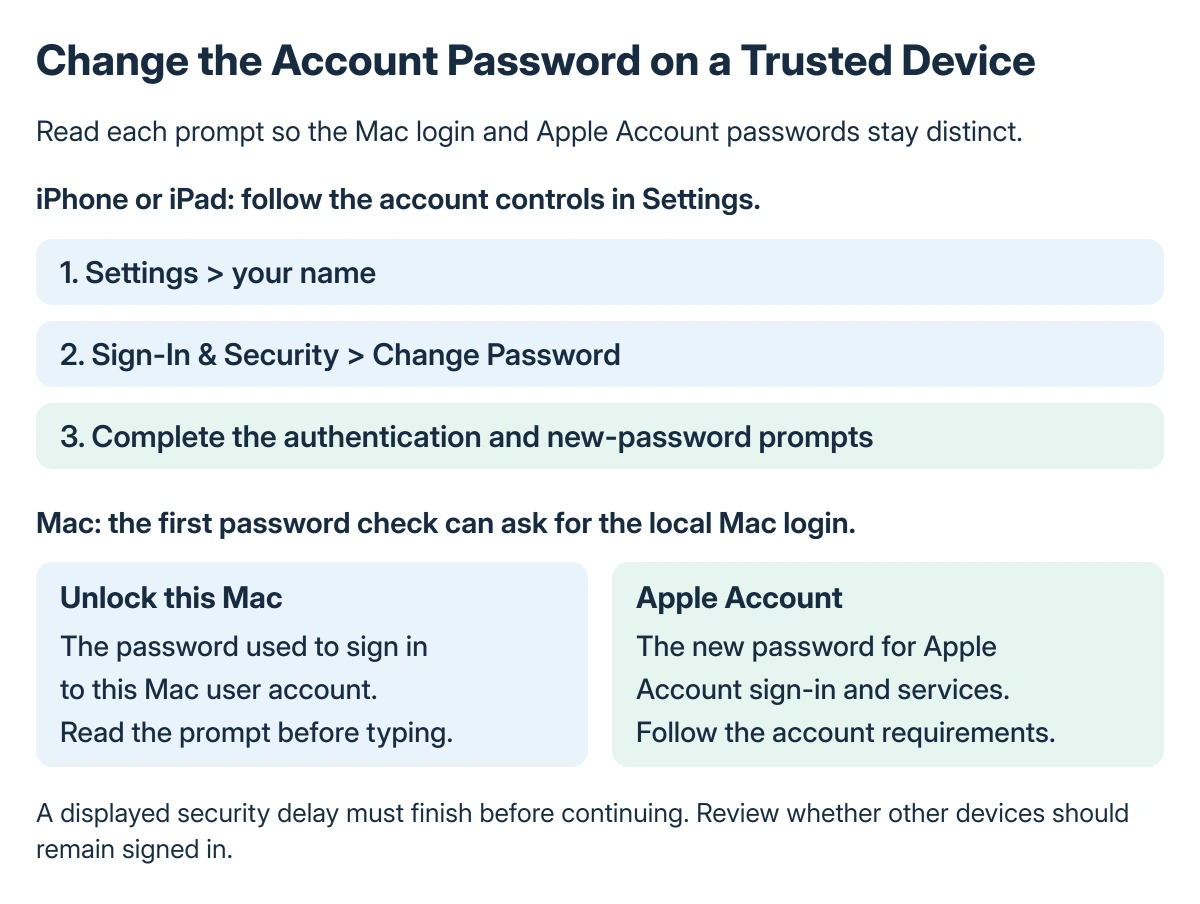
Open Settings, tap your name and enter Sign-In & Security. Choose Change Password, then complete the authentication and password prompts shown on that device.
Apple says a trusted device is the preferred route because it is already signed in with two-factor authentication. Start there rather than searching for a third-party password-reset service.
Status: Apple's password-change article dated 29 September 2026 checked on 22 October 2026. Trusted-device, web and session choices were read; no account was opened or changed.
The current Apple password instructions also cover Apple Watch and Apple Vision Pro. Use the prompts for the device being used rather than entering credentials into a link sent by an unknown person.
If the goal is a new inbox address, use the Apple Account email-change procedure. A password change does not replace the primary email address by itself.
On a Mac, identify which password is requested
Open Apple menu > System Settings, select your name and choose Sign-In & Security > Change Password.
Apple documents entering the password used to unlock the Mac at this point, followed by the prompts for the Apple Account password. The local Mac login password and the account's new password are not interchangeable fields.
Read the label on each prompt before entering anything. A failed local-login check does not establish that the Apple Account itself has been disabled.
Review the other-device choice
When changing the password from a supported trusted device, Apple may offer Remove Other Devices or Keep All Devices Signed In if several devices use the account.
The first option requires signing in again on those devices; the second keeps their sessions. Choose according to whether those devices should retain access, rather than dismissing the prompt without reading it.
After a change, other services or devices may request updated credentials. The Apple Account sign-in-loop checks help distinguish an expected password prompt from a repeated authentication fault.
A security delay is not a failed password
Apple states that changing the password can require a wait of one hour. The password article links that requirement to Stolen Device Protection and its security-delay conditions.
If the device displays a delay, follow its instructions and return when prompted. Repeatedly attempting different passwords does not remove a waiting period.
For a delay that is difficult to interpret, the Stolen Device Protection guide explains the separate protection settings. Preserve those safeguards while resolving the account change.
Use the website when there is no trusted-device route
Go directly to account.apple.com and sign in. Open Sign-In and Security, then choose Password if the website offers the change there.
Apple says the website redirects account management to a trusted device when possible. Being redirected is therefore an expected part of the process, not proof that the website is broken.
If the password is forgotten and sign-in is impossible, use Apple's account-access recovery instructions instead of continuing the ordinary change procedure. A locked or inactive account also needs the route for its exact message.
Give Apple Support the message and the stage where the change stops if help is needed. Keep credentials and verification codes private, including when someone offers to complete the change for you.
The Short Version
Use Change Password under Sign-In & Security on a trusted device. On Mac, distinguish its local unlock prompt from the account password being changed.
Review the other-device session choice and honor any security delay. The website can direct the task back to a trusted device.
Where to Next
Confirm that the intended devices can sign in after the change. Keep the new credential in the password manager you normally use and review any session you did not recognize.

Isaac Smith is the founder and editor of PC Glance, a website that covers computers, laptops, and technology. He is a tech enthusiast and a computer geek who loves to share his insights and help his readers make smart choices when buying tech gadgets or laptops. He is always curious and updated about the latest tech trends.