
Change your Mac password in System Settings > Users & Groups while signed in to your own account. Open the information button beside your username, choose Change, then supply the current password and its replacement.
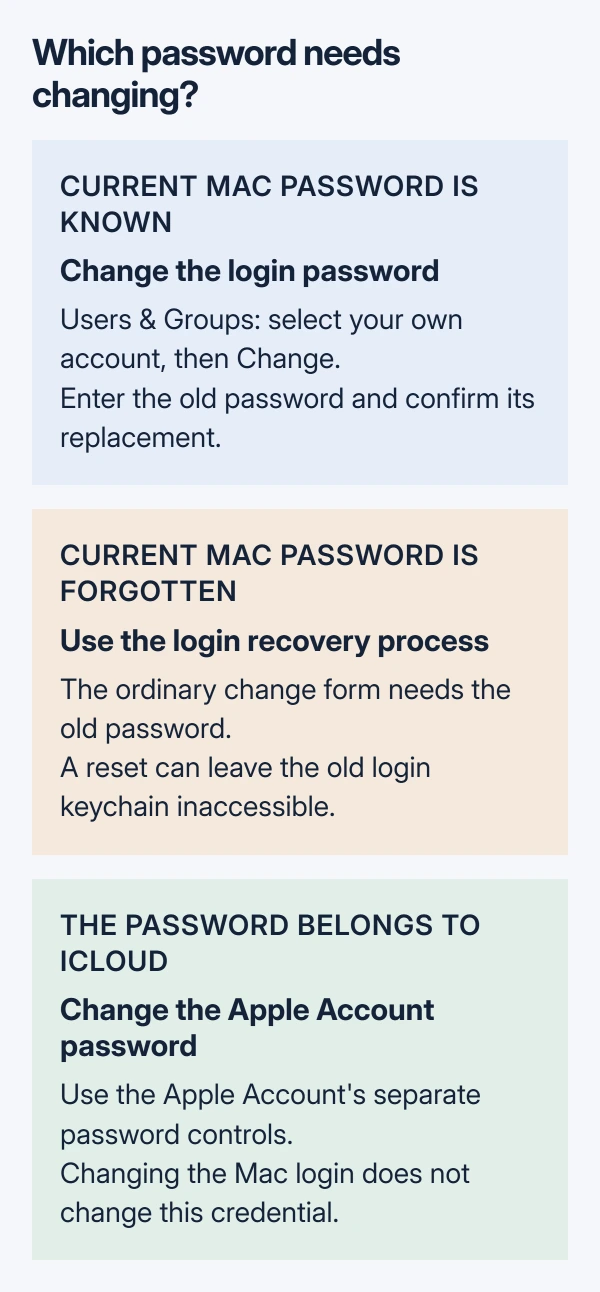
This changes the password used to unlock that Mac account. The Apple Account password for iCloud and other Apple services has separate controls. A forgotten login password requires recovery instead of this procedure.
Change the password for the account you are using
Start with the Mac account whose password should change. Apple's login-password instructions require the current password, even when Touch ID usually handles unlocking.
Keep the new password somewhere secure that remains accessible without unlocking this Mac. Choose a hint that helps with recall without giving the password away; Apple says the hint can appear at the login window.
Status: Apple's login-password and keychain guidance checked October 29, 2026. Current System Settings and Monterey routes verified. No Mac password was changed.
- Open Apple menu > System Settings > Users & Groups.
- Click the information button beside your username, then Change.
- Fill Old Password with the existing Mac login password.
- Type the replacement in New Password, then repeat it in Verify.
- Add the password hint and click Change Password.
Apple documents this change for standard users as well as administrators. Selecting another person's account is a different task: its password control can say Reset. Return to your own username for this procedure.
After the change completes, lock the Mac screen and enter the new password to unlock it. That is a practical check of the saved credential. Fingerprint unlocking alone does not check what was typed.
Find the equivalent control on a different Mac
Current macOS also offers System Settings > Login Password, with Change for the current user. Apple's Login Password settings guide describes this route.
When the Mac or its Magic Keyboard has Touch ID, the corresponding pane is Touch ID & Password. The login-password control is there alongside fingerprint settings. Adding another fingerprint does not replace the typed login password.
On macOS Monterey 12, open Apple menu > System Preferences > Users & Groups, then Change Password. Apple's Monterey instructions use the same old, new and verification fields.
These are alternative entrances to the account-password change. Choose the pane available on the Mac and perform the change once.
Keep the Mac login separate from the Apple Account
The password used by iCloud, the App Store and other Apple services belongs to the Apple Account. Even when someone has chosen identical text for both passwords, the Mac login and Apple Account remain separate credentials.
For the cloud account, follow the Apple Account password-change procedure. Changing only the Mac login does not change that account password.
Touch ID is also separate from remembering the login password. Apple states that the typed password is required when starting the Mac, so keep the replacement available even if fingerprint unlocking works afterward.
Stop at a forgotten password or an unexpected prompt
An unknown current password cannot fill Old Password. Follow Apple's login-recovery link from its password guide, or ask the administrator of a work or school Mac about the account's recovery process.
Apple says changing the password in User settings updates the login keychain password to match. Resetting a forgotten password can have a different result: the old keychain remains inaccessible without its previous password.
For a separate keychain prompt, use the Mac keychain password checks before deleting anything. Apple recommends manually resetting a keychain only on Apple Support's advice, because saved passwords are removed.
For a rejected current password or an incomplete change, note the exact message and macOS version for Apple Support. Take a managed Mac to its IT administrator first. Do not erase the computer to complete an ordinary password change.
The Short Version
Use Users & Groups, select your account and choose Change. Enter the old password and confirm its replacement, then check typed unlocking. Forgotten logins, keychain prompts and Apple Account changes need separate routes.

Isaac Smith is the founder and editor of PC Glance, a website that covers computers, laptops, and technology. He is a tech enthusiast and a computer geek who loves to share his insights and help his readers make smart choices when buying tech gadgets or laptops. He is always curious and updated about the latest tech trends.