

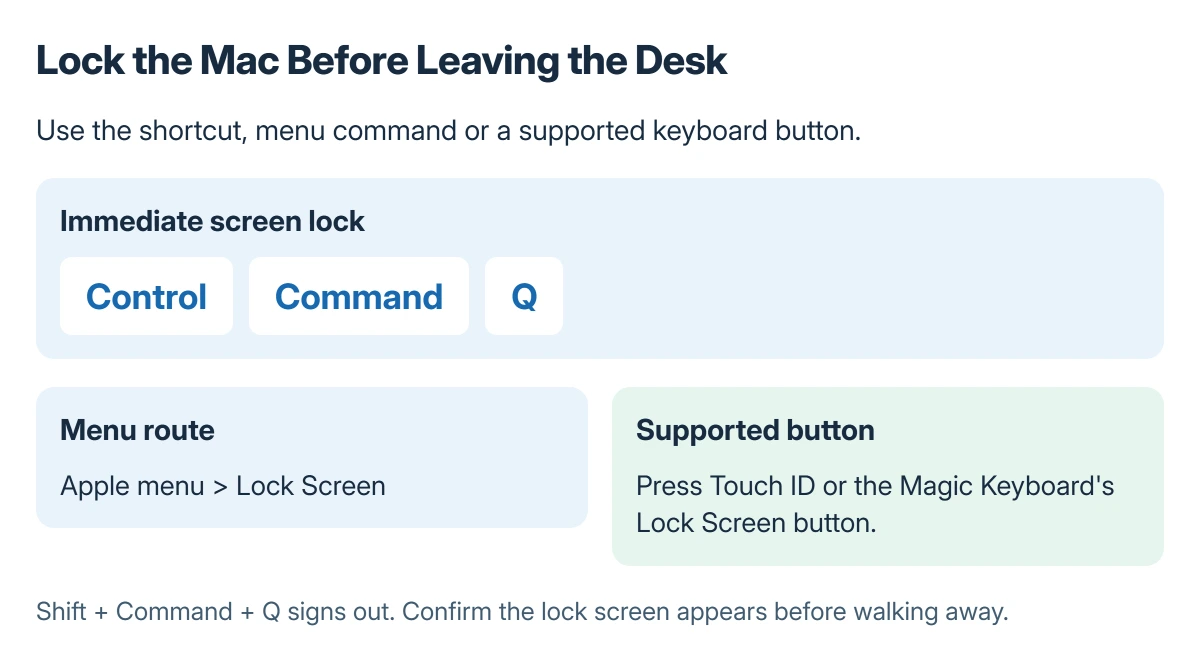
Lock a MacBook immediately with Control + Command + Q. The shortcut locks the screen while leaving the current user session available to unlock.
The Apple menu's Lock Screen command does the same job without a keyboard shortcut. Signing out, putting the display to sleep and shutting down use different controls.
Lock the screen now
Press Control + Command + Q together, then release the keys. Apple documents this combination in its Mac keyboard shortcuts.
Alternatively, choose Apple menu > Lock Screen. Apple's screen-locking instructions also list pressing Touch ID, when available, or a dedicated Lock Screen button on a compatible Magic Keyboard.
Status: Apple's Mac locking and keyboard guidance checked 22 October 2026. Locking is separate from signing out or powering off; no Mac session was locked or tested.
Check that the lock screen appears before walking away. Use an immediate lock when leaving the desk instead of relying on a display timer that has not yet expired.
Return to the same session
Apple says to press a key and enter the account password to unlock. Touch ID and a configured Apple Watch are other supported options when available for that Mac.
If another account is shown, select the intended user before signing in. The displayed account and its password belong together; an Apple Account password is not automatically the local login password.
When fingerprint unlocking is the part that fails, the Mac Touch ID guide covers that separate problem. Keep the account password available as the ordinary alternative.
Avoid the similar sign-out shortcut
Shift + Command + Q signs out of the macOS account. Apple states that this command asks for confirmation; adding Option performs immediate logout without that confirmation.
Use Control, rather than Shift, for the screen-lock shortcut. A quick lock is appropriate when returning to the current work session is the intention.
Locking also does not replace checking an active capture before leaving the desk. If a recording was started, use the Mac screen-recording controls to stop it and inspect the saved file.
If a key combination fails in one app, try the Apple menu command. For a work Mac with managed access requirements, ask the administrator when the available locking or unlocking behavior differs from Apple's instructions.
The Short Version
Press Control + Command + Q, or choose Apple menu > Lock Screen. Unlock with the account password or an available configured method. Shift + Command + Q is the different command for signing out.
Where to Next
Practice the lock command once while the account password is available. Confirm the intended user session returns after unlocking.

Isaac Smith is the founder and editor of PC Glance, a website that covers computers, laptops, and technology. He is a tech enthusiast and a computer geek who loves to share his insights and help his readers make smart choices when buying tech gadgets or laptops. He is always curious and updated about the latest tech trends.