
You sign in to your Mac and a box asks for the password of your login keychain. You type your Mac password, the box comes back, and then another app asks.
I would try your old Mac password first, because the keychain is often still locked with it.
Two Ask Different questions about these prompts have 1,046,454 and 748,414 views, the bigger one from an owner who had just changed their password. A Super User copy adds 257,147 more.
Two reasons the prompt returns
Apple's Keychain Access guide for macOS 27 names both in one sentence: "Your keychain may be locked automatically if your computer has been inactive for a period of time or your user password and keychain password are out of sync."
The second reason is the common one. Apple says "Your login keychain password is normally the same as your user password", so changing it the normal way moves both together.
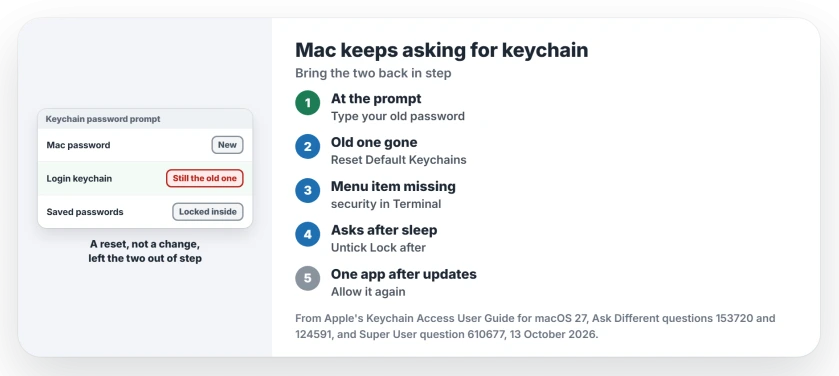
Status: Apple's Keychain Access guide for macOS 27, checked 13 October 2026. Type your old password first; reset only when it is gone; then check the lock timer.
They drift apart when the password is reset rather than changed, whether by an administrator, a work account that syncs passwords or a reset from Recovery.
The keychain keeps the old password. Then every app that reads a saved password asks.
Changed your Mac password lately? Type the old one
When the box asks for the keychain password, type the one you used before the change. Apple recommends exactly that. If it does not unlock, Apple adds, "the keychain automatically resets".
Reported working by an owner whose work password had changed. On Super User they wrote "I only had to go as far as step 2 to fix my issue". Step 2 was unlocking with the old password.
They explained why it worked: "entering the old password allowed the system to update, fixing the issue". Your keychain then takes the new password.
The old password is gone: reset the keychain
Apple is direct about the cost: "Resetting the default keychain deletes all the passwords saved in the keychain". Saved website and Wi-Fi passwords kept only on this Mac go with it, so I would write down any you cannot get back.
Apple says "To open Keychain Access, search for it in Spotlight, then press Return". Then choose Keychain Access, Settings, and click Reset Default Keychains. Log out and back in to finish.
Apple's page on updating your keychain password suggests a manual reset only on Apple Support's advice.
On macOS Sequoia and later, check the Passwords app first, since Apple notes "You can find all your passwords, passkeys, and verification codes in the Passwords app on your Mac".
Know the old password, but Change Password is gone?
Old guides tell you to use Edit, Change Password for Keychain login, but owners found that item grayed out on High Sierra and gone on Mojave and Catalina. For some it did nothing. Apple's macOS 27 page no longer mentions it.
An owner's Terminal route keeps your saved passwords. Their "login keychain was stuck on the previous password" on High Sierra. Two commands fixed it:
security default-keychain
security set-keychain-password ~/Library/Keychains/login.keychain-db
The first prints your keychain's path. Use that path if it differs. The second asks for the old password, then the new one twice. Terminal shows nothing while you type.
Confirmed by owners. One replied "Huge thanks for this suggestion". Another wrote "Thanks, it works great for me".
A third found macOS had already started a fresh keychain, and wrote that "the old one was saved as login_renamed_1.keychain-db". They ran the command on that file and swapped it back in.
Ours: with no Mac here, we could not run it on macOS 27. Still, I would pick it whenever you know the old password. No other route keeps every saved item.
It asks again after sleep or a break
Then the keychain is locking itself on a timer. In Keychain Access, click login in the Keychains list. Choose Edit, then Change Settings for Keychain login. Untick Lock after and Lock when sleeping, and click Save.
One owner's experience. On Super User they found the Lock after 5 minutes of inactivity box ticked. They unticked it and wrote "this solved my problem!"
Another owner said the setting "keeps reverting on its own somehow". On a work Mac, a management profile can set it back.
One app asks after an update
That box wants access to one item, not the keychain password. Apple explains "This dialog appears if you recently updated your system software or the app, or if the app has been modified".
Apple adds "You must sometimes reauthorize updated apps". If you did update, type your password and allow it; if not, Apple's advice is to click Don't Change and check the app for malware.
Before you delete the Keychains folder
Owners also emptied the Keychains folder in your Library. One wrote "This worked perfectly for me". But it wipes your saved passwords just as Apple's reset does, with more room for mistakes.
Keychain First Aid is gone too, as a commenter noted: "El Capitan has no Keychain First Aid".
Does the login window itself refuse your password? That is a different fault, covered in our page on a Mac rejecting the correct password. Another prompt that loops for its own reason is the incoming connections box.
One more loop, Exchange Password Required, comes from a work account, and its switches sit in Internet Accounts rather than the keychain.
The Short Version
- The login keychain uses your Mac password; a reset rather than a change leaves it on the old one.
- At the prompt, type your previous Mac password.
- Old password gone: Keychain Access, Settings, Reset Default Keychains, then log out. Saved passwords are lost.
- Know the old one: security set-keychain-password in Terminal keeps everything.
- Asks after sleep: untick Lock after and Lock when sleeping.
Where to Next
Which of these stopped your prompts, and on which macOS? A comment from a macOS 27 Mac would help me check the Terminal route.

Isaac Smith is the founder and editor of PC Glance, a website that covers computers, laptops, and technology. He is a tech enthusiast and a computer geek who loves to share his insights and help his readers make smart choices when buying tech gadgets or laptops. He is always curious and updated about the latest tech trends.