

An Apple Watch can pause workouts when Auto-Pause detects a stop, both buttons get pressed, or wrist contact fails. Turn Auto-Pause off for pauses at crossings; check the fit if the watch also locks or asks for its passcode.
A lock screen during the pause points to wrist detection: the watch may think you've taken it off. If it stays unlocked while you're moving, check whether your wrist or clothing is pressing the buttons.
1. Stop Auto-Pause from interrupting runs and rides
Open Settings on the watch, tap Workout > Auto-Pause, and turn Auto-Pause off. This feature automatically pauses and resumes outdoor running and cycling workouts when you stop moving.
A red light or a water break can trigger it even when you'd prefer the timer to keep counting. For pauses only at those moments, this is the setting to change first.
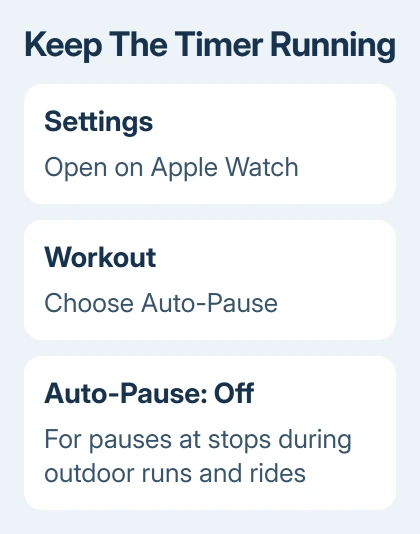
Start the same workout type and briefly stop somewhere safe. With Auto-Pause off, that stop shouldn't pause the timer automatically. It also won't automatically resume a workout you've paused yourself.
If the workout still pauses while you're moving, check the fit next if it locks, or the buttons in step 4 if it stays unlocked.
2. Keep the back of the watch against your skin
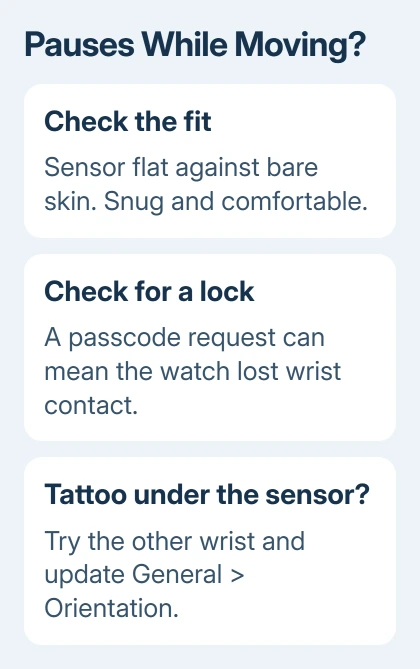
Move a sleeve, bracelet or other material away from the watch's underside. Adjust the band so the sensor lies flat against the top of your wrist, with a snug, comfortable fit. Both an overly loose and an overly tight band can interfere.
Apple explains in its unexpected-locking guidance that failed wrist detection can pause workouts.
I'd adjust the fit before turning wrist detection off, so you keep automatic locking and the health features that depend on it.
Start another short workout and check whether the watch stays unlocked as your arm moves. If it does, and the timer keeps counting, keep that fit for your next session. If it still locks, check the skin underneath the sensor next.
Poor contact can also interrupt heart-rate readings, so check for gaps in those readings if the workout keeps pausing.
3. Try the other wrist when a tattoo covers the sensor
Scars and tattoos can affect wrist detection. Tattoo ink, its pattern and its saturation can keep sensor light from passing through, so tightening the band further may not solve this case.
Try the other wrist if the skin there isn't affected. On the watch, open Settings > General > Orientation, then choose Left or Right to match its new position.
Try a short workout on the other wrist. If the locking and pauses stop, keep wearing it there or ask support about the sensor. Don't cover the sensor to try to fool wrist detection.
If neither wrist changes the behavior, keep track of whether a lock screen appears. Repeated passcode requests also need attention outside the Workout app.
4. Check whether your wrist presses both buttons
Pressing Digital Crown and side button simultaneously manually pauses a workout. Bending your wrist or wearing a close-fitting glove or sleeve can press both buttons during a particular movement.
Check whether the pause follows that movement. Move your sleeve clear and adjust the watch so your hand doesn't press the buttons, keeping the sensor against your skin.
Try the movement again during a short workout. If the timer keeps running, keep that position. Turning off Auto-Pause won't stop a button press from pausing the workout.
5. Use the wrist-detection workaround with its costs in mind
If the watch still fails to detect your wrist, open Settings > Passcode > Wrist Detection. Turn it off, enter your passcode, then tap Turn Off to confirm.
Read the warning screen first. Turning wrist detection off stops automatic locking, automatic unlocking, sleep tracking and several background health measurements. Some Activity measurements also stop working.
Fall Detection can no longer start Emergency SOS automatically. Heart-rate tracking and notifications, Noise measurements, supported tap gestures and wrist flick are also affected.
Apple Pay also asks for a passcode after you double-click the side button to pay.
If that change stops the pauses, tell Apple Support the problem follows wrist detection. Include the watch model, software version and results from both wrists.
If the pauses continue, arrange an Apple Support assessment. Include the workout type and whether a lock screen appears during the pause.
The Short Version
Turn off Auto-Pause for unwanted pauses at stops. For pauses while moving, check the watch's fit, wrist detection and button contact. Try the other wrist over a tattoo, and read the feature losses before disabling wrist detection.
Checked November 7, 2026.

Isaac Smith is the founder and editor of PC Glance, a website that covers computers, laptops, and technology. He is a tech enthusiast and a computer geek who loves to share his insights and help his readers make smart choices when buying tech gadgets or laptops. He is always curious and updated about the latest tech trends.