A blue screen inside Google Chrome calls for checking graphics acceleration first. A full-screen error followed by a restart is a Windows crash, so use its stop code to identify the system problem.
An error message in a single tab needs different troubleshooting. Keep its exact wording, because a failed web page and a computer that restarts aren't the same fault.
In this guide
1. Check which part of the screen has failed
Press Alt + Tab to switch to another app. If your desktop and other windows still work, start with the browser fixes. A solid blue area inside Chrome doesn't, by itself, mean Windows has crashed.
If the whole computer restarts and displays a stop code, jump to the Windows section. Recent Windows 11 releases can show that error on a black background, so use the stop-code text rather than its color.
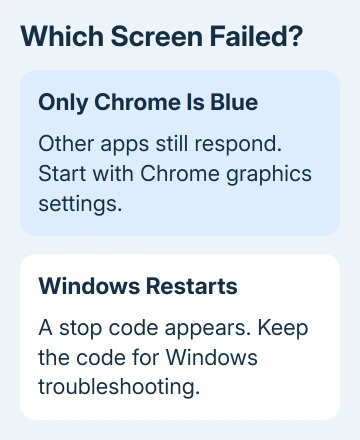
On a Mac, use Command + Tab for the same comparison. A Windows stop code doesn't apply to macOS. If only Chrome fails, the browser steps still apply; a Mac that restarts needs a separate system check.
For an Aw, Snap! tab, first reload that page and close unnecessary tabs and apps. A tab can fail when the computer runs short of memory, even though the desktop keeps working.
Use that distinction to choose your next change. Don't reinstall Windows for a single broken tab, and don't expect clearing browser history to repair a driver that crashes the computer.
2. Turn off Chrome's graphics acceleration
Open Chrome > Settings > System, or type chrome://settings/system in the address bar. Set Use graphics acceleration when available to off, then click Relaunch.
Hardware acceleration is another name for this setting. It lets Chrome hand graphics work to your computer's graphics hardware. Google's crash guidance recommends switching it off for graphics problems.
Reopen the page or video that caused the blue window. If the picture looks normal after relaunch, the problem involves how Chrome uses your graphics hardware. That still leaves Chrome itself or the graphics driver as possible causes.
I'd make this change before a browser reset. It's a small change, and you can reverse it from the same screen. If it makes no difference, turn it back on before moving on so you don't leave a setting changed for no reason.
If Chrome shuts before Settings will open, use another browser temporarily and continue with the restart and update steps. Don't repeatedly open the same page when each attempt restarts the PC.
3. Update Chrome and reopen it cleanly
Select the three-dot menu, then Help > About Google Chrome. Let the update check finish and choose Relaunch if offered. Close any unsaved web forms before doing that.
Chrome normally updates itself, but an update can wait for a relaunch. Leaving the same browser session open for days can leave you using the earlier version even after the new files have downloaded.
After Chrome reopens, load one ordinary page before restoring all your tabs. Then try the page that failed. If only that site breaks, test it in another browser rather than treating every Chrome setting as suspect.
If the blue window started after a crash and your session is missing, recover the lost Chrome tabs once the browser stays open reliably.
4. Check extensions without removing everything
Open the three-dot menu and select Extensions > Manage Extensions. Turn extensions off, restart Chrome, then repeat your failing action. This checks whether an extension is causing the problem.
If the problem stops, enable one extension at a time and test between changes. When the blue window returns after enabling one, leave that extension off and look for an update from its developer.
An Incognito window can be a useful comparison, but it can still load extensions you've permitted there. Turning them off on the extensions page lets you test without them.
If Chrome fails with every extension off, stop changing extension permissions. Move to the browser reset or, for a full PC restart, the Windows checks.
5. Reset Chrome when its settings remain the problem
Choose Settings > Reset settings > Restore settings to their original defaults > Reset settings. This restores several browser settings and disables extensions; saved bookmarks and passwords remain.
The reset also changes what opens when Chrome starts and clears temporary site data, so expect some sites to request a new sign-in. A reset leaves your Google Account intact and doesn't wipe the PC.
Use this when Chrome remains broken across several sites after updating and checking extensions. If you'd like to review what changes first, the Chrome reset instructions cover the effects.
A blue window that survives these checks may need a Chrome reinstall. Make sure you can still access your bookmarks and sign-in details before removing browser data, and download the installer from Google's own Chrome site.
6. Treat a stop code as a Windows problem
For a full-screen error and restart, take a picture showing its stop code, plus any named driver or module. That text helps explain the crash. Chrome being open at the time doesn't tell you what caused it.
Install Windows updates through Settings > Windows Update on Windows 11. On Windows 10, use Settings > Update & Security > Windows Update. Restart when an installed update requires it.
Open Device Manager by right-clicking Start. Check for warning symbols. For a graphics-related failure, get the appropriate display driver through the PC maker or graphics hardware maker, using your exact model.
If the restarts began immediately after adding an accessory, disconnect that new hardware and try again. A crash during a video can involve the graphics driver; a crash with Chrome closed needs attention beyond the browser.
Keep the stop code for the PC maker's support team. Ask them to review repeated crashes and the named driver, especially if Windows also fails before you can open Chrome. Safe Mode can help when normal startup won't stay running.
The Short Version
For a blue Chrome window, test graphics acceleration, update the browser, and check extensions before resetting it. For a full PC restart, keep the Windows stop code and troubleshoot the driver or system fault it identifies.
Checked November 11, 2026.