

Reset Chrome browser settings through Settings > Reset settings when unwanted changes need to be undone. The reset restores browser defaults while keeping bookmarks and passwords. Review extensions and website permissions afterward.
This procedure is for desktop Chrome on Windows, Mac and Linux. Deleting a Chrome profile is a separate action with a different effect on saved data.
Check what the reset will change
Google says a settings reset keeps bookmarks and passwords. It changes the search engine, startup behavior, pinned tabs, site permissions, cookies, extensions and theme settings. Expect affected websites to need a fresh sign-in.
Google's Chrome reset instructions also warn that affected profile settings can return to defaults across devices where that profile is signed in. Check which profile is open before proceeding.
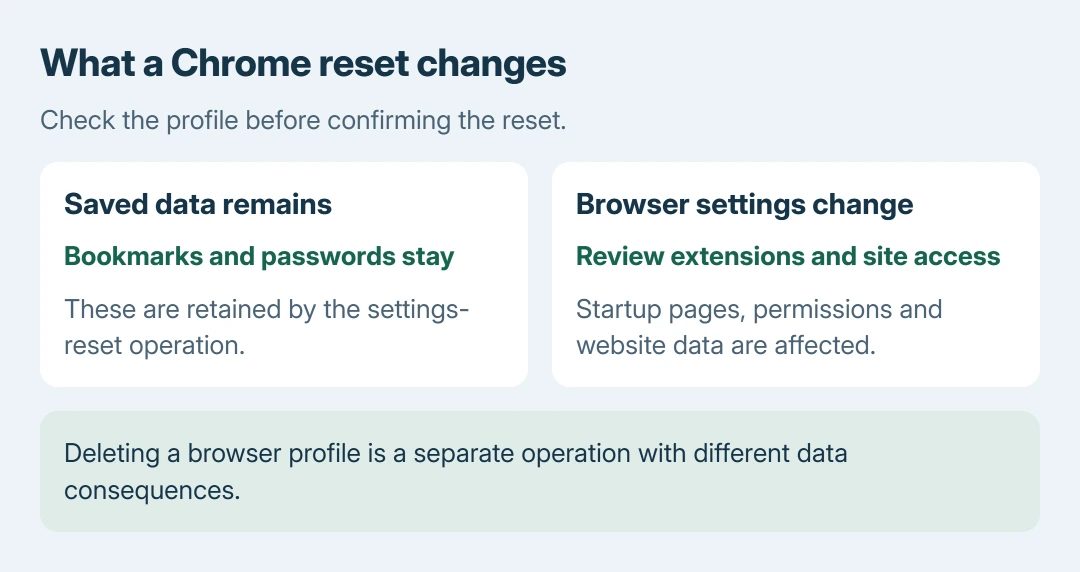
Status: Desktop Chrome reset controls and their data effects checked against Google's help on October 28, 2026. No browser profile or setting was changed.
Save unfinished forms and any work in web apps first. A browser reset is not a backup of work that a website has not saved. Note a deliberately customized startup page if it will be needed again.
For a single unwanted launch page, the Home and startup controls offer a narrower change. Use the reset when several preferences need restoring rather than only one known address.
Restore the defaults from Chrome's menu
- Open Chrome's three-dot menu and choose Settings.
- Select Reset settings in the settings sidebar.
- Choose the option for restoring the original defaults.
- Review the confirmation, then select Reset settings.
The restoration option is labeled Restore settings to their original defaults. If the sidebar is hidden in a narrow window, open the Settings navigation menu to reach Reset settings.
Google adds that the reset is incomplete by design. It does not remove every customization: font and accessibility choices are among the settings that remain. A reset therefore does not make the profile identical to a newly created one.
After it finishes, test the action that was wrong. Open Home for a homepage problem, restart Chrome for a startup-page problem, or run an address-bar search for a search-engine problem.
Bring back only extensions that are needed
Open Extensions > Manage Extensions from Chrome's menu. Review the installed items before switching them back on. Google states that some extensions need enabling again after resetting, and recommends enabling only trusted ones.
Enable one needed extension and repeat the affected task before adding the next. That comparison is our recommendation: restoring the entire previous extension set at once can also restore its unwanted behavior.
A search engine that changes back needs the Chrome search-change checks. The reset can restore preferences, but an installed program or enforced policy can keep changing them again.
What if Chrome will not open Settings?
Google's reset page directs readers whose Settings menu is missing or inaccessible to uninstall Chrome and reinstall it from google.com/chrome. Preserve any needed local browser information before changing an installation.
On a work or school browser, ask the administrator about locked preferences. A settings reset does not grant permission to change managed browser policy.
If the unwanted behavior returns, use Google's unwanted-software guidance and its help community. Include the affected setting and when it changes, rather than repeating the reset without tracking the result.
The Short Version
Check the active profile and the effects, then restore defaults through Reset settings. Bookmarks and passwords remain. Review disabled extensions afterward, and follow recurring changes to the program or policy that keeps applying them.

Isaac Smith is the founder and editor of PC Glance, a website that covers computers, laptops, and technology. He is a tech enthusiast and a computer geek who loves to share his insights and help his readers make smart choices when buying tech gadgets or laptops. He is always curious and updated about the latest tech trends.