
GIFs in iMessage come from the #images picker inside Messages. Open a conversation, tap Add, choose #images, search for the image, select it and tap Send. A separate GIF keyboard is unnecessary for this method.
The picker is available only in supported regions. If #images is missing, check whether it's available in your region before changing the phone's settings.
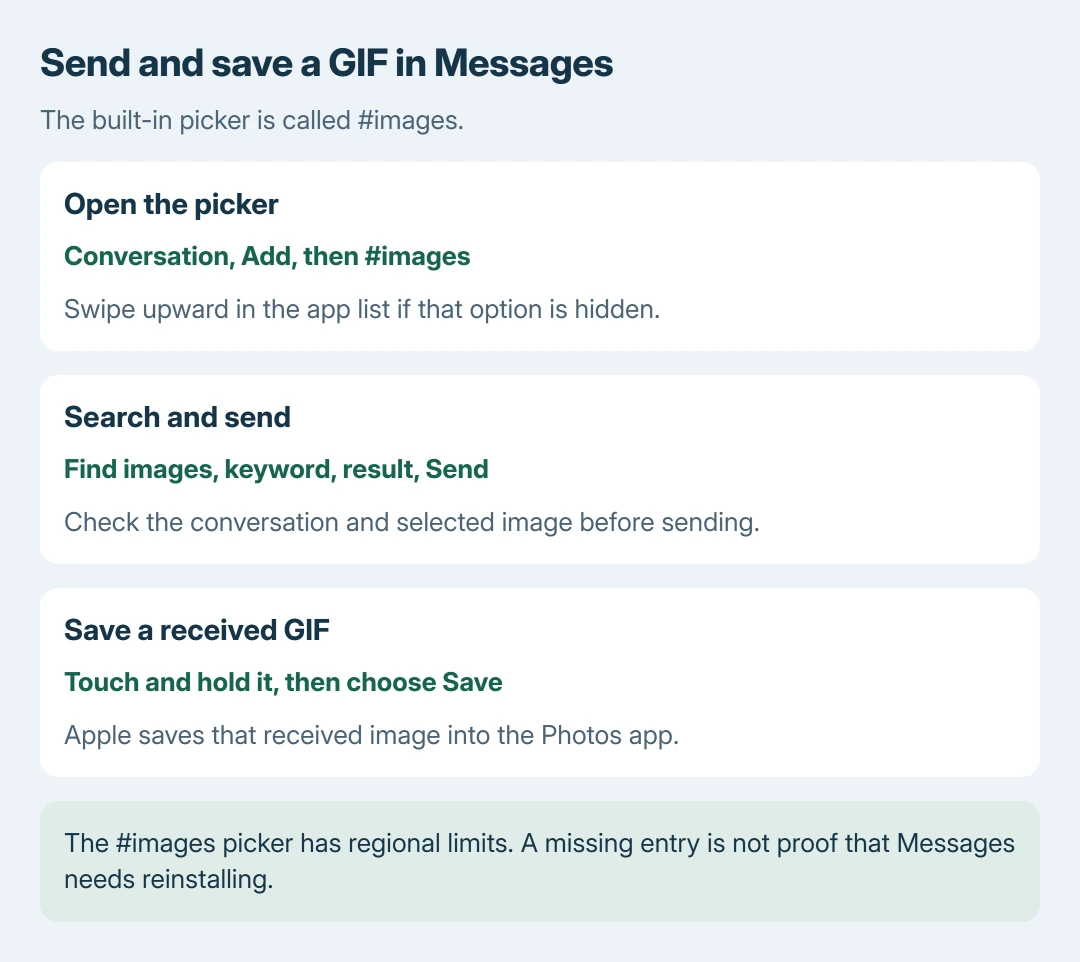
Open #images in the conversation
Open Messages and select the conversation that should receive the GIF. For a new message, use Compose and add the recipient first.
Tap the Add button, shown as a plus beside the message field, then select #images. Apple's current Messages guide says the app list may need an upward swipe to reveal it.
Status: Apple's GIF picker, saving method and regional limits checked October 28, 2026. These are documented Messages controls; no conversation was opened or sent.
The #images picker sends an image as a message. Tapbacks attach reactions to existing bubbles; the Tapback controls explain that separate feature.
Find the image, insert it and send
Tap Find images and enter a descriptive term, such as birthday or applause. Choose a search suggestion or use the keyboard's Search control to display matching GIFs.
Tap the GIF you want to insert into your message. Review the selection and recipient, then tap Send. Selecting a result and sending the message are separate actions in Apple's instructions.
Apple documents the procedure on its GIF sending and saving page. If results load but the message shows a delivery error after Send, troubleshoot delivery rather than repeating the image search.
Save a received GIF for another time
Open the conversation containing the received GIF. Touch and hold that image, then select Save from its menu. Apple says this stores the GIF in Photos.
Check Photos for the saved item. Saving keeps a copy outside the conversation; it does not send another message or change the other person's copy.
Apple states that GIFs from #images animate only in Messages on Apple devices. A GIF appearing as a still image in another app or on another device does not prove an iPhone fault.
For control over images that start moving automatically, use the iPhone animation settings. Those controls address playback, while #images is the tool for selecting what to send.
Check availability when #images is missing
First inspect the full Add list, including entries reached by swiping upward. Apple's support page then directs readers to Settings > General > Language & Region to check a supported language and region.
Apple lists the United States, United Kingdom, Canada, Australia, New Zealand, Ireland, France, Germany, Italy, India, Singapore, the Philippines and Japan for #images availability.
The picker is not available in every country. Changing the region is not a guaranteed fix, and checking the existing Add list does not require reinstalling Messages.
Ask Apple Support to check a missing picker using the phone's language, region and installed iOS release. For a sending error, Apple's message-delivery checks separate iMessage support from carrier messaging.
The Short Version
Use Add, then #images in the correct Messages conversation. Search, insert a result and press Send. Hold a received GIF to save it in Photos. Check the full app list and Apple's regional availability if the picker is absent.

Isaac Smith is the founder and editor of PC Glance, a website that covers computers, laptops, and technology. He is a tech enthusiast and a computer geek who loves to share his insights and help his readers make smart choices when buying tech gadgets or laptops. He is always curious and updated about the latest tech trends.