
A 403 Forbidden error means the website or its security service received your request but won't let you in. Check the page address and account first, then try another browser before changing Chrome's settings.
Clearing cookies can fix a broken sign-in session, but it can't give your account access the site hasn't allowed. The checks that follow help pin it down to your Chrome session, account or connection.
1. Retry the intended page through the site's own navigation
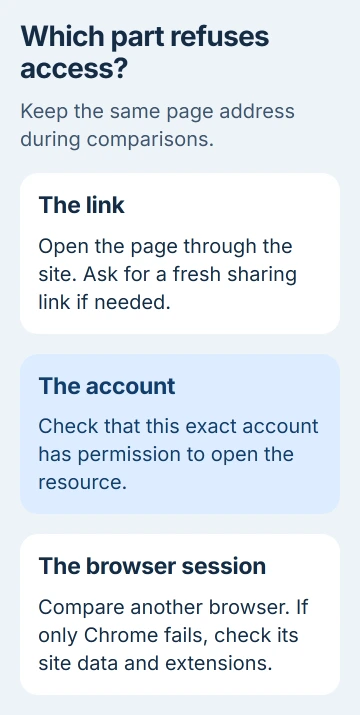
Check for a mistyped address, an incomplete copied link or an expired download link. Open the site's usual home address and use its menus to reach the same document or account page. Reload that page once.
If the page opens through the site's menus, replace your old bookmark or ask for a fresh sharing link. A link from someone else's signed-in session may need their permission or a new invitation before you can open it.
Google's page-loading checks start with the address and a reload. Check whether other sites open too. One failing site doesn't mean your whole connection is broken.
If access is still refused, keep the exact error text. 403, 404 Not Found, a certificate warning and ERR_CONNECTION_REFUSED point to different problems, even though each can stop the page from opening.
If the address shown belongs to Chrome's own error page, use the chromewebdata error guide to find the address Chrome was trying to open and the error code that goes with it.
2. Check the account and the resource's permission
If the page needs membership, sign in through the site as usual and check which account you're using. Your personal and work accounts may show the same name but have different access.
Return to the original document after signing in. If it still says Forbidden, ask its owner to check access for that exact account. Also ask whether the item has been moved, taken offline or restricted.
For a company service, send IT the page address and the account you're using. Resetting your password won't add a missing subscription or sharing permission. Check access separately from recovering a forgotten password.
Use the service's usual contact method. Don't include a password, login cookie or verification code in the error report. The owner can check your access without those details.
If another account with permission opens the page but yours doesn't, ask the owner or administrator for help. If your own account works in another browser, continue with the Chrome checks next.
3. Compare Chrome with another browser and Incognito
Open the exact same page address in another installed browser on the same connection. Sign in using that same account if needed. Otherwise, the page may only work there because a different account is signed in.
Next, open More > New Incognito window in Chrome. On Windows, Ctrl + Shift + N is the shortcut; on a Mac use Command + Shift + N. Try the page there and sign in normally if needed.
If Incognito works but ordinary Chrome doesn't, check saved site data and extensions next. Incognito won't get around account permissions. Seeing a signed-out page isn't the same as opening the private document you need.
Some sites use cookies across several sites to sign you in, so Incognito can run into a separate sign-in problem. Use the comparison to choose your next check; it won't tell you the cause on its own.
If all browsers show the same denial, stop clearing Chrome and move on to the connection comparison and website-support steps.
4. Remove stored data for the affected site
If the problem only happens in ordinary Chrome, clear that site's cookies and saved data. Cookies are small records that help a site remember things such as your sign-in. Deleting them lets you start that session again.
Open Settings > Privacy and security > Third-party cookies, then the link for all site data and permissions. Search for the website, select its delete control and confirm. The specific-cookie instructions describe this route.
Have your sign-in method ready: deleting this data signs you out of the service and can remove its saved preferences. Select only that site's entry so you don't clear data for other sites.
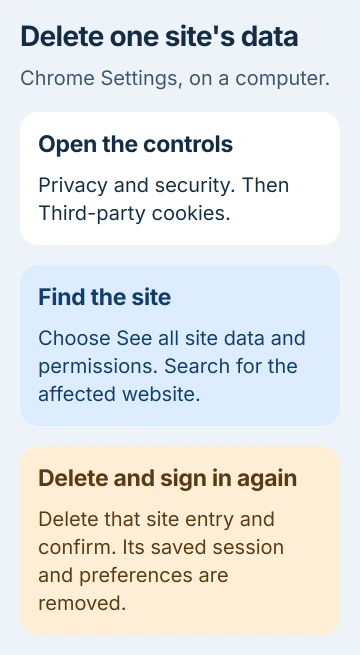
Close the site's old tabs, sign in through its normal page and try the document or page again. If it opens, the new session has replaced the broken one. If it still fails, check extensions next instead of deleting cookies again.
5. Test extensions without uninstalling the browser
Open More > Extensions > Manage extensions, or enter chrome://extensions/. Turn extensions off temporarily, then reload the page in an ordinary window. If your work browser has locked controls, ask IT for help with this check.
If the page opens, switch the extensions on individually and retry after each change. This shows which extension affects access. Leave the troublesome extension off, then look for an update or contact its developer.
The extension management instructions explain these controls. Extensions are normally off in Incognito unless you've allowed them there. Check that setting when comparing the two windows.
Save unfinished work, then update Chrome through More > Help > About Google Chrome and relaunch if asked. An update can fix compatibility problems. If the site is refusing your account access, its owner still needs to help.
6. Compare an approved connection or VPN setting
If every browser fails, check whether the service needs your organization's VPN. Connect using its approved method. A private work page may be set to reject requests from outside the company network.
If a public site fails through your personal VPN, briefly disconnect it and retry if your network rules allow. Tell support whether that changes the result, and keep following the site's access rules.
The 403 security explanation lists server permissions and security rules as possible causes. The website operator controls those settings.
I'd keep this comparison simple: the same address, the same account and one approved connection change. Repeatedly changing networks or hammering Reload makes the results harder to explain and won't fix a blocked account.
7. Send the website owner a usable error report
Note the page address, time and time zone, browser version, and whether another browser worked. Include any error ID shown on screen. Hide personal document content before sending a screenshot.
For 1020 Access denied, Cloudflare says to send the error screenshot to the website owner. Include the Ray ID, which helps the operator find your request.
If every site fails, follow the connected-but-no-internet checks. If one site keeps showing 403, contact its owner or your workplace administrator.
The Short Version
Check the link and account permission, then compare browsers and Incognito. For Chrome-only trouble, clear the affected site's data and test extensions. A wider denial needs the website owner and a connection check.
Checked November 5, 2026.

Isaac Smith is the founder and editor of PC Glance, a website that covers computers, laptops, and technology. He is a tech enthusiast and a computer geek who loves to share his insights and help his readers make smart choices when buying tech gadgets or laptops. He is always curious and updated about the latest tech trends.