
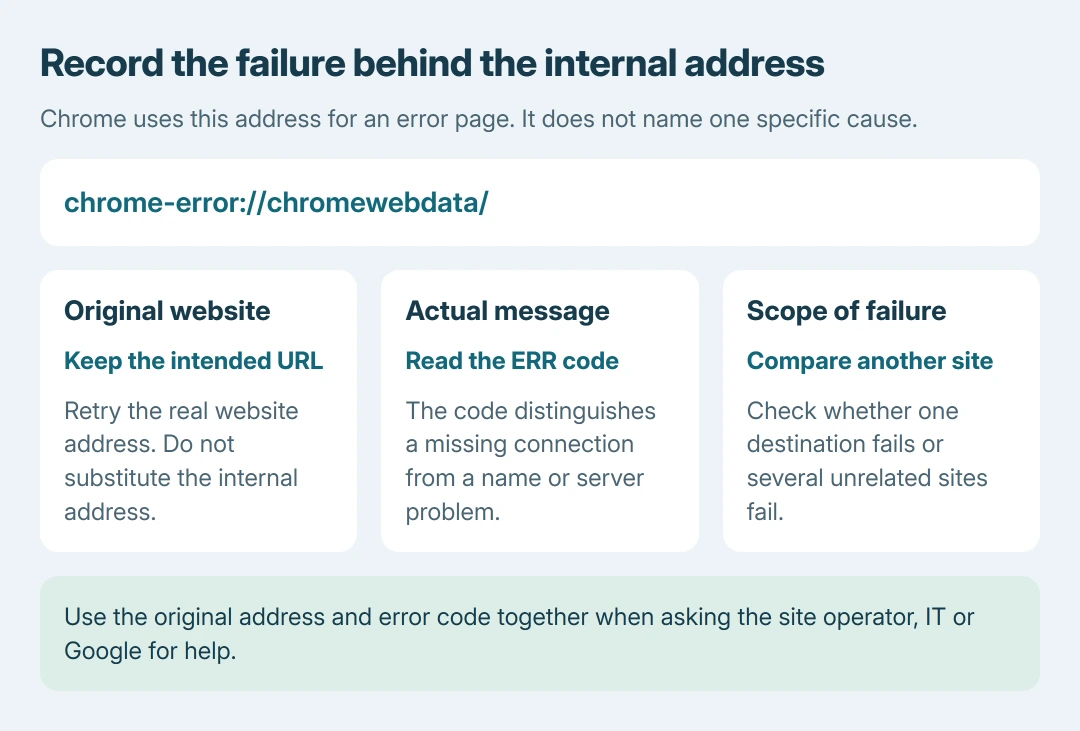
The address chrome-error://chromewebdata/ belongs to Chrome's internal error page. It does not identify one specific fault. Return to the original website address and read the accompanying ERR_ code before choosing a repair.
Chromium's source defines this address for navigation to an error page. Trying to browse to the internal address cannot replace the website that failed to load.
Recover the original address and error code
Use the original bookmark, link or typed website address to retry the visit. Check its spelling. Keep the error code and intended address together if the failure repeats.
Google's connection and loading instructions start with checking the URL and reloading. Also open an unrelated familiar website to see whether the failure affects one destination or several.
Status: Chromium's internal error-page address and Google's loading-error guidance reviewed October 26, 2026. No failing website or browser session was reproduced.
Chromium's URL definitions assign this address to error-page navigation. The address alone is not evidence of malware or a broken Chrome installation.
If it appears in a developer report, ask for the originally requested URL and navigation error as well. That extra context distinguishes a failure reaching the site from a problem drawing its content.
Which error code came with the address?
Google says ERR_INTERNET_DISCONNECTED means the device lacks an internet connection. Reconnect the computer, then retry the original site. If Wi-Fi connects but pages still fail, use the connected-without-internet checks.
ERR_NAME_NOT_RESOLVED concerns the website's hostname. Recheck the address before changing networking settings. If correctly spelled sites fail to resolve repeatedly, the DNS troubleshooting guide covers that branch.
ERR_CONNECTION_REFUSED means the destination refused the connection or access is blocked. ERR_CONNECTION_TIMED_OUT means the connection took too long. A single failing site can require its operator's attention even while other sites work.
Google's error-code reference lists the distinctions. Do not treat all four codes as a reason to clear every cookie or reinstall the browser.
Compare normal browsing with an Incognito window
If the connection works and the fault persists only in Chrome, update Chrome through More > Help > About Google Chrome and relaunch when prompted. Save unsent work before restarting the browser.
Open the intended site in an Incognito window. On Windows, Ctrl + Shift + N opens one. Google states that success there should lead to checking extensions or browsing data in the normal session.
When Incognito works, disable extensions at chrome://extensions/ and retest normal browsing. If access returns, enable them individually to identify the responsible one. Check each extension's Allow in incognito permission too.
This comparison is ours: keep the website and connection unchanged while changing the browsing context. A different result narrows the next check; it does not establish which cookie or extension caused it.
Escalate the specific error that remains
A certificate warning needs its own certificate or clock checks. Use the Chrome privacy-warning guide rather than bypassing the warning just because the internal error address appears elsewhere.
For one site failing across browsers, send its operator the original URL, time and code. Give those details to IT on a managed network.
For a repeatable Chrome-only failure, use More > Help > Report an issue or Google's help community.
The Short Version
chrome-error://chromewebdata/ identifies Chrome's error page, not the cause. Retrieve the intended address, read the ERR code, compare another site, then test a Chrome-specific failure with Incognito and extensions disabled.

Isaac Smith is the founder and editor of PC Glance, a website that covers computers, laptops, and technology. He is a tech enthusiast and a computer geek who loves to share his insights and help his readers make smart choices when buying tech gadgets or laptops. He is always curious and updated about the latest tech trends.