
An iPhone camera that won't focus may be too close to the subject or have a dirty lens. Before trying a reset, clean the lens, move back and tap a clear subject in good light. Take a photo to check whether it can focus.
The next check depends on whether close-ups are blurry, focus stays on the background or the camera shakes. A preview that keeps losing focus needs different checks from a camera that opens black or freezes.
1. Clean the lenses and remove camera accessories
Gently wipe the glass over each camera with a microfiber cloth. Remove any lens protector, attachment or case covering the cameras, then try the same shot without it. Check for fingerprints before changing software settings.
Move any magnetic mount or metal mounting plate away from the rear cameras. Apple explains that strong magnets near the camera can affect focus and stabilization, the systems that position the lens and steady the image as the phone moves.
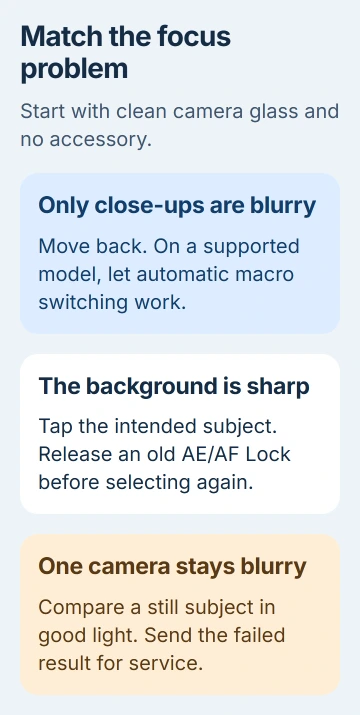
If removing the accessory makes the photo sharp, leave it off and choose a compatible replacement. If the camera stays blurry without it, try the distance test next rather than putting the same case on and taking it off again.
Look at the camera glass in ordinary light. Tell the repair team about any crack, moisture inside the lens area or shaking that started after an impact. Cleaning the outside won't repair damage behind the glass.
2. Move back and test a still subject in good light
Open Camera and select Photo. Start with the normal 1x view if available. Choose something still with clear detail, such as lettering, and move back so it isn't filling the frame from very close range.
Tap your subject, hold the phone steady and take a picture. Open the saved photo and zoom in on the detail you wanted sharp. Check the photo as well as the preview, since blur can be hard to see in a small preview.
If moving back gives you a sharp photo, the camera may have been too close to focus. That distance depends on the lens and model. There isn't one minimum distance that fits every iPhone camera.
If a still subject looks sharp but a moving person is blurry in a dim room, try better light and hold the phone steadier. Movement while you're taking the picture can cause blur even when the focus is right.
The phone photography controls explain focus and exposure, or image brightness, for a working camera. If this simple test stays blurry at a normal distance, check the focus controls next.
3. Clear an old focus lock and select the subject again
Look for AE/AF Lock in the Camera preview. It means automatic exposure and autofocus are locked to the area you chose. Tap elsewhere in the preview to clear that lock, then select the subject you want sharp.
For a still subject, touch and hold that area until the lock returns. Keep the same distance as you take the picture. Locked focus won't follow a subject that moves toward or away from the lens.
The camera tools instructions explain tapping to focus and holding to lock. Use the lock when your scene stays still; it isn't a fix for every blurry photo.
On iPhone 18 Pro models and iPhone Duo, you can also adjust focus manually. If you've selected manual focus, use A to return to automatic focus before comparing results. Other iPhones don't have that manual-focus control.
If your chosen subject becomes sharp and stays sharp, selecting the focus point helped. If a still subject keeps going in and out of focus, check whether the camera is switching for close-ups next.
4. Let the supported macro camera handle close-ups
On models with macro photography for close-ups, Camera can switch to Ultra Wide as you move closer. The flower-shaped macro control appears when you're close enough. The view may shift as the camera switches.
If automatic macro switching was turned off and a close-up looks blurry, turn it back on with the flower control. Alternatively, back away. The macro instructions also suggest .5x when a close-up becomes blurry.
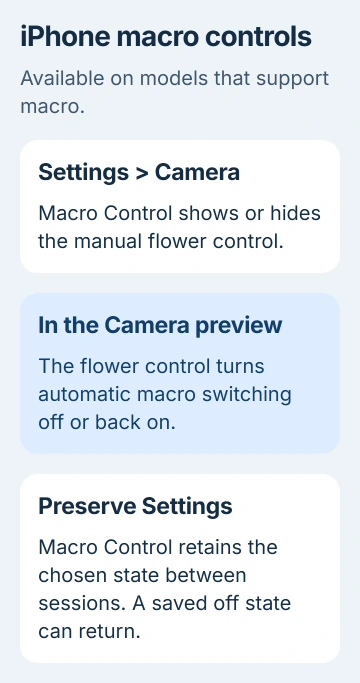
Open Settings > Camera > Macro Control to show the manual control on a supported model. Turning this setting off hides the control. It doesn't simply turn off close-up switching on every camera.
To keep your macro choice the next time you open Camera, use Settings > Camera > Preserve Settings > Macro Control. Check Camera again afterward. If it remembers macro switching as off, your next close-up may start blurry too.
A settings change won't add macro to a model that doesn't support it. Move back and crop the finished photo if needed. Trying the same very close shot won't help if that lens can't focus at that distance.
5. Compare cameras and the app taking the picture
Try the rear and front cameras on the same still subject, moving as needed. Use the camera-switch button to select the front camera. If your phone has several rear views, try its available zoom shortcuts too.
Write down which view stays blurry so you can tell a technician if only one camera is affected. If the trouble only happens in one messaging or scanning app, check that app first.
Compare the result with the built-in Camera app. If Camera saves a sharp photo, update the app that's having trouble and check its capture mode. You can use the clear saved photo for now if the service accepts uploads.
Granting camera access again won't fix a visible preview that can't focus. If the preview is black or frozen instead, follow the camera startup checks.
6. Restart and install the offered iOS update
Restart your iPhone normally. On Face ID models, hold either volume button together with the side button to show the power slider. Older Home-button models use the side or top button, depending on the model.
Turn it back on and try the same still subject again. Then open Settings > General > Software Update and install the supported update offered for your phone. Make a backup first if you don't have a current copy of your data.
Apple's camera troubleshooting sequence includes restarting, updating and comparing cameras. If the same lens still fails, resetting unrelated settings again won't tell you much more.
7. Get persistent autofocus failure assessed
Contact Apple Support if one camera stays blurry at normal distances in good light, the image shakes or focus won't settle after these checks. Include your model, iOS version, affected camera and what happened without accessories.
I'd send a sample from the blurry camera and one from a working camera so support can see the difference. Mention any drop, liquid exposure or earlier camera repair too.
The Short Version
Remove camera accessories and test a still subject farther away. Clear an old focus lock, check automatic or manual focus, and use macro on supported models. Compare cameras, restart and update; persistent failure needs service.
Checked November 5, 2026.

Isaac Smith is the founder and editor of PC Glance, a website that covers computers, laptops, and technology. He is a tech enthusiast and a computer geek who loves to share his insights and help his readers make smart choices when buying tech gadgets or laptops. He is always curious and updated about the latest tech trends.