
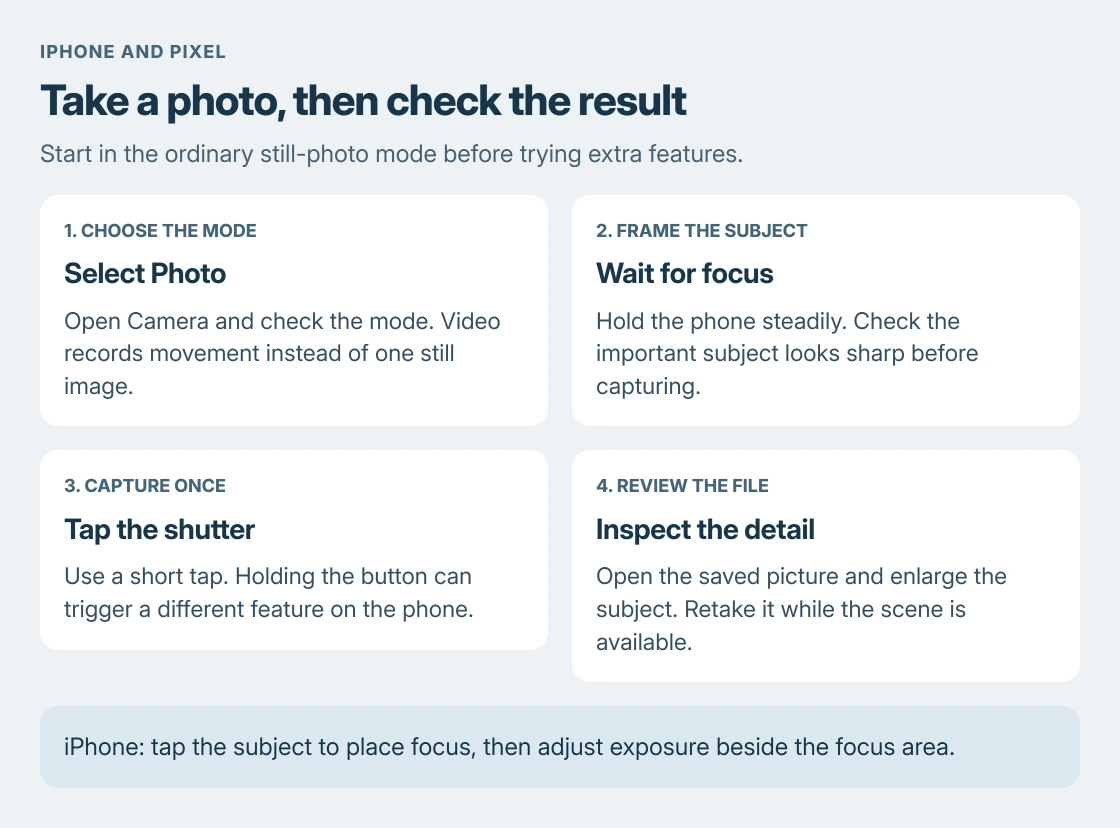
A sharp smartphone photo starts with the camera in Photo mode and the subject in focus. Open Camera, frame the subject, wait for focus, then tap the shutter once. Check the saved picture before moving away.
The steps here cover iPhone and Google Pixel. Other Android phones use their manufacturer's camera app, so button positions and extra modes can differ.
Take one ordinary photo before changing extra settings
Open Camera from the phone's app icons. On iPhone, swiping left on the Lock Screen also opens it. Select Photo if a different mode was remembered from the last session.
Apple states in its camera basics that a shutter tap takes a photo. On Pixel, Google says to wait for focus first.
Status: iPhone capture and Pixel photo steps verified 24 October 2026. iPhone and Pixel controls are distinguished; no phone photography test was performed.
Keep fingers away from the lenses and hold the phone steadily with both hands. Turn it sideways for a wide scene or keep it upright for a tall subject, then check the framing before capturing.
A single tap takes the photo. Holding the shutter can trigger another feature, depending on the phone and mode. Use an ordinary tap while learning rather than assuming every shutter gesture means the same thing.
Is the subject blurry or too dark?
Let the camera settle before pressing the shutter. A sharp background with a blurry person means the important subject needs attention, even when the whole preview initially looks acceptable.
On iPhone, tap the subject in the preview to place the focus area there. Apple documents dragging the exposure control beside that area upward or downward to brighten or darken the picture.
Its camera tools guide also describes holding the focus area until AE/AF Lock appears. Use that when recomposing makes the focus change; tap the preview to release the lock.
On Pixel, start with Google's documented automatic approach: point the camera, wait for it to focus and take in light, then capture. Extra manual controls depend on the model and app version.
More light and a steadier grip help when a dim scene blurs. For a subject very close to the lens, move back until it becomes sharp. Getting closer than a camera can focus will not create a detailed close-up.
Frame with zoom, then check the detail
Both vendors document pinching the preview to zoom. iPhone also offers numbered zoom shortcuts whose values depend on the model. Pixel provides zoom controls in its camera interface.
Start with the normal 1x view where offered. Change zoom to fit the subject, then inspect the result rather than judging sharpness from a small preview. Different phones do not share the same lenses or maximum useful zoom.
For a selfie, switch to the camera facing you, then frame again. That changes the lens facing the subject; rotating the phone alone changes the picture's orientation.
Use Photo for stills and Video for a recording
Photo is the starting mode for an ordinary picture. Choose Video when you want a moving recording, and use its recording control to begin and stop. A running timer indicates that recording is underway.
Portrait, panorama and night features are separate tools. Their availability and controls depend on the phone. Learn the regular photo sequence first so an unfamiliar mode does not become another reason for missing the shot.
On iPhone, a Live Photo can include movement around the still image. Our Live Photo settings guide covers keeping that choice when Camera is reopened.
Review the saved picture and recognize a camera fault
Open the latest-photo preview in Camera, or open Photos on iPhone and Google Photos on Pixel. Enlarge the subject enough to check that the eyes, text or other important detail is sharp.
Retake a missed shot while the subject is still available. Check the edges for unwanted people or private information before sharing. A photo appearing in the phone's library does not by itself establish that a backup has finished.
A black or frozen view is a different problem from poor composition. For the iPhone software symptoms covered there, use the black-camera checks instead of repeatedly adjusting zoom.
If a restart leaves the preview unusable, contact the phone maker with the model, software version and affected lens. Persistent failure needs assessment before assuming another setting will repair it.
The Short Version
Choose Photo, frame the subject, let focus settle and tap once. Adjust focus and exposure when needed, then inspect the saved picture. Camera modes and zoom options depend on the phone; a frozen preview needs troubleshooting.

Isaac Smith is the founder and editor of PC Glance, a website that covers computers, laptops, and technology. He is a tech enthusiast and a computer geek who loves to share his insights and help his readers make smart choices when buying tech gadgets or laptops. He is always curious and updated about the latest tech trends.