For Chicago-style citations in Chrome, install Zotero Connector alongside the Zotero desktop app. The extension saves the source you're reading; the desktop app formats it in the Chicago style you choose.
A footnote and a bibliography entry use different formats, so choose the output your assignment asks for.
In this guide
Install the connector and the desktop app together
Open the Zotero downloads page in desktop Chrome. Install the desktop app for your operating system, then use the Zotero Connector section to open the official listing in the Chrome Web Store.
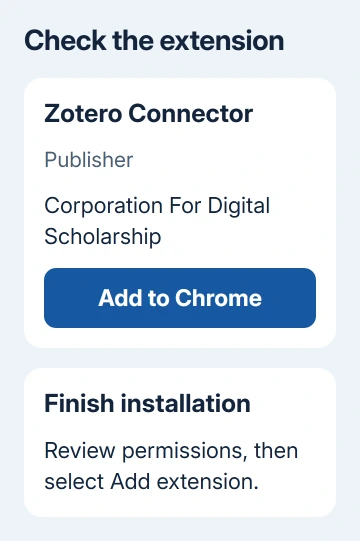
Check the extension name and publisher before clicking Add to Chrome. Review the permission prompt and select Add extension to finish. Open the desktop app too; the extension and the app do different jobs.
Click Chrome's Extensions button and pin Zotero Connector if you want its button to stay on the toolbar. Google's extension installation steps explain the installation and management controls.
Use a desktop computer for this procedure. You can't install this extension in Android Chrome the way you can in desktop Chrome. A school-managed browser may also require the administrator to approve it.
If Chrome prevents the extension from turning on, the extension enablement checks help distinguish a disabled extension from an administrator's restriction. Don't enable Developer mode to get around the normal store installation.
Save the source before asking for a citation
Open the article, journal record, book page, or other source you actually plan to cite. Keep Zotero running, choose the destination collection in the app, and click the Connector button in Chrome.
The button changes appearance according to the kind of source it recognizes. A journal article, a book, and a general web page can produce different icons. On a results page, a folder icon can let you select several records.
Wait for the save notification, then look for the new item in the desktop library. Check that its title matches the source you meant to save. Saving a search results page as a generic web page isn't the same as saving the article itself.
Zotero's item-saving instructions explain the capture methods. When a publisher provides a proper article record, save from that page rather than assuming a standalone downloaded file includes all its publication details.
I'd check the first saved item before collecting a whole reading list. If the author or item type is wrong, it's easier to correct the saving method now than to repair twenty finished references later.
Check the details Chicago will use
Select the item in Zotero and review its information pane. Match the item type, author, title, publication date, journal or publisher, and any DOI or URL to the source. Not every field applies to every kind of work.
For example, a journal article needs the journal's details rather than just the name of the website hosting it. A book chapter isn't interchangeable with a citation for the whole edited book.
Changing the Chicago style won't fill in missing details. Add what the source supplies and let the style handle unavailable information. Don't invent a date or use a website's footer year as the article's date.
Names also need a quick check. A person belongs in separate first-name and last-name fields; an organization can need the single-field form. Bad source details lead to bad output even when punctuation is formatted correctly.
For a presentation instead of an article, use the PowerPoint source-access checks to decide what readers can retrieve. That page uses APA formatting, so don't copy its punctuation into a Chicago assignment.
Choose the required Chicago system and edition
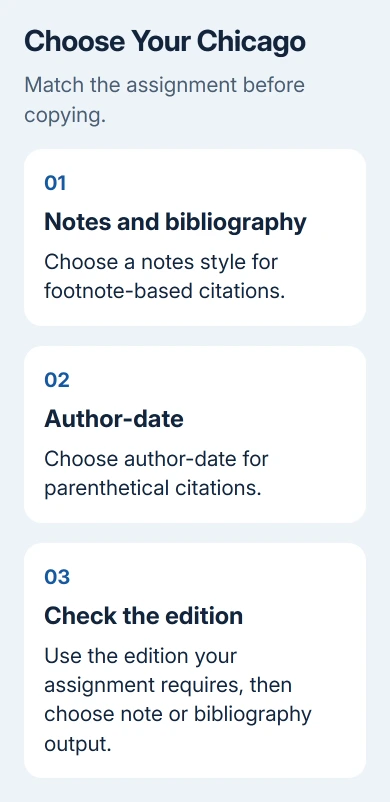
Check your assignment, journal instructions, or department guide for the Chicago edition and whether it wants notes and bibliography or author-date. Those are different citation systems, not two names for the same output.
In Zotero, open Settings > Cite > Styles. On Windows and Linux, Settings is under Edit; on a Mac, use the Zotero app menu. Review the installed styles for the Chicago variant you need.
If it isn't installed, choose Get additional styles, search the style repository for Chicago, and select the matching title. Read the whole title, including edition and whether it produces notes or author-date citations.
An instructor requesting the 17th edition hasn't necessarily switched to the 18th. Select the requested edition instead of assuming the newest available style is right for the assignment.
Copy a bibliography entry or a note
Select the source in the desktop library, right-click, and choose Create Bibliography from Item. Selecting several items changes the wording to Items and creates output for that selection.
In the window that opens, select the correct Chicago style. Under output mode, choose Bibliography for the reference list, or Citations/Notes for citation or note text. Choose Copy to Clipboard as the output method, then confirm.
Paste into your document and inspect the result. For a notes-based paper, put note text into an actual footnote in the word processor; pasting text into the main paragraph doesn't create a numbered footnote.
A bibliography entry identifies the source as a whole. When a note cites a particular passage, add the page number or other location through your document's citation controls. Don't assume a book's total page count is the page being cited.
For repeated quick copying, Settings > Export lets you set the Quick Copy format. That preference is separate from the style used by a word processor document, so changing one doesn't necessarily change the other.
Use document integration for a paper with many citations
Once you paste an entry, it's just text in your document. If the paper needs repeated notes, changing styles, and a bibliography that updates, use Zotero's word processor integration rather than maintaining every entry by hand.
In Google Docs, the Connector adds a Zotero menu while the desktop app provides access to the library. Use Add/Edit Citation, choose the document's style when prompted, and search for the saved item.
Add the page number in the citation dialog when you need to cite a particular passage. Use Add/Edit Bibliography to insert the bibliography and Document Preferences to change the document's citation style.
If the output still looks wrong, compare the saved details and selected style first.
If you can reproduce the formatting problem, post to the Zotero Forums with the full style title, item type, incorrect output, and required example from your style guide.
The Short Version
Install Zotero plus its Chrome Connector, save and check the source, then choose the requested Chicago edition and citation system. Use Create Bibliography from Item for a quick copy or document integration to keep citations updated.
Checked November 10, 2026.