
Removing Microsoft Edge is supported on eligible Windows PCs in the European Economic Area. Check its installed-app entry for Uninstall. If that control is disabled, Windows is not offering supported removal on that installation.
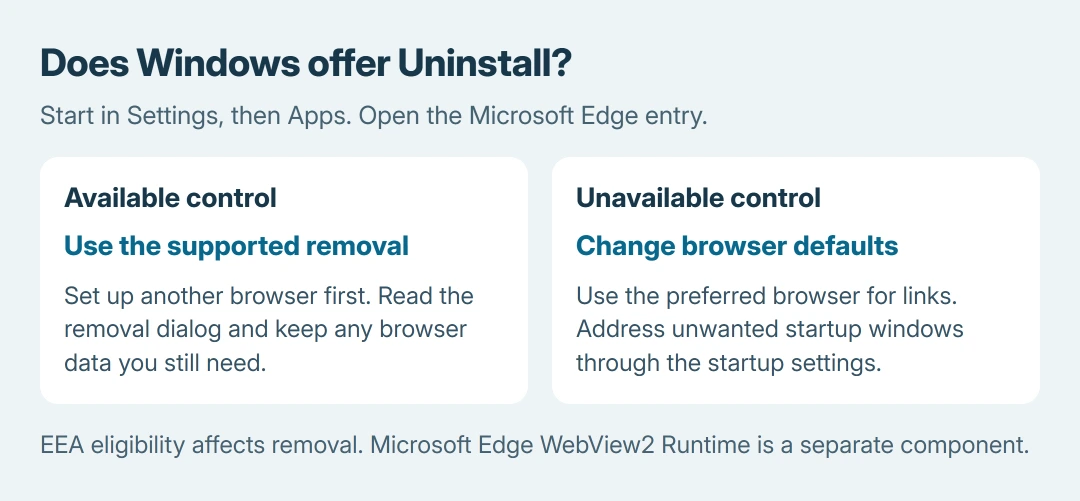
Set up another browser first. Outside that supported route, changing the default browser and stopping unwanted startup windows usually achieves the practical goal without forcing Windows components out.
Check the Edge entry in Windows Settings
Install the browser you intend to use and confirm that it opens websites. Save any Edge favorites or other browser data that you still need before approving an uninstall dialog that offers to delete them.
In Windows 11, open Settings > Apps > Installed apps. Find Microsoft Edge, open its three-dot menu and inspect Uninstall. In Windows 10, look under Settings > Apps > Apps & features.
Status: Microsoft's Edge removal guidance and EEA changes checked October 26, 2026. Availability depends on the Windows installation. No browser was removed.
Microsoft documents the general More > Uninstall procedure in its Windows app-removal instructions. Follow the confirmation screens when Edge offers it.
Afterward, search Start and the installed-app list for Edge. A remaining taskbar shortcut is not a reliable installation check. Open an ordinary web link to confirm that the replacement browser handles it.
Why is Edge's Uninstall button disabled?
Microsoft says Edge removal was added for EEA installations in its Digital Markets Act announcement. That exception matters when general support text says Edge cannot be uninstalled.
The same announcement ties the EEA designation to the region selected during device setup. Changing the everyday Region setting afterward should not be treated as a supported way to unlock removal.
Do not reset a working PC simply to seek a different uninstall button. If an eligible, updated EEA installation still lacks the option, give Microsoft Support the Windows build and the disabled control's details.
When Uninstall is unavailable, change which browser opens links
Open Settings > Apps > Default apps and select the replacement browser. In Windows 11, use its Set default control when offered, then review any individual link or file types that still open in Edge.
Microsoft states that Windows permits choosing defaults by application, file type or link type in its default-app guide. Setting a browser default does not remove Edge.
Test an HTTPS link from another app. If only PDFs still open in Edge, change the .pdf association separately. The Windows browser-association guide explains that distinction.
If the actual problem is an Edge window opening at sign-in, use the Edge startup controls. Pins, browser defaults and startup settings perform separate jobs.
Keep Edge browser removal separate from WebView2
Microsoft Edge WebView2 Runtime is a different installed component. Other applications use it to draw web content inside their own windows. Removing the browser does not make its separate runtime unnecessary.
If Task Manager still lists WebView2 afterward, the WebView2 process guide helps identify its parent apps. Those processes do not establish that the Edge browser uninstall failed.
Microsoft's Edge dependency information also warns that Edge-backed website apps and widgets can stop working after browser removal. Check any such app you rely on before committing.
If an app needs Edge again
Reinstall the browser from Microsoft's Edge download if a required Edge-backed app stops opening. Retest that app after installation rather than deleting additional components.
For an uninstall error, record its exact text and contact Microsoft or the administrator of a managed PC. A forced-removal script cannot establish why the supported installer failed or why Windows withheld removal.
The Short Version
Use Edge's Uninstall control when available on an eligible installation. Otherwise, change browser defaults and unwanted startup behavior. Keep WebView2 for the apps that need it.

Isaac Smith is the founder and editor of PC Glance, a website that covers computers, laptops, and technology. He is a tech enthusiast and a computer geek who loves to share his insights and help his readers make smart choices when buying tech gadgets or laptops. He is always curious and updated about the latest tech trends.