
You never open Edge, yet Task Manager lists a stack of Microsoft Edge WebView2 processes eating memory or processor. It is easy to worry that Edge is running behind your back.
I would find out which app owns them before touching anything. WebView2 is the piece other apps use to show web pages, and an owner cut its load by changing one setting in TeamViewer.
More than 100 people on Microsoft's forum have asked whether they need it at all.
What WebView2 is
Microsoft says WebView2 "allows you to embed web technologies (HTML, CSS, and JavaScript) in your native apps". Teams, the new Outlook, Widgets and plenty of other programs draw parts of their windows with it.
So the memory is not Edge's. Edge may not even be open. It belongs to whichever apps are open, and each one starts its own WebView2 processes.
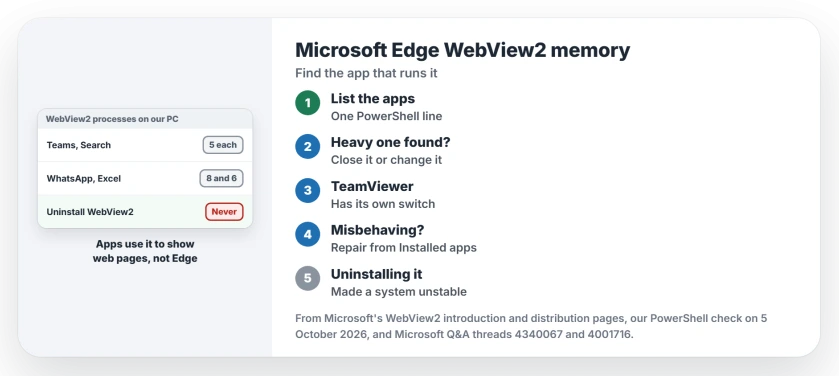
Status: checked 5 October 2026. An owner cut WebView2's load by turning it off inside TeamViewer. Another uninstalled WebView2 and wrote that the system became unstable.
1. List the apps behind it
Task Manager does not always say which app started a WebView2 process, so this PowerShell line asks each one, and it only reads:
Get-CimInstance Win32_Process -Filter "Name='msedgewebview2.exe'" | ForEach-Object { if ($_.CommandLine -match '--webview-exe-name=(\S+)') { $matches[1] } } | Group-Object | Select-Object Count, NameOurs: on the PC we checked, it found 28 WebView2 processes from four apps: Teams, Windows Search, WhatsApp and Excel. Your list names the app to look at. I would start there.
2. Close or change the heavy app
The owner of a 60+ thread had WebView2 "constantly hogging 50% to 70% of CPU" on a relative's Lenovo. In their words: "I figured out that TeamViewer was using Edge Webview2".
The fix was in TeamViewer itself: "TeamViewer has a check box to turn off Edge Webview2". After that, "TeamViewer still works and Edge Webview2 is using minimal resources". One tick did it.
Ours: check the settings of the app your list names; Widgets, a chat app or a remote support tool you forgot about can all be the one.
3. Repair it, never uninstall it
A 100+ asker removed it and regretted it: "my system has become unstable after uninstalling Microsoft Edge WebView2". Their conclusion was "do not uninstall Microsoft Edge WebView2". I would leave it installed. Repair it instead.
Microsoft says the Evergreen WebView2 Runtime "will be included as part of the Windows 11 operating system". If it misbehaves, repair it from Settings, Apps, Installed apps, the same way Windows Search was fixed.
The forced uninstall going around
An accepted answer on a 40+ thread gives a command that strips WebView2 out by force. Its own author added that it "will probably ruin your windows/internet expiriance".
Ours: apps you rely on will reinstall it or stop working. The memory problem moves. It does not go away.
To remove the browser itself, inspect its Windows uninstall option. That task concerns Edge rather than the runtime other apps need.
Why does WebView2 run when Edge is closed?
Because other apps on your PC use it, not Edge. A 2026 asker wrote "i don't need the changing backgrounds, widgets, etc, i just need to work", and those features run on it.
Edge itself opening at sign-in is a separate case, with its own three switches.
How much memory is normal?
It depends on how many apps use it. Ours: on our PC the processes from four apps used about 940 MB together, so a big total alone means little; one app holding gigabytes means more. Windows uses spare memory on purpose, so judge by the app, not the total.
Is msedgewebview2.exe a virus?
The real one sits in Program Files (x86), Microsoft, EdgeWebView, and is signed by Microsoft, as ours was. Ours: a copy elsewhere deserves a scan.
The Short Version
- WebView2 is how apps show web content, not Edge running.
- Run the PowerShell line to list the apps behind it.
- Close or change the heavy app; TeamViewer has a switch.
- Repair the runtime from Installed apps if it misbehaves.
- Never uninstall it; an owner's system became unstable.
- The forced uninstall moves the problem, it does not solve it.
Where to Next
Run the PowerShell line now and read the app names, because the one with the most processes is where to start.
Which app was behind yours? Name it in the comments, so the next reader knows where to look.

Isaac Smith is the founder and editor of PC Glance, a website that covers computers, laptops, and technology. He is a tech enthusiast and a computer geek who loves to share his insights and help his readers make smart choices when buying tech gadgets or laptops. He is always curious and updated about the latest tech trends.