

The Edge data-directory error often comes from the app you're opening, even when the Edge browser is closed. Check the folder named in the message, then start that app normally without administrator rights if it doesn't need them.
Many Windows apps use WebView2 when they need to display web content. This Microsoft component needs a folder it can write to. The wrong folder, a different Windows account or a security block can stop the app from opening.
1. Match the error to the app and folder
Write down the full folder path before closing the error, along with the program you opened just before it appeared. Even a sign-in window inside another program can show this message with Microsoft Edge in its title.
Microsoft says WebView2 saves cookies, permissions and cached content in a user data folder. The app that uses WebView2 chooses where that folder lives.
Status: reviewed November 3, 2026. Microsoft's WebView2 guidance requires a writable app-data folder. Wails documents a separate failure when an app runs under another administrator's account.
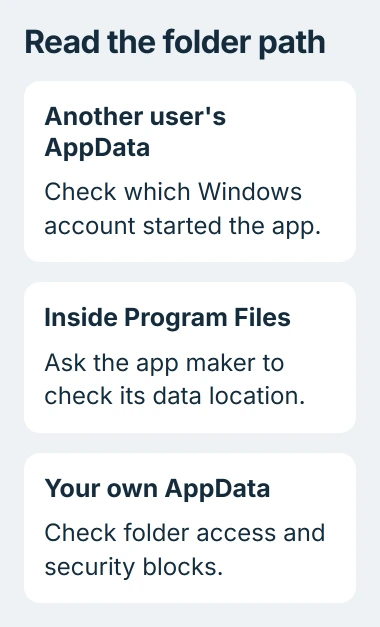
For a path ending in .exe.WebView2, check the program name before that ending. It can tell you which app is involved. If the folder is named for a design tool, launcher or utility, start with that program.
If the process list is confusing, identify which app started WebView2. Opening Edge and clearing its browsing history won't repair another application's folder permissions.
Copy the path into your notes rather than posting it publicly with your Windows username. The useful details are the app name, folder location and whether the path belongs to your current account.
2. Remove an unnecessary administrator launch
Close the affected program, then open it normally from Start without choosing Run as administrator. Try the sign-in or panel that failed so you can compare the result.
The Wails troubleshooting guide describes a specific cause: a standard user enters another account's administrator password, and the app then chooses that administrator's AppData folder.
Parts of WebView2 still run under your signed-in account, which can't access the other account's folder. That's why running the app with administrator rights can cause this error instead of fixing it.
If you set the app to always run as administrator, check its shortcut's Properties > Shortcut > Advanced. Clear Run as administrator when that was your own change and the program doesn't require it.
Check Compatibility too, if that tab appears. Its separate administrator option can force the same behavior. The shortcut administrator settings page explains these two controls.
If the app opens normally, the problem is the administrator account or access to its folder. Keep opening it normally. If it needs administrator rights, ask its support team for help before changing access to another user's profile.
I'd try opening the app normally before changing permissions. It's quick, and you can still check which folder it tries to use if the error returns.
3. Repair the program that owns the folder
Look for an update inside the affected app or on its maker's download page. Use the official installer for your app. An update can fix where the app creates its WebView2 data.
Microsoft documents a Windows app repair option for programs that provide one. In Windows 11, open Settings > Apps > Installed apps and find the affected program.
Open its three-dot menu, select Advanced options, then Repair if offered. In Windows 10, the list is named Apps & features. Some desktop programs instead provide Modify or Repair through their installer.
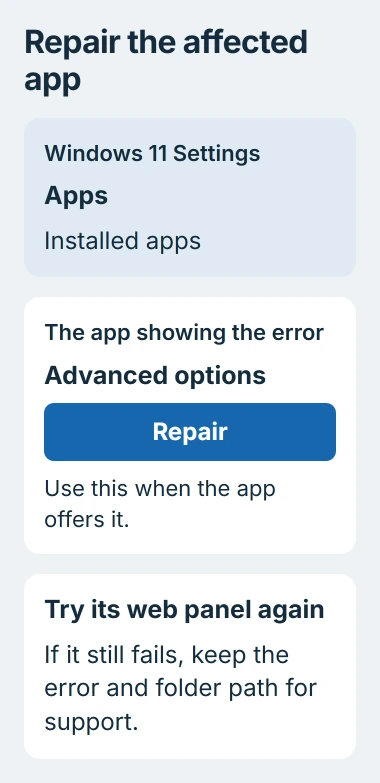
Reopen the app after repair and try its web panel again. A missing Repair button means the app doesn't offer this Windows control. Follow the app maker's repair instructions instead.
Try Repair first to keep your app's data. Save Reset for when you have recovery instructions for that app: it can remove settings and other local data, including information that hasn't synced.
4. Check access to the exact folder
In File Explorer, find the folder named in the error. If it's there, right-click it and open Properties > Security. Select your Windows account to see the permissions listed for it.
If the path has another username, use the account check in section 2. If it points beside the app's program file in Program Files, ask the app maker to check where it stores data.
Microsoft states that ordinary desktop apps, called Win32 apps, can put this data beside their program file by default. It tells developers to choose another location when the app can't write there.
For a data folder inside your own account, send its permission details to the app's support team. They can tell you which folder needs access and how to restore that access after a move or reinstall.
Don't give all users unrestricted access to Windows, Program Files or a whole profile. Leave that parent folder's permissions alone; broad access changes won't correct an app choosing the wrong data folder.
5. Check security blocks before resetting app data
If IT manages your PC, ask whether security software stopped the app writing to that folder when the error appeared. Include the app name, folder path and what happened when you opened it normally.
Microsoft's WebView2 security guidance explains how blocked folder writes can stop an app from keeping its sign-in state. The fix depends on which security software blocked it.
If the security log shows a block, ask IT to allow that app through the rule. Turning off antivirus for the whole PC won't tell you which rule blocked access.
Microsoft also warns against storing this data in a shared network folder. If the path points to a server, ask the app maker or administrator to choose a local folder using a setting the app supports.
If access looks right but the error remains, ask the app maker how to clear its WebView2 folder. It can hold sign-in details and saved app data. Close any WebView2 processes using it before following those cleanup steps.
Give support the exact message, app and Windows versions, folder path and how you opened the app each time it failed. Ask them to check the app's chosen folder, its permissions and any security block when it starts.
The Short Version
Follow the folder path to the affected application. Try opening it normally, repair that app, and check its data folder. Fix any account mismatch or blocked folder access before resetting the data.

Isaac Smith is the founder and editor of PC Glance, a website that covers computers, laptops, and technology. He is a tech enthusiast and a computer geek who loves to share his insights and help his readers make smart choices when buying tech gadgets or laptops. He is always curious and updated about the latest tech trends.