
Your PC starts and Microsoft Edge pops up on its own, sometimes with tabs, even though Chrome or Firefox is your browser. It is annoying, and the first fix you find online often no longer matches what your Edge shows.
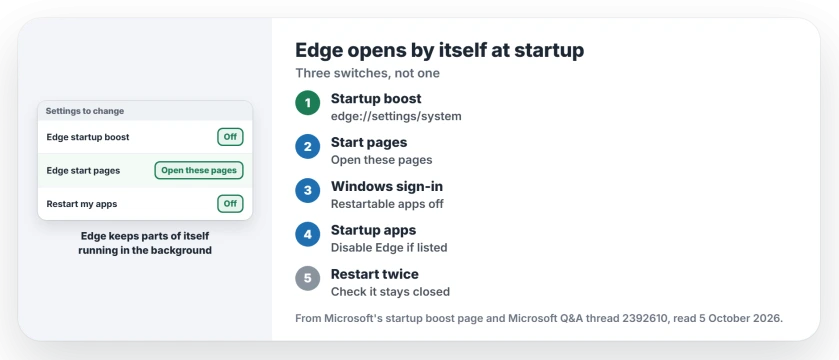
I would change three things: Edge's startup boost, Edge's own startup page setting, and the Windows switch that reopens apps after you sign in. An owner made it stop with the second one.
A 100+ Microsoft Q&A thread has owners comparing what worked over more than a year of replies.
Why Edge starts without you
Part of it is by design. Microsoft says "Startup boost keeps the browser running in the background with minimal processes, so Microsoft Edge will start more quickly when launched".
The asker on that thread had Chrome as default and the Windows reopen switch already off, yet "Edge continues to open automatically". So one setting is rarely the whole story.
Status: checked 5 October 2026. An owner stopped it by setting Edge to open a specific page at startup. Microsoft documents startup boost and the switch for it.
1. Turn off startup boost
In Edge, open Settings, then System and performance, and switch off Startup boost. Microsoft's startup boost page confirms it "can be toggled on and off by going to edge://settings/system/manageSystem".
Ours: paste that address into Edge if you cannot find the switch in the settings menu. Then close Edge. I would do this one first.
2. Change what Edge opens with
The owner whose answer the asker accepted in 2024 used this one. Quick Start had vanished from their Edge. So they changed the start page instead.
In Settings, Start, home, and new tabs, they picked Open these pages and gave it one website. In their words, after that one change, "the problem went away". They added: "Edge no longer starts up regardless of your settings".
Ours: any page works, not only a search engine, as long as it is one fixed address. Pick one you would not mind seeing. I would choose a blank one.
3. Stop Windows reopening your apps
Windows 11 can reopen apps by itself too. Open Settings, Accounts, Sign-in options, and turn off the option to automatically save your restartable apps and restart them when you sign back in.
That switch reopens whatever was running when you shut down or restarted for an update. Ours: if Edge was open, Windows brings it back, which looks exactly like Edge starting by itself.
4. Look at Startup apps
Open Task Manager, choose Startup apps, and disable Microsoft Edge if it is there. One owner found Edge was not listed at all, which is why steps 1 to 3 matter more.
What did not settle it for owners
The asker had already turned off the Windows reopen switch and kept Chrome as the default browser. Neither stopped it on its own.
Ours: Edge processes you see in Task Manager with Edge closed may not be Edge at all. WebView2 belongs to other apps, and switching off Edge settings will not touch it.
Can I uninstall Edge?
Ours: not on Windows 11 in most regions, and ripping system parts out by force causes far more trouble than one unwanted window at startup. The settings are safer.
Eligible EEA installations can offer a supported uninstall. Check Edge removal availability before treating a disabled button as an installer fault.
Why does Edge open my default browser's links?
That is a default apps question. Changing your default browser covers the file types and links Edge might still hold.
The Short Version
- Startup boost keeps Edge running in the background.
- Turn it off at edge://settings/system/manageSystem.
- Set Edge to open specific pages; an owner said that stopped it.
- Turn off the Windows switch that restarts apps after sign-in.
- Disable Edge in Task Manager's Startup apps if it is listed.
- Edge WebView2 in Task Manager is other apps, not Edge.
Where to Next
Make the three changes, then restart your PC twice, with a normal shutdown in between. If Edge stays closed both times, you are done and the fix has held.
Which of the three did it on your PC? Say in the comments, because owners report different ones and the next reader can start there.

Isaac Smith is the founder and editor of PC Glance, a website that covers computers, laptops, and technology. He is a tech enthusiast and a computer geek who loves to share his insights and help his readers make smart choices when buying tech gadgets or laptops. He is always curious and updated about the latest tech trends.