
Windows 11's widget Add button can stop working when the apps behind the board need updating, even after Windows Update finishes. Update Windows Web Experience Pack and Start Experiences App in Microsoft Store first, then reopen Widgets.
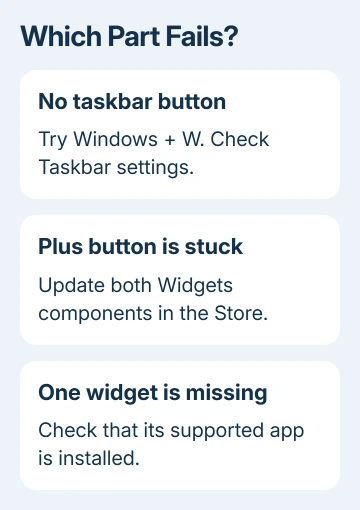
An unresponsive plus button, a missing widget, and a missing taskbar button need different checks. Start with app updates for a stuck picker. If just one widget is absent, check that its app is installed and supports Widgets.
In this guide
1. Update the apps that run Widgets
Open Microsoft Store from Start. Select Library near the lower-left corner, then look for Windows Web Experience Pack. Search for that exact name in the Store if it isn't easy to find in your library.
Open its entry and select Update when offered. When Update isn't offered, the Store isn't offering a newer version of that package. Also check the Store's available app updates for Start Experiences App and install any offered update.
Microsoft says both apps need current updates in its Widgets troubleshooting instructions. A completed Windows quality update doesn't mean these Store apps have finished updating.
For other programs, find the correct Windows app updater before assuming the Store handles software installed by its publisher.
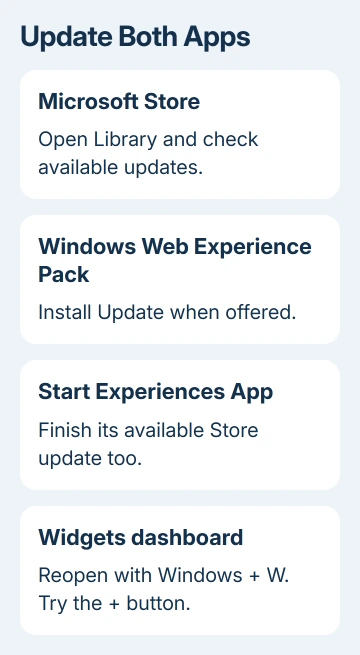
Let the downloads and installations finish. Close the board if it's open, then press Windows + W to open it again. Select the Widgets dashboard if the board currently shows the Discover news feed.
Select the + button and check whether the widget picker now opens. You should see a list of widgets available from your installed apps. If Add remains unresponsive or keeps loading, work through the remaining checks.
I'd do this before removing anything. It updates the components the board uses without deleting your account or changing unrelated Windows settings. If the Store itself won't update apps, continue with section 4.
2. Check whether the picker is missing an app
The plus button opens a picker for widgets available on your device. It isn't a promise that every Windows app has a widget. A working news feed also doesn't mean a particular app's widget is installed.
Open the app you want a widget for and check that you're using its Windows edition. Then look for that app in Microsoft Store and install any available update. Return to Widgets and open the picker again.
For supported apps you haven't installed, use the Store's Widgets collection to find available choices. Install the app that supplies the widget, then return to the board to add it. Don't expect an ordinary browser bookmark to appear there.
Add an available widget to the dashboard. Check that its card remains after you close and reopen the board. A card that appears but shows no information needs attention inside that app, rather than another Add-button repair.
If one app remains missing while others add normally, report that to the app's developer. Include its version number and explain that other widgets add successfully. That helps the developer check how their app connects to Widgets.
3. Separate the dashboard from the taskbar shortcut
Press Windows + W even when the weather icon is missing from the taskbar. If the board opens, you can still use it while its taskbar button is hidden. The keyboard shortcut gives you access until you restore the button.
To restore the entry, right-click a blank taskbar area. Select Taskbar settings from its menu. Find Widgets under Taskbar items and turn it on. Check the taskbar again after closing Settings.
The taskbar switch controls access to the board. It doesn't install additional widgets or fix the picker inside it. If Windows + W opens the board but its plus button still fails, return to the Store-component checks.
The Discover dashboard is the news stream. Open Widgets in the board's navigation to manage your cards. Looking at Discover can make the widget controls seem missing even though another part of the board is working.
The Windows Start layout controls change another menu entirely. Changing Start's recommendations or pinned apps won't add a weather card to the Widgets dashboard.
If neither the keyboard shortcut nor the taskbar button works, include that detail in your support request. It tells support that the board doesn't open at all, rather than that one command inside a working board is broken.
4. Repair the Store when updates won't download
Open another app's Store entry and check whether its update also fails. If multiple Store updates are stuck, work on the Store first. Repeatedly clicking Add in Widgets can't complete a download waiting in another app.
Press Windows + R, type wsreset.exe, and press Enter. A blank Command Prompt window can appear while the Store cache resets. It should close automatically, with Microsoft Store opening afterward.
Return to the two Widgets components and retry their updates. This resets the Store cache; it isn't a command to uninstall Widgets. Let the Store reopen before judging whether anything changed.
If the Store still fails, open Settings > Apps > Installed apps. Find Microsoft Store, open its three-dot menu, and select Advanced options when available. Under Reset, try Repair first.
Use Reset only if Repair doesn't help, and read its confirmation before accepting. The reset can remove the app's stored data. Retry the Store download afterward, then check the original Widgets button.
If Edge or related components were removed before the trouble began, review Edge's app dependencies. Don't remove WebView2 as a way to repair a panel that relies on web content.
When the button still doesn't respond
Open Feedback Hub from Start and report that the Widgets button doesn't work. Include the Windows version from Windows + R > winver, whether the board opens, and whether every widget or only one app is affected.
For an organization-owned PC, ask IT whether restrictions block Widgets or its Store updates. Tell them the names of both components and any Store error code. Avoid changing organization policies yourself.
The Short Version
Update both Widgets components in Microsoft Store. Use the dashboard's picker for installed, supported apps, and treat a missing taskbar shortcut separately. Repair the Store when its downloads fail.
Checked November 13, 2026.






