Windows apps don't all update in the same place. Check Microsoft Store for Store-managed apps, then check the separate updater inside software such as Office or Chrome.
Windows Update being current doesn't mean every application is current. Start with the app you want to update, and check its version after the update finishes.
In this guide
Check Microsoft Store's Downloads or Library page
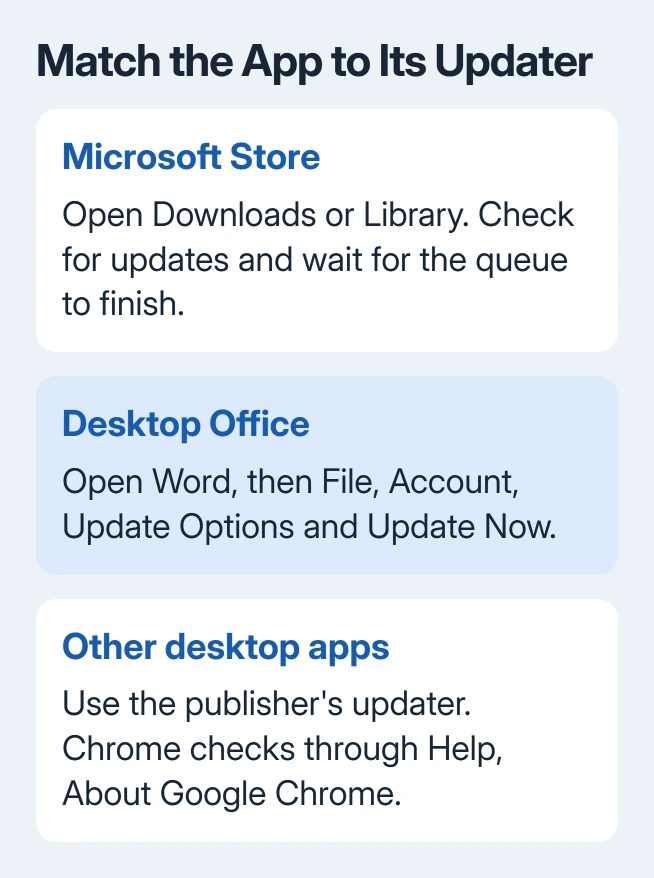
Open Start, type Microsoft Store, and open the app. Look for Downloads or Updates and downloads in the navigation. On older Store layouts, open Library instead.
Use Check for updates or Get updates, whichever your Store version displays. Review the queue and allow the requested updates to finish. An installed app's Open button isn't an instruction to update it.
Microsoft's Store update guidance explains manual checks from Downloads or Library. It also explains which apps can update through the Store and which use their publisher's updater.
If the queue says an app is downloading or installing, leave it to complete before opening that app. If an item fails, check its error; one successful update doesn't tell you that every other item finished.
After installation finishes, launch the application to check its behavior or look for the feature you needed. If its version hasn't changed, check whether the publisher offers an update to your particular release channel.
The Windows 10 and Windows 11 Store interfaces can both change when the Store app updates. Follow the controls present in your Store rather than expecting the navigation to match your Windows version exactly.
When Photos updates but a Windows 10 image still refuses an edit, the missing editor checks help choose between a file-format fix and app repair.
Check whether Store updates have been paused
In Microsoft Store, select your profile picture and open Store Settings. Inspect App updates. Current Store versions offer a pause for one to five weeks, then automatic updates resume.
The older permanent Off control has been replaced in that newer design. If an older Store still shows an On/Off switch, turn App updates on to allow automatic updates there.
Manual checks remain available while automatic updates are paused. That is useful when you need a particular fix now but chose to delay the general update queue during travel or while using a limited connection.
An employer or school may control these settings on its computers. If the pause option is missing, ask IT whether it manages app updates.
After changing the setting, return to Downloads or Library and check the app's status. Turning automatic updates on changes the setting; your app still needs to download and install any available update.
Update Office from inside an Office application
For Microsoft 365 or a supported desktop Office installation on Windows, open an application such as Word. Create or open a document, then choose File > Account.
Under Product Information, choose Update Options > Update Now. If Enable Updates appears first, choose it before checking again. Wait for the update window to finish, closing Office apps if it asks you to.
Save documents before allowing the update to close applications. When it finishes, the completion window may say the installation is current or that updates were installed. Reopen the affected app after that process completes.
In classic Outlook, the account page can be named Office Account. These controls update desktop Office. They don't update every Microsoft app on your computer.
An About button without Update Options can indicate volume licensing or company-controlled updates. Ask the company help desk which update channel manages that copy rather than reinstalling it to get a button.
If you're setting up Word for the first time, the Word download and installation choices explain which application you're installing. A browser document and an installed desktop application don't share every update control.
Let Chrome and other publisher-managed apps use their updater
For Chrome, open the three-dot menu and choose Help > About Google Chrome. That page displays the installed version and checks for available updates. Choose Relaunch when offered to apply the downloaded update.
If Relaunch isn't offered and the page reports that Chrome is current, Chrome isn't waiting for a restart to finish that update. Leaving the browser running indefinitely can leave an already downloaded update waiting to finish.
Other desktop apps often put update controls under Help, About, or their own Settings page. Use the publisher's documented route for that product; the wording and installation method differ between apps.
Don't install an updater offered by an advertisement or a surprise browser notification. Open the installed app's own controls or the publisher's official support route when you need help checking its version.
I'd check the app's own updater before downloading another installer. That usually preserves the existing installation and makes it clearer which product and release you're updating.
If the app says the computer's operating system is unsupported, a newer supported operating system may be required. Repeating the same update check won't change those requirements; ask the publisher which version still supports your PC.
For a Windows 10 app that remains broken, follow the software failure checks for setup errors, crashes or older-program compatibility.
Keep Windows Update and app updates separate
On Windows 11, open Settings > Windows Update to check the operating system. On Windows 10, use Settings > Update & Security > Windows Update. Those controls are separate from the Store's update queue.
Some applications and components can receive updates through system-managed routes, but a successful Windows scan isn't an inventory of every desktop app. Use the update steps for the application you're checking.
For Windows 10, remember that an app can still update even when Windows itself is out of support. An application update doesn't extend Windows support or supply operating-system security updates.
When an update stalls at the Windows level, use the Windows Update troubleshooting sequence. For a Store-only failure, check the Store item and its download error instead of resetting unrelated system settings.
When a particular app still won't update
First note the app name, installed version, and exact update error. Check the connection and complete any requested restart. For a Store problem, return to its download queue and see whether another app can update.
If the Store itself is broken, use its official app troubleshooting steps. Repair is a different action from Reset; resetting can remove the application's data, so protect anything stored only inside the affected app before choosing it.
For publisher-managed software, report the version and failed update step to its publisher. For a company installation, ask IT which account or system handles software updates. Include those details rather than only Windows Update's status.
The Short Version
Use Store Downloads or Library for Store-managed apps, Office's Account page for desktop Office, and the publisher's updater for other programs. Finish any requested restart, then check the app's version.
Checked November 15, 2026.