
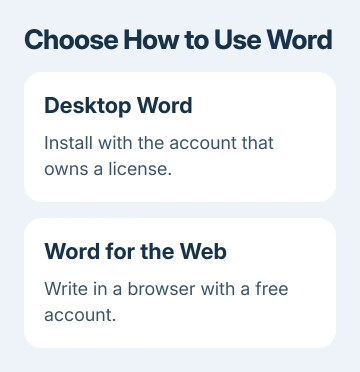
Microsoft Word's desktop download comes through the account that owns your Office purchase or Microsoft 365 license. Sign in to the Microsoft 365 Apps page with that account, choose Install apps, and run the downloaded installer.
For free writing in a browser, use Word for the web instead. A free Microsoft account doesn't automatically include a license for the installed desktop version, and organizational accounts need a desktop-app license.
Check which account owns Word before downloading
For a personal purchase, use the Microsoft account linked to that purchase. For a company or school license, use the account the organization assigned to you. The same email address can be used for more than one type of account.
If a newly purchased home copy came with a product key, redeem it at microsoft365.com/setup using the account you'll keep for this purchase. This links the purchase to that account before installation.
An already redeemed key doesn't need entering again for every reinstall. Return to the linked account instead. Keep the purchase confirmation available if the account doesn't show what you bought.
Microsoft explains the process in its installation instructions for Microsoft 365 and Office 2024 on Windows and Mac.
Standalone Word, workplace benefits, and volume licensing can have different installation routes. Follow the purchase instructions or ask your IT team which method applies to that edition.
Download and install Word on Windows
Open m365.cloud.microsoft/apps in your browser and sign in. Use the account connected to your license, then look for Install apps. You'll need to sign in before you can download the installer.
With a personal Microsoft account, select Install apps, then Install, or the installation choice shown for your version. For an organizational account, choose Install apps > Microsoft 365 apps.
Some work or school layouts put Apps in the left navigation first. Open that section if necessary, then use Install apps. The available options depend on the account and the license assigned to it.
Run the installer from the browser's downloads list or File Explorer's Downloads folder. At the Windows permission prompt, check that this is the installer from your Microsoft account before approving it.
Let installation finish while the computer remains connected to the internet. For a suite purchase, Word arrives as part of the Office apps installation; you don't need to search a download site for a separate Word executable.
Open Start, type Word, and select it. Follow the first-run prompts and sign in with the licensed account if requested. Accept the license agreement to complete the activation steps offered by your edition.
Create a blank document and check that editing is available. The download only gets the installer onto your computer. Opening a document you can edit checks that Word is installed and activated for the work you need.
Install the Mac version from the same account
On the Mac, visit the same Microsoft 365 Apps address and sign in with the licensed personal, work, or school account. Choose Install apps, then the installation choice offered for that account.
When the download finishes, open Finder > Downloads and double-click the Microsoft Office installer.pkg file. Its complete filename can vary. This is a Mac package, rather than the Windows installer file.
In the installer, select Continue, review the license, and accept it. Choose the installation location when offered, select Install, and enter your Mac's administrator credentials if the installer requests them.
Allow the installation to finish, then close the installer. Open Word from the Applications folder in Finder and follow its first-run sign-in and activation prompts using the account licensed for your copy.
If Microsoft 365 or Office reports an installation error, save the complete message. Repeatedly opening the same package won't correct an account problem or an unsupported operating system.
I'd compare the account signed into your browser with the one in Word during setup. A successful download under one account can still leave Word asking for activation when another account is used inside the app.
Use Word for the web when a desktop license isn't needed
For basic writing without purchasing the desktop apps, open microsoft365.com, sign in with a free Microsoft account, and choose Word from the available web apps. The document opens in the browser.
This is a different choice from downloading the installed application. Keep using the web version when its tools cover the work you need, rather than starting a desktop trial simply to type a short document.
Check where the document is saved before closing the browser. Word for the web works with online files; downloading an offline copy is a separate action from installing Word itself.
The Word document download guide covers saving a document to your computer. It helps when the real goal is getting a .docx file out of the browser, rather than installing an app.
Fix a missing Install apps button or activation prompt
First check the signed-in account. A personal account without the purchase attached won't offer the same installation as the account used to buy it. Sign out and use the purchase account before paying for another license.
For work or school, ask the administrator to confirm that your assigned license includes desktop Microsoft 365 apps and that installation is permitted. Being able to use email or web apps doesn't mean your license includes desktop apps.
If Word installs but asks for activation, use the licensed account in Word and follow the Activation Wizard when shown. If the subscription has expired or you're using the wrong account, resolve that before downloading another installer.
For an app that won't launch after installation, follow the Word won't open checks. Those steps help when Word is installed but won't start. If you can't download it, work through the account and installer checks in this guide.
For persistent errors, use Troubleshoot or Contact Microsoft on the installation page. Give the edition, operating system, account type, and full message. Send work-managed installation problems to IT first.
The Short Version
Sign into the account that owns Word, open the Microsoft 365 Apps page, and install the version for your computer. Activate Word with the same licensed account. Choose Word for the web when free browser editing meets your needs.
Checked November 8, 2026.

Isaac Smith is the founder and editor of PC Glance, a website that covers computers, laptops, and technology. He is a tech enthusiast and a computer geek who loves to share his insights and help his readers make smart choices when buying tech gadgets or laptops. He is always curious and updated about the latest tech trends.