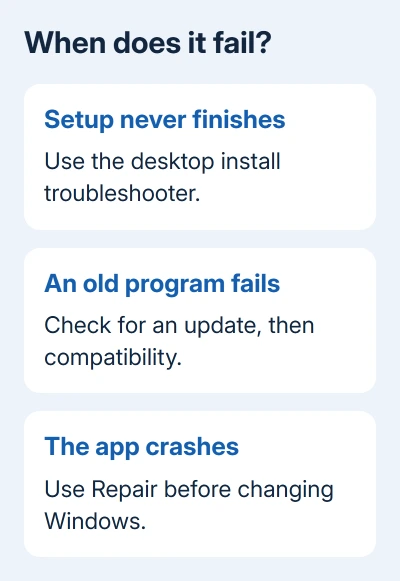
A broken Windows 10 program usually needs an app repair before a Windows reinstall. Try Repair for crashes, compatibility checks for older software, or the installation troubleshooter when setup won't finish.
Those failures need different steps. Check whether the program won't install, won't launch, or opens and then stops working. That separates a broken application from a fault in Windows itself.
In this guide
1. Check the error and update the affected app
Restart the PC once after saving your work, then try the program again. If an installation or update was waiting for a restart, reopening the app before that restart can leave you testing unfinished changes.
Write down the complete error message and the app's version. Check whether other programs open normally. One failing app points toward that program; several unrelated Windows features failing together need the system-file section later.
Check Microsoft Store for updates to apps installed there. For software downloaded from a publisher, use the program's updater or its official download page. Check that the offered version supports Windows 10.
Our app update instructions cover the different update locations. Windows Update doesn't replace every third-party application's updater, so a fully updated PC can still contain an outdated app.
If the newest supported version still fails, save the error message and try the repair that matches the problem. Don't keep installing the same download when setup succeeds but launching the app is the part that fails.
2. Use Repair for a program that opens badly
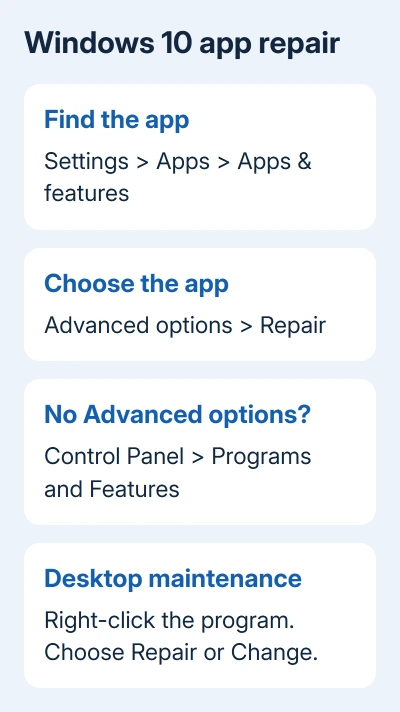
Open Start > Settings > Apps > Apps & features. Select the affected app, then Advanced options if that link appears. Choose Repair and test the exact action that was failing.
This is the Windows 10 path. Windows 11 calls its main app list Installed apps, so looking for that label on a Windows 10 PC can send you searching through the wrong menus.
Microsoft says repair options differ between apps. If Advanced options isn't there, the program might not offer that control.
For a traditional desktop program, search for Control Panel, then open Programs > Programs and Features. Right-click its entry and choose Repair. If only Change appears, open it and follow the program's maintenance choices.
If the app still fails and offers Reset, save its local data before choosing it. Reset can clear preferences, sign-in information, and data held by the app. Try Repair first when you want to preserve those things.
After repair, open the same file or repeat the same action. If only one document fails while new documents work, send the publisher details about that file rather than describing the entire application as broken.
3. Check compatibility for an older program
A program made for an older Windows version can install but still work badly on Windows 10. Check the publisher for a supported version first. Updating the app is a better lasting fix than repeatedly changing compatibility settings.
When the publisher has no suitable update, open Settings > Update & Security > Troubleshoot > Additional troubleshooters. Under Find and fix other problems, choose Program Compatibility Troubleshooter > Run the troubleshooter.
Test the program when prompted. Keep the changes only if they help. Compatibility settings help some older programs run as they did on older Windows versions; they don't add a missing subscription, account permission, or online service.
For manual settings, right-click the program's executable or shortcut and select Properties > Compatibility. Use the publisher's instructions for the required setting rather than picking an old Windows version at random.
Don't experiment with compatibility settings for security software or system utilities. A tool that changes low-level Windows behavior needs a version intended for your installed operating system.
If the program's current release no longer supports Windows 10, ask its publisher which older release remains supported. A working installer from an unofficial archive can still leave you with an unsupported or unsafe program.
4. Fix a blocked desktop installation or removal
For Windows 10 desktop programs that won't install, update, or uninstall, the Program Install and Uninstall troubleshooter can repair problems such as incomplete uninstall information and damaged registry entries used by setup.
On the official blocked-installation support page, select the Windows 10 instructions and download its troubleshooter. Open the troubleshooter and choose the affected program when it asks.
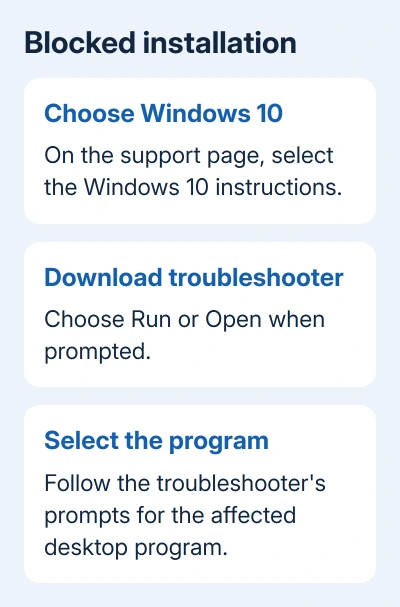
This tool targets traditional Windows programs. A Microsoft Store installation problem needs the Store-specific repair route instead. Check where you got the app before choosing this troubleshooter.
If the program isn't listed, the tool can ask for its product code. Ask the publisher for help with that code rather than guessing from a folder name or deleting installer records yourself.
If you can remove the old copy successfully, restart when requested and run the publisher's installer again. Keep the setup error if it returns; an account-permission or unsupported-version message needs its own answer.
5. Repair Windows files when several things fail
If unrelated programs and Windows features fail together, search Start for Command Prompt. Right-click it, choose Run as administrator, and accept the prompt. Leave the internet connected so the repair can retrieve files.
Enter DISM first. Once it succeeds, enter the SFC command:
DISM.exe /Online /Cleanup-Image /RestoreHealth
sfc /scannow
DISM fixes Windows' stored repair files; SFC checks protected system files. Wait for SFC's verification to reach 100%, read its result, then restart and check the applications that were failing.
If SFC reports files it couldn't repair, use the damaged-system-file follow-up. If both tools finish cleanly and one app still fails, return to that program's publisher with its version and error.
I'd keep a Windows reinstall for a wider failure that survives these checks. It takes more preparation than repairing one program, and an unsupported app can remain unsupported afterward.
6. Plan around Windows 10's support limit
Free Windows 10 support ended on October 14, 2025. The computer still runs, but fixing an app doesn't restore the operating system's normal support or make newer applications compatible with it.
Check whether your PC can upgrade and whether it's covered by Extended Security Updates. Each app's publisher decides how long to support it, so confirm that the version you're using still receives fixes.
For one persistent program failure, ask the publisher for its Windows 10 support status and provide the exact error plus the repairs already tried. For a work PC, send the same report to IT before changing or replacing the operating system.
The Short Version
Use the failing program's updater and Repair option first. Older programs need compatibility checks; blocked setup needs the install troubleshooter. Use DISM and SFC for wider failures, and plan separately for Windows 10's support limits.
Checked November 15, 2026.