Windows saying it cannot find WINWORD.EXE doesn't always mean Word was deleted. Try Word from Start and check whether the file exists; repair Office if it's missing.
A June 2020 Avast fault blocked launches even after reinstalling Office. Update that security software if your setup matches the incident.
Check whether WINWORD.EXE is missing from its folder or is still there but won't open. That tells you whether to repair Office or ask IT to check what's stopping Windows from launching the file.
In this guide
1. Does Word open from Start?
Dismiss the error and open Start. Search for Word and try that result, instead of the pinned shortcut or recent document that produced the error. If Word opens, use that working app to replace the broken shortcut.
Unpin the broken taskbar item, open the working Word app and pin its icon again. For a desktop shortcut, use the working Start entry to reach the app's location rather than editing a guessed installation path.
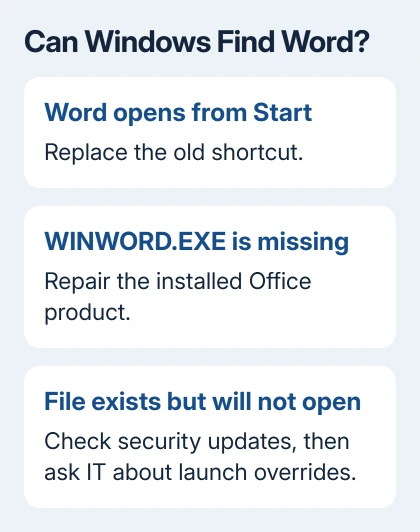
If Start gives the same error, inspect the named folder in File Explorer. A common path is C:\Program Files\Microsoft Office\root\Office16. For 32-bit Office on 64-bit Windows, check under Program Files (x86) instead.
Look for WINWORD.EXE in that folder. File Explorer may show it as WINWORD when extensions are hidden. The Office16 name is used by several Office generations, so it doesn't mean Office 2016 is necessarily installed.
If the file is missing, try the Office repair in step 3. If the file is there but Windows says it can't find it, check the known security-software problem next, then the launch settings in step 4 if needed.
2. Update Avast if the known launch problem matches
The June 2020 fault affected Office programs and could stop other programs from opening too. The original asker couldn't open Word or Excel, even after reinstalling Office and switching antivirus off.
Microsoft's record of the application-launch fault identifies Avast in the cases it checked and says a fix was released through an automatic update. The page uses OUTLOOK.EXE in its title but covers other affected applications.
If Avast is installed, open it and use its update controls to install available program updates, then restart Windows and try Word. On a company PC, ask IT to confirm that the installed security product has received its updates.
Don't treat the old incident as proof that every present-day missing-file error comes from Avast. If the product isn't installed, or the file is actually absent, continue with the installation checks instead.
Switching protection off doesn't install the software update that corrected this launch fault. That failed for the original asker. Check the installed version rather than leaving protection disabled and repeating the launch.
If security software reports quarantining Word, give IT the detection record. They should check Office and the alert before restoring anything. Don't download a replacement executable from an unrelated site.
3. Repair the installed Office product
Save your work and close all Office apps. A repair covers Office, even if only Word is broken. Select the Office product that includes Word, such as Microsoft 365 or Microsoft Office. Word might not have a separate entry.
On Windows 11, open Settings > Apps > Installed apps. Find the Office product, open its three-dot menu and select Modify. On Windows 10, use Settings > Apps > Apps & features, open your Office product's entry, then choose Modify.
For a Click-to-Run installation, try Quick Repair first. If it completes but Word still fails, return and choose Online Repair > Repair. Online Repair needs internet access and repairs the product more thoroughly than Quick Repair.
For an older Windows Installer installation, the dialog instead offers Repair > Continue. Follow the option that actually appears; the missing Online Repair choice doesn't mean you've selected the wrong product.
The Office repair instructions cover these installation differences. After repair, open Word from Start before testing the old shortcut. If it now opens, create a blank document to confirm startup completes.
One person in that discussion needed an Office repair after fixing the registry entries that controlled app launches. If repair restores the file but Windows still won't open it, try the next check before reinstalling Office again.
4. Have IT inspect a launch redirection when the file exists
Windows has an Image File Execution Options registry area that can change how a named app starts. Removing affected app entries fixed the historical case. One owner needed that correction followed by an Office repair.
The location is HKEY_LOCAL_MACHINE\SOFTWARE\Microsoft\Windows NT\CurrentVersion\Image File Execution Options. Ask IT to inspect a winword.exe entry there and check for a launch override referring to software that's no longer present.
Don't delete the whole Image File Execution Options branch. It can hold settings for other programs, and an app entry alone doesn't explain its purpose. Have IT export the exact entry before changing a confirmed bad override.
This is the deeper step for a Word executable that exists but still won't launch. Skip it if a new shortcut works. Changing these settings won't restore a missing WINWORD.EXE file.
I'd leave registry review to IT on a managed laptop. Give them the full error, security product and result of opening the actual executable. Those details tell IT what to check before trying another Office reinstall.
5. Request help with the remaining launch failure
For an unresolved business installation, give IT the full path, Windows and Office versions, and repair result. Request a launch-failure case. Say whether other programs fail and whether the executable exists at the stated path.
If Word opens without this missing-file error but stops later, use the Word startup checks. If Word warns that a document is damaged, follow the Word opening-error steps.
The Short Version
Try Word from Start, check for WINWORD.EXE and update Avast if the known incident matches. Repair a damaged Office installation. If the file exists but won't launch, have IT inspect its exact application override.
Checked November 16, 2026.
 If you have any business, I can build it online