An attachment showing Word experienced an error trying to open the file may be blocked. Save a trusted copy and check Properties > Unblock first. If ordinary local documents fail too, check Word's installation next.
The message's suggestions about memory, permissions and text recovery don't identify one cause. Treat a downloaded file, an access-denied file and a document Word can't read as separate cases.
In this guide
1. Unblock the saved document you trust
Save the attachment or downloaded document into an easily recognized local folder. Close its error window in Word. Right-click the saved document and choose Properties, then stay on the General tab.
Look for a security message about the file coming from another computer. If Unblock is available, select it, choose Apply, then OK. Open that same saved document again.
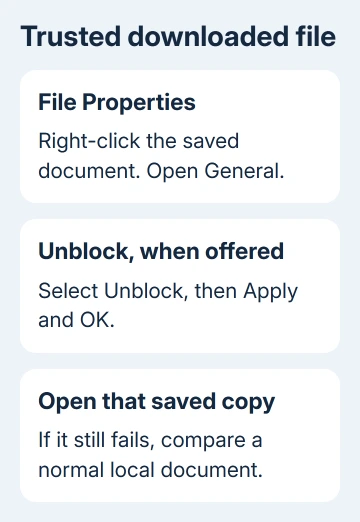
Before unblocking, confirm who sent the document and whether you expected it. Unblocking removes a restriction on this file; it doesn't check the document for harmful content or make an unexpected attachment safe.
An owner in the original Word error discussion confirmed that Unblock fixed a downloaded file. Earlier Office 2010 replies also cover password-protected attachments.
On Windows 10 and 11, look for the control in the file's Properties dialog when it applies. Older Windows versions can show an Unblock button rather than a checkbox. It's the document's properties, not Word's program shortcut.
If the file opens, check its content and save your working copy normally. If Unblock isn't present, don't change unrelated permissions to make it appear. Move to comparing another document and the file's location.
2. Compare an ordinary local document
Launch Word from Start without opening the attachment. Create a blank document, type a short line, and save it in Documents. Close and reopen that file through File > Open > Browse.
If the new file opens, Word can read a normal local document. Focus on the original file and how it reached your computer. Ask its sender whether their copy still opens.
Get a fresh attachment when the sender's file works. Save the replacement separately and check its size in Properties. A zero-byte file contains no document content for Word to recover.
If this simple document fails too, note whether Word starts normally at all. The Word startup checks cover Safe Mode, add-ins and templates when the problem affects the application rather than a single download.
On a Mac, the Windows Unblock checkbox isn't available. Compare a fresh local copy with another document, then use Mac recovery for a damaged file. Windows Trust Center paths don't apply.
I'd compare that ordinary local file before changing security settings. That comparison separates one troublesome document from a Word installation that can't open normal work.
3. Check access when the file lives elsewhere
If the document is on a USB drive, in a shared folder or in synced storage, try copying it into your Documents folder. Open the local copy from inside Word. Keep the original in place while doing this comparison.
If copying itself shows Access denied, Word repair isn't the first task. Ask the file owner or your IT desk to grant the intended account access to the document and its folder.
Open a shared work file with the account named in its sharing permissions. A link granted to one account can fail under another. Ask the sender to check that access entry rather than resending the inaccessible link.
If the local copy opens but the original location doesn't, tell IT both paths and the copy result. They can check the shared folder or storage client without changing the permissions on every Office file.
A password request is separate from folder permissions. Use the password supplied by the document owner; making a local copy or removing a download block won't remove the opening password.
When the file opens normally from Word but not by double-clicking, report that difference too. That suggests trouble with how Windows opens files in Word, rather than with the document's contents.
A message naming WINWORD.EXE as missing needs the application-path checks, separate from repairing a document attachment.
4. Keep Protected View enabled while checking the file
Protected View restricts editing when a document comes from a location Office treats as unsafe. A yellow banner with the document visible isn't the same as an opening error that leaves the document unreadable.
For a visible trusted document, the banner can offer Enable Editing. Use that only when editing is needed and the file is trusted. A policy-controlled banner may require your administrator's help.
Microsoft's Protected View explanation separates Internet protection from failed file validation. If Office detects a problem with the file itself, get a clean replacement rather than routinely unblocking it.
If you previously cleared every Protected View option while troubleshooting, return to File > Options > Trust Center > Trust Center Settings > Protected View. Restore the protection options you changed, with IT's help on a managed PC.
Some owners in the old discussion opened files after disabling those protections. That changes how future files are handled too. The saved-file Unblock check is the more focused first choice for a trusted download.
If a message names File Block or an organizational policy, give its exact wording to IT. They'll need to check whether that file type or policy allows access. Clearing every Trust Center checkbox isn't the fix.
5. Recover a damaged copy or repair Word
When one trusted local file still fails, preserve it and use the Word document repair steps. On Windows, find the repair command through File > Open > Browse, then the menu beside Open > Open and Repair.
Save a recovered document under a new name and check its final pages, tables and pictures. If repair can't recover it, ask the sender for a working copy or check an earlier saved version before falling back to text-only recovery.
For failures across normal documents, save and close the remaining Office apps before starting a repair. Windows 11 uses Settings > Apps > Installed apps; Windows 10 uses Apps & features. Find your Office edition there and choose Modify.
Try Quick Repair for a Click-to-Run installation, then Online Repair if needed. An older installer-based Office edition can provide one Repair option. Ask IT to handle an obsolete or organization-managed installation.
Send support your error, Word version, file source, Unblock availability and local-document result. Request a check of the file itself when only one fails, or of the Word installation when several fail. Preserve the original for recovery.
The Short Version
Try Unblock on a saved, trusted download. Compare a local document and check access if copying fails. Keep Protected View enabled. Use recovery for one damaged file, or Office repair when ordinary documents also fail.
Checked November 16, 2026.
 If you have any business, I can build it online