

An unresponsive Sign in with a different Microsoft account button can mean the app's account window isn't opening correctly. Close the app and restart Windows first, then repair the affected app if the chooser still won't appear.
The next step depends on where you see the button: Microsoft Store, an Office app or Windows Settings. Switching an app's account is separate from changing your Windows sign-in, so start with the screen that's stuck.
1. Keep the repair on the account screen you're using
Write down the app name and what happens when you click. Does a small window flash and disappear, does the old email return, or does a password prompt open? That tells you where the process gets stuck.
If a box for the new email opens, the button has worked. Enter the account you want and follow any verification request. If the password is rejected, get help with that account; the sign-in window itself has opened.
Choose the personal-account option for your personal Microsoft account. For a company or school account, use that organization's sign-in option. One email address can sometimes be used for both kinds, so check which one you're choosing.
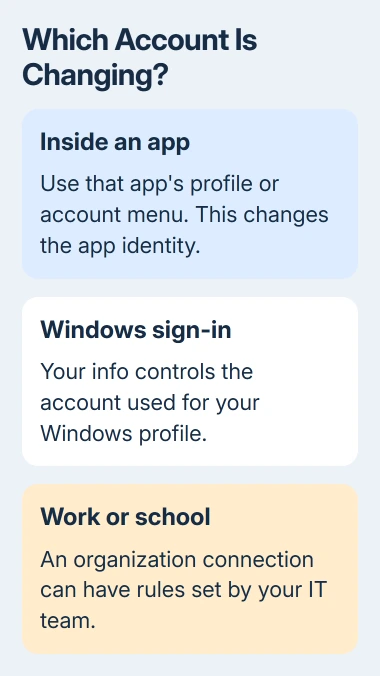
After switching, check the name or email in the app's profile menu. The picture might stay the same even after the account changes, so use the account address to confirm which one you're using.
If the account window never opens, close the app and restart Windows next. If your organization rejects the account or requires a device it manages, save the message for IT and keep its management account connected.
2. Close the app completely, then restart Windows
Save your work, then close the affected program. For Office, close the other Office programs too. Another open Office app can keep the same sign-in session running.
Choose Start > Power > Restart, sign back into Windows and reopen only the affected app. Try the account control once and give it time to display the next window.
Press Alt + Tab to check whether the sign-in window opened behind the app. If you find it, select it and finish signing in. A hidden window doesn't call for a password change.
If restarting brings back the account window, choose the account you want and reopen your document or game. Check the account address afterward. If the button still does nothing, try repairing the app before changing your Windows account.
3. Use the app's Repair option when it's available
In Windows 11, open Settings > Apps > Installed apps. Find the affected program, open its three-dot menu and choose Advanced options if the menu offers it. Select Repair on the page that opens.
In Windows 10, go to Settings > Apps > Apps & features. Select the app and open Advanced options. The controls depend on the app; some programs don't have that page.
Microsoft's app repair instructions recommend Repair before Reset when those choices exist. Reopen the program when the repair finishes and try the account picker again.
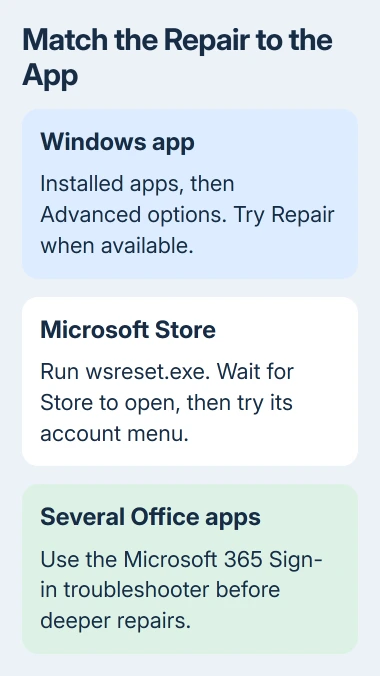
If Repair isn't available there, desktop programs may offer Control Panel > Programs > Programs and Features > Change or Repair. Choose the affected program so the repair stays focused on the app that's failing.
Try Reset later; it can remove saved app data and sign you out. Read its warning and save anything kept only inside that app before confirming. If you can't tell what will be removed, stop at Repair and contact support.
4. Reset the Store cache when the failure is in Store
For Microsoft Store specifically, press Windows + R, enter wsreset.exe and select OK. This clears the Store cache, the temporary information it keeps, and then opens Store again.
An empty command window can appear during the process. The Store recovery instructions say it normally closes after about ten seconds and Store opens automatically.
When Store reopens, try switching accounts again. This step clears Store's cache, so repeating it won't repair an account button in Word or Windows Settings.
If Store still won't switch accounts, check Windows' date, time and region, then install available updates. Restart if asked. Try the same account control afterward to see whether it now responds.
5. In Office, switch from the profile menu first
Open an Office app such as Word. Select your name or picture near its upper-right corner and choose Sign in with a different account. Sign in to the other Office account you need.
The Office sign-out explanation says you can add an account without signing out first. Signing out can stop subscription editing features until an account with the right subscription signs in again.
After switching, check which account has the file or subscription you need. Adding a second address doesn't move purchases, change a company's permissions or transfer OneDrive files between accounts.
If several Office apps fail to open sign-in, run the Microsoft 365 Sign-in troubleshooter in Get Help, using the link on the official sign-in repair page.
Windows uses Web Account Manager to handle sign-ins across apps. If several apps can't sign in, it may need repair. The desktop sign-in repair guide explains those checks and when to involve IT.
6. Treat Windows account conversion as a separate task
For Windows itself, open Settings > Accounts > Your info. The link Sign in with a Microsoft account instead appears when the current Windows account is local. It connects that Windows profile to an online account.
If the page already shows a Microsoft account, your Windows profile is already connected. The local-account link changes how you sign in to Windows; it won't switch Store to a different email.
For a Windows account change, read the local account switching procedure first. I'd leave that change until you're sure you want to change your Windows sign-in and not just one app's account.
If Your info won't open its account window either, tell support that both Settings and the app are affected. Include your Windows version, the affected programs and whether restarting or using Repair helped.
The Short Version
Identify the stuck app, restart Windows and try its account control again. Repair the app, use wsreset only for Store, and check Office's profile menu. Change Windows sign-in separately if the Windows login is what you need to replace.
Checked November 5, 2026.

Isaac Smith is the founder and editor of PC Glance, a website that covers computers, laptops, and technology. He is a tech enthusiast and a computer geek who loves to share his insights and help his readers make smart choices when buying tech gadgets or laptops. He is always curious and updated about the latest tech trends.