
Outlook error 657rx can come from the part of Windows that signs apps into your account, especially alongside code 2148073494. Try the same account in webmail first, then restart Windows before repairing the sign-in system.
The 657rx tag alone doesn't tell you which repair you need. Save the full error message: the next step depends on whether webmail works, the account is blocked everywhere, or the problem is on a work desktop hosted by a provider.
1. Save the error details and try webmail
Expand More details if the error offers it. Copy the numeric error code, timestamp and correlation ID, which helps support match your failed attempt to its records. Note whether the problem started after a Windows profile move.
For work or school email, open Outlook on the web and enter the account affected by the error. For a personal mailbox, use Outlook.com. Complete any normal verification request.
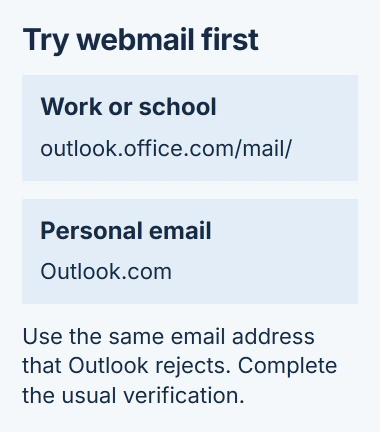
If the inbox opens, you can read and send mail while you work on Outlook. The account works in your browser, so check whether your desktop apps can sign in too.
If webmail rejects your password or asks you to recover the account, handle that message first. The Microsoft account recovery guide is for personal accounts; for a work account, you'll normally need your organization's help.
If the browser says your organization has blocked access or requires an approved device, send that wording to IT. Repairing Windows' sign-in system won't change your company's access rules.
Keep working webmail open while you troubleshoot. Don't repeatedly change a password that already opens the correct mailbox just because the Windows app shows a different sign-in error.
2. Restart Windows and compare another desktop app
Save your work and choose Start > Power > Restart. Reopen Outlook after signing back into Windows, then try the account once. Closing Outlook alone doesn't restart the Windows services that handle sign-in.
If Outlook still fails, open another Microsoft 365 app you already use, such as Word. Sign in there with the account that Outlook rejected.
If Word or OneDrive fails too, check the Windows sign-in system those apps share. If only Outlook fails, note that result; you may need to check Outlook's own setup after the account checks.
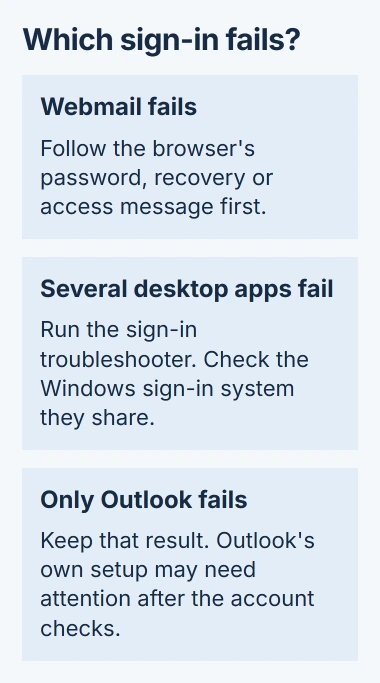
I'd try this before rebuilding an Outlook mail profile, which holds its account settings. Rebuilding it adds setup work and may leave the shared sign-in problem untouched when several desktop apps fail together.
If Outlook closes before it even reaches a sign-in prompt, use the Outlook startup checks instead. An app that won't launch and a working app that rejects sign-in aren't the same symptom.
3. Run the Microsoft 365 sign-in troubleshooter
Open the Microsoft 365 sign-in repair page and select its Microsoft 365 Sign-in troubleshooter link. Allow Windows to open Get Help if prompted.
Follow the questions for the affected account and keep any result or error the tool reports. Run it while signed into the Windows account with the problem, so it checks the right profile.
When it finishes, close and reopen Outlook and try signing in. If it asks for an administrator, or you're using a work-managed laptop, ask IT to handle the next step rather than changing how your accounts connect.
The troubleshooter covers several common sign-in problems. If it reports that it couldn't repair yours, keep that result with the original 657rx message. Support can then move past the checks you've already completed.
4. Repair the Windows sign-in packages when appropriate
Windows uses Web Account Manager, or WAM, to handle app sign-ins. One of its packages, a group of Windows files, is named Microsoft.AAD.BrokerPlugin. A problem there can affect several apps using the same Windows profile.
Microsoft recommends repairing WAM for related desktop sign-in failures. This targets Windows' sign-in system; the 657rx tag alone doesn't tell you whether that system is the cause.
On a work-managed computer, ask IT to handle this step. On your own PC, save your work and close your apps before repairing your Windows account; the command can close apps that use the sign-in system.
Stay signed into the Windows account with the problem. Open Start, search for Windows PowerShell, and open it normally, without Run as administrator or switching to another account.
For the work or school account component, paste this command and press Enter:
Add-AppxPackage -Register "$env:windir\SystemApps\Microsoft.AAD.BrokerPlugin_cw5n1h2txyewy\Appxmanifest.xml" -DisableDevelopmentMode -ForceApplicationShutdownThe other package handles sign-in for personal Microsoft accounts. The same repair instructions include this command:
Add-AppxPackage -Register "$env:windir\SystemApps\Microsoft.Windows.CloudExperienceHost_cw5n1h2txyewy\Appxmanifest.xml" -DisableDevelopmentMode -ForceApplicationShutdownThese commands register the existing account packages with Windows again. Your mailbox password and Outlook profile stay the same. Once the commands finish, reopen Outlook and try signing into the account.
If PowerShell says a path is missing, access is denied or something else went wrong, save the full error for support. Leave the package names and Windows folders as they are rather than changing them to force the command to run.
5. Use the provider's specific fix on a V2 Cloud desktop
V2 Cloud's 657rx repair procedure covers tag 657rx alongside code 2148073494 in Outlook or OneDrive on Windows computers it hosts.
Its fix has an administrator rename the affected user's Microsoft.AAD.BrokerPlugin_cw5n1h2txyewy folder inside AppData\Local\Packages, adding .old to the folder name. Windows then creates fresh account data.
Send V2 Cloud support both the 657rx tag and the numeric code, and ask them to repair the Windows profile with the problem. The administrator should handle the folder renaming.
After the repair, sign completely out of Windows and back in. Open Outlook or OneDrive and sign into the app again. The provider's instructions select No, sign in to this app only when that choice appears.
That choice is part of this V2 Cloud repair. If your company requires the device to be enrolled in its management system, its instructions may differ. Let its administrator decide how your account should connect.
If the error returns after a successful sign-in
Tell IT or Microsoft support whether the repair worked until the next Windows login, whether webmail still works, and whether other desktop apps fail. Include the original timestamp and any new error details.
If this started after a profile move, your administrator can check the software that manages Windows profiles or protects the computer. Another password reset won't explain why the account keeps working in your browser.
The Short Version
Check webmail, restart Windows and compare another desktop app. Run the sign-in troubleshooter before repairing WAM. For a V2 Cloud desktop showing 2148073494 with 657rx, ask the provider to repair the Windows profile that has the problem.
Checked November 4, 2026.

Isaac Smith is the founder and editor of PC Glance, a website that covers computers, laptops, and technology. He is a tech enthusiast and a computer geek who loves to share his insights and help his readers make smart choices when buying tech gadgets or laptops. He is always curious and updated about the latest tech trends.