

Repeated Microsoft account sign-in attempts don't mean someone got in. Open Recent activity yourself and check the result: Incorrect password entered, Successful sign-in, or a security change.
A failed password attempt and an unfamiliar successful sign-in call for different action. Check the result, then strengthen your protection. An unexpected verification request needs checking even when the account still opens normally.
In this guide
1. Open the activity record without using an email link
Type account.microsoft.com into your browser and sign into the personal account receiving the alerts. Open Security and look for the sign-in activity option. The direct account activity address is account.live.com/Activity.
Open an event you don't recognize and compare its time, device, browser and location with your activity. Note the result and time before changing anything. That helps you tell a new attempt from an older notification.
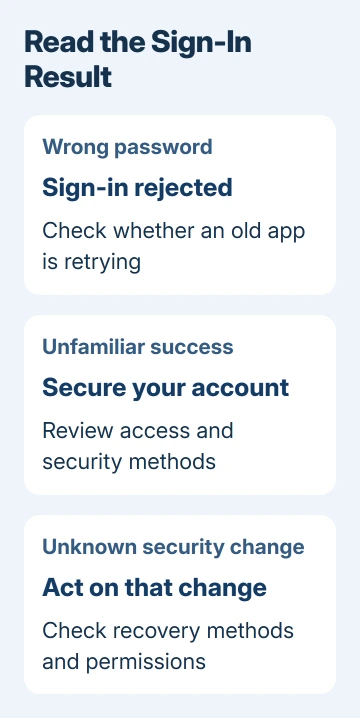
Microsoft says the Recent activity page covers the past 30 days, with a result for each listed event. It also says the page doesn't show every account event.
Location alone isn't enough to identify another person. Mobile networks can route traffic through a different place. Compare the time and device details too, especially after travel, a new phone or a newly connected email app.
If the record matches a sign-in you just made, select This was me when offered. If it doesn't, follow the response for its result, even though you can still open the account.
2. Separate a failed password from actual access
Incorrect password entered means the password entered was wrong and that sign-in wasn't allowed. It can be someone guessing, or your own app still using an old password. Repeated failures don't mean the person got in.
Successful sign-in means the account let someone in. Act right away on a success, password change, new recovery method or app permission you don't recognize. Select Secure your account for suspicious activity and follow its prompts.
An Automatic sync entry can come from an email program checking your mailbox regularly. Compare it with the apps you use. Scheduled checks can be normal, but look into them if you don't recognize the device.
An alert can also follow your own use of a new device or location. The unusual sign-in explanation describes that situation. Verify it from the account dashboard, rather than trusting the message's appearance.
3. Secure a password or sign-in method that someone else has
For a successful sign-in you don't recognize or a password you reused elsewhere, change the password through the account's Security controls. Choose a unique password that isn't used for your email recovery account or another service.
Open Manage how I sign in and review the ways you can prove the account is yours. Check that the listed email addresses, authenticator methods and phone details belong to you. Follow the security prompts if you see a method you didn't add.
Reject unexpected Authenticator approvals and don't share verification codes with callers. A request arriving on your phone isn't permission to let the sign-in continue. Open the account independently to review what happened.
If sign-in now fails, use the Microsoft account recovery guide for the recovery route that fits your security setup. Repeated password changes won't help when someone has replaced a recovery method.
4. Add two-step verification and a backup recovery method
Open Security > Manage how I sign in. Under Additional security, find Two-step verification and select Turn on. Follow the setup prompts and confirm that your chosen method works to finish the setup.
Two-step verification adds another identity check to the password. Someone knowing the password then needs the second method too. An authenticator app can provide that second check; follow the method offered in your account's setup screen.
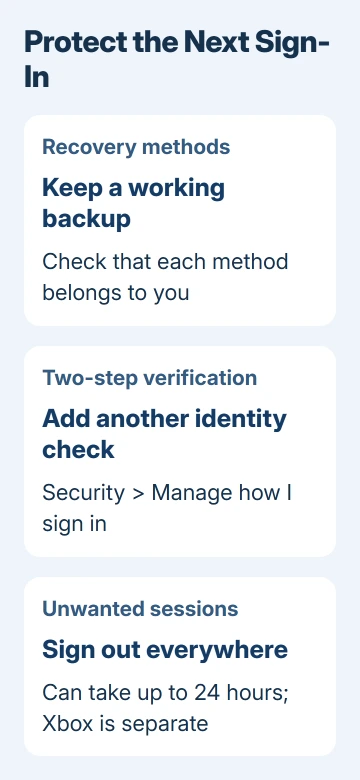
Keep a backup security method you can use without your phone. The two-step verification instructions recommend multiple security methods because a password alone may not restore access.
I'd finish that recovery setup before removing an old phone. A working second method matters more than making the security list look tidy, particularly when the old phone is the only device currently receiving your codes.
5. End sessions when access wasn't yours
In the account's additional security options, find Sign out everywhere and select Sign out. Use this when an unfamiliar sign-in succeeded or another person may still have a session open.
The sign-out instructions give browsers and apps up to 24 hours to complete the sign-out. Xbox consoles are an exception and need their own sign-out action.
Review the mailbox too if someone reached Outlook.com. Check unfamiliar forwarding settings, rules and messages sent without your permission. Changing the password is only part of recovering an account someone already used.
If you only saw rejected password entries, signing out everywhere doesn't stop strangers from entering your email address again. Its purpose is to end existing access, while your sign-in methods protect against the next attempt.
6. Handle continuing attempts without deleting the account
Keep checking for successful sign-ins and security changes you don't recognize. A long list of rejected attempts can continue even after a password change because people can keep submitting an address they already know.
An alias is another address attached to the same account. To restrict one, open Your info > Sign-in preferences at account.microsoft.com. Choose the aliases allowed to sign in and select Save.
The email sign-in controls let you block sign-in through a publicly known address while keeping that address attached to the account.
Keep an address you can still sign in with before changing those preferences. Blocking an alias from signing in and deleting an alias are different operations. Don't remove an email address just to stop sign-in attempts against it.
With an employer's or school's account, open mysignins.microsoft.com and report unfamiliar events to IT. Its My Sign-ins instructions use different controls from a personal account.
If security changes still aren't yours, open support.microsoft.com/contactus and describe unauthorized sign-ins with their times and results. The normal sign-in guide helps confirm which account is open.
The Short Version
Read the sign-in result first. Secure unfamiliar successful access, check recovery methods and enable two-step verification. End unwanted sessions. Use sign-in preferences to restrict a known alias, keeping a working way back in.
Checked November 15, 2026.
 If you have any business, I can build it online






