That see-through box with a spinning cursor, stuck over the taskbar and on top of every window, is a frozen piece of Windows Search. The process behind it, MiniSearchHost.exe, started drawing a search panel and hung partway through.
End MiniSearchHost.exe in Task Manager and the box disappears at once. Restarting Windows Explorer works too, and about twenty Windows 11 owners confirmed one fix or the other in a single Microsoft Q&A thread.
In this guide
What the box is
Windows 11 can open a small panel when the pointer rests on Search in the taskbar, and MiniSearchHost.exe is the process that draws it.
When it hangs while loading, an empty frame stays where the panel was going to appear, and it sits on top of every app you open.
The asker described it as a taskbar thumbnail preview that started loading and just stayed there. The cursor turns into a busy circle when you hover over it.
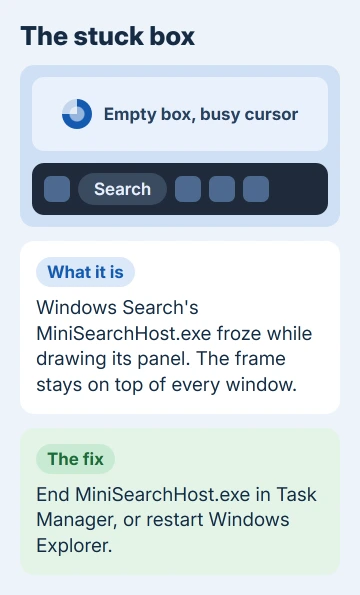
Closing apps doesn't touch it. The asker ended everything they could find in Task Manager and the box stayed. A restart cleared it, but it came back later the same way.
1. End MiniSearchHost.exe in Task Manager
- Press Ctrl+Shift+Esc to open Task Manager.
- Select Details. On current Windows 11 it's in the menu down the left side; older versions show it as a tab across the top.
- Find MiniSearchHost.exe in the list. Its status often says Suspended, which is normal for it.
- Right-click it, select End task, then confirm with End process.
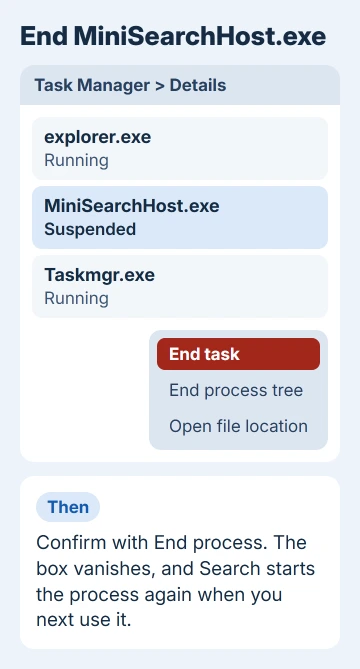
The box vanishes as soon as the process ends. The thread's accepted answer was exactly this, and owner after owner wrote back that it worked, often with relief after weeks of looking at the thing.
Search keeps working afterward. Windows starts the process again the next time you use Search, which is also why the box can come back. I'd start here every time, since it's the exact process the box belongs to.
2. Restart Windows Explorer instead
Prefer one step you'll remember? In Task Manager, select Processes, find Windows Explorer, right-click it and choose Restart. The taskbar disappears for a second or two and comes back without the box.
Several owners used this rather than hunting for MiniSearchHost, and one summed it up as "Works every time." Restarting Explorer also closes any File Explorer windows you have open, so finish what you're doing in them first.
If the thing frozen on your screen is a menu item or a Close label rather than a box, it's a different leftover. Our stuck menu item guide covers that one, and an Explorer restart is part of the fix there too.
3. End Search under Users
Another owner cleared it from a different place. In Task Manager, select Users, expand your account, select Search and choose End task.
Try this when MiniSearchHost.exe isn't in the Details list, or when ending it didn't remove the box. It ends the Search app the panel belongs to, and that cleared the box for the owner who suggested it.
Why it keeps coming back
Ending the process is a quick fix, not a cure. Some owners had the box return a dozen times or more in a day, and they kept asking how to stop it. None of them found a setting that prevents it.
One reply in the thread said the bug was already fixed in Windows Insider builds, the preview versions testers get early, and was expected in a regular update.
So your best bet is Windows Update: open Settings > Windows Update, select Check for updates and take whatever turns up, optional updates included.
If it still returns on a fully updated PC, report it. Press Windows+F to open the Feedback Hub app, describe the box, and attach a screenshot.
Owners in the thread found other reports there already, and yours adds to them.
If it isn't MiniSearchHost
A box that survives both an Explorer restart and ending MiniSearchHost belongs to something else. Look through Task Manager's Processes list for an app you don't recognize, or one you closed that's still running, and end it.
If the box appears every time you sign in, go to the Startup apps page of Task Manager and switch off anything you added recently, then restart.
If Search itself keeps misbehaving as well, our guide to Search not working goes through the rest of it.
Is the box something malicious?
One owner admitted they thought someone had hacked their PC when the box appeared. Nothing in the thread pointed to malware: ending a Windows process cleared it every time, and it only came back through Search.
To check it's the genuine Windows file, right-click MiniSearchHost.exe in Details and choose Open file location.
The folder that opens should sit inside C:\Windows\SystemApps, where Windows keeps its own built-in apps. If it opens anywhere else, have Windows Security check the whole PC with a Full scan.
When nothing works
To reach Microsoft's support, open the Get Help app on your PC. Tell them what the box looks like and whether ending MiniSearchHost.exe or restarting Explorer removed it.
That answer tells them straight away which part of Windows is stuck.
The Short Version
The stuck see-through box is Windows Search's MiniSearchHost.exe frozen mid-load. End it under Task Manager > Details, or restart Windows Explorer. Install updates, and file a Feedback Hub report if it keeps coming back.
Checked November 20, 2026.
 If you have any business, I can build it online