Changing the name shown on a Microsoft account starts in Your info > Edit name. Save it there; other screens may need as long as 24 hours to update. Editing the login email requires separate alias settings.
The right place also depends on the account. Personal Microsoft accounts, organization accounts, and local Windows users have different name controls. Use the controls for the account showing the unwanted name.
In this guide
Choose the name you actually want to change
Look at the screen with the unwanted name. A name beside your account picture is usually a display name. An email address in a sign-in box is an account address, while a name in File Explorer can be a folder label.
A display name helps other people recognize you. It isn't a new email address or a new Windows profile. Replacing it doesn't require creating another account or moving your documents to a different user.
Likewise, a folder inside C:\Users isn't the profile-name field on the website. Leave that folder alone during this task. Renaming a profile folder is a different operation and isn't needed to change the name shown for your account.
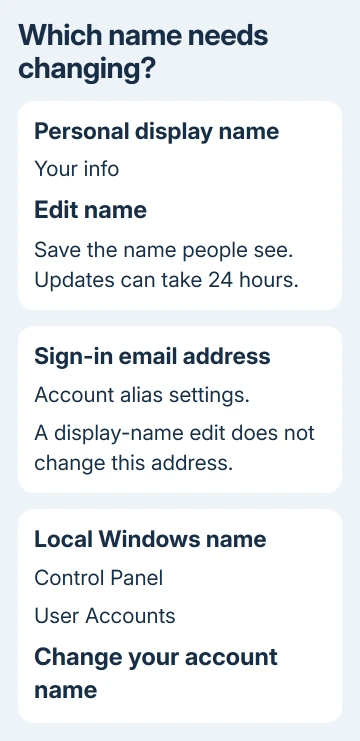
If the address itself is wrong, use the Microsoft account email instructions. That procedure manages account aliases, the addresses attached to your existing account.
For the name on the Windows sign-in screen, open Settings > Accounts > Your info and check which account is in use. A local account needs the Windows controls; a personal cloud account needs its online profile.
On an organization-managed computer, the name you see can come from your organization's account. Keep that distinction in mind even when the same computer also has your personal email in another app.
I'd identify the account before making the edit. A successful change to a personal profile won't rename a separate work identity, even when both profiles happen to use the same person's name.
Edit a personal Microsoft account's display name
Visit account.microsoft.com, then use your personal account to sign in and edit its name. Check the account address before continuing, especially if the browser remembers more than one Microsoft account.
Open Your info, then select Edit name. Fill in the first and last name fields with your preferred display name. Complete the CAPTCHA if requested, and select Save.
Microsoft says to avoid nonstandard font characters, such as Wingdings, because they can prevent sign-in. Use ordinary letters for the name.
Return to Your info and check the saved spelling. The profile should show your new name even if another device still displays the old one. That tells you the change was saved.
If the profile is still wrong, correct the fields on that page and save again. Don't keep editing the name just because a different app hasn't refreshed yet. Check the name saved in your profile first.
On a shared browser, the profile page might open with another person's details. Check the account address and sign in to your own account before entering a new name.
Give connected apps time to update
Profile updates may need as long as 24 hours to reach every screen. A new name in Your info and an old name on another screen can therefore be part of the normal update delay.
Save your work, then reopen the affected app's account view or sign in again if needed. Check that it shows the same account address you edited.
For Windows, sign out of the user session, then sign in again. Compare the name on screen with the online profile. This refreshes the sign-in screen so you can check the name without rebuilding your Windows account.
Changing the display name doesn't change an Xbox gamertag. If the old label appears in Xbox, check whether you're looking at the gamertag instead of the account's personal name.
If the name remains old after the update period, note exactly which screen is affected. Tell support whether one app still shows the old name or the profile won't save your change at all. Those are different problems.
Use the organization's profile for work or school
Sign in to the profile for your work or school identity, rather than the personal Microsoft account website. Check the organization shown with that identity before looking for an editable name field.
Some organizations let people change their own profile names, while others keep that control with the administrator. If the name field is unavailable, ask your IT team to change the account's display name.
Give IT the current spelling, the required spelling, and the account address. Mention whether the wrong name appears in Windows, Teams, email, or several places. That helps them update the identity that those apps actually use.
An organization profile can have the same update delay. Confirm that IT saved the new spelling, then allow the affected apps time to refresh their account information.
Don't substitute a new personal account for a managed account just to get a different name. If a new personal account is truly what you need, the account creation steps explain that separate choice.
Rename a local Windows account from Control Panel
A local Windows account belongs to that computer instead of using a Microsoft cloud profile. Editing a name online won't reach this account, so use the local account control instead.
Open Start, type Control Panel, and open it. Choose User Accounts, then find Change your account name. Depending on the Control Panel view, you may need to select User Accounts a second time.
Enter the name you want and confirm the change. On a shared computer, verify which local user is selected before confirming the edit.
If the control isn't available or Windows requests administrator permission, ask the computer's administrator to make the change. You don't need to change permissions or registry entries just to edit a display name.
Open Contact Support on the support site if a personal profile refuses to save. Describe what happens after selecting Edit name. Include the error text, but keep your password and verification codes private.
The Short Version
Edit personal names in Your info. Use your organization's profile for work identities and Control Panel for local Windows users. Give connected apps time to refresh; a login email needs its own alias change.
Checked November 16, 2026.