
Change a personal Microsoft account's email by adding an alias, another address for the same account. Open Edit account info, add and verify the address, then choose Make primary when that control is offered.
Keep the old address listed until the new one works. If Make primary is missing, don't delete your old address to force a change; use the account support route for the options available on your account.
Open the existing account's email settings
Sign in to the personal account you want to keep. Microsoft explains how to change an account email through Edit account info at account.live.com/names/manage.
Check the signed-in account before adding anything. Its existing addresses should match the account that owns your subscriptions, files or purchases. If a different account appears, sign out and return using the correct one.
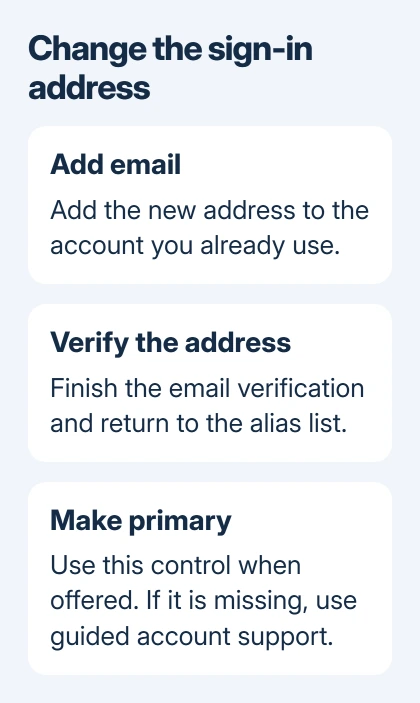
An alias shares the account's password, contacts, online storage, subscriptions and settings. It isn't a second Microsoft account, and it doesn't move content between two accounts that already exist.
For separate purchases and storage, follow the steps for creating another Microsoft account. Don't create one with the new address when you want another sign-in address for the account you already own.
A work or school sign-in belongs to an organization. Ask its administrator to change that address; your company's Microsoft 365 sign-in isn't managed on the personal alias page.
Add the address you want to use
Choose Add email. The page can offer a new Outlook.com address or an existing email address that you own. Select the appropriate choice, enter the address and complete the prompts.
For an address from another email provider, open its inbox and finish the verification request. Return to the alias page and check whether it's been accepted. If the page offers Verify, finish that step before making it primary.
An existing Gmail address can act as a Microsoft sign-in without changing its Gmail password or moving its mailbox. Mail sent to that Gmail address still belongs in Gmail; adding it doesn't turn it into an Outlook.com mailbox.
An Outlook.com alias created within the account uses its existing mailbox. That gives the same account another address, rather than a separate inbox with separate storage and a new subscription.
An address already attached to another Microsoft account can't be added here. Existing @outlook.com, @hotmail.com, @live.com and @msn.com addresses can't be imported from another account as aliases.
If the address you want is rejected, choose another available alias or keep using your original account. Deleting another account isn't a reliable way to free its Microsoft-domain address for this one.
Make the verified alias primary when offered
Return to the account's alias list. If Make primary appears beside the verified new address, select it and complete any identity check. Then confirm that the page marks the intended address as primary.
Some account pages may not show that control. If it's missing, use the guided support tool linked from the official change-email page. Ask specifically about changing the primary alias on your existing personal account.
I'd test the new address in a private browser window, so your current signed-in session won't hide a mistake. Complete sign-in and confirm that the expected subscriptions or OneDrive files appear.
Check verification details separately
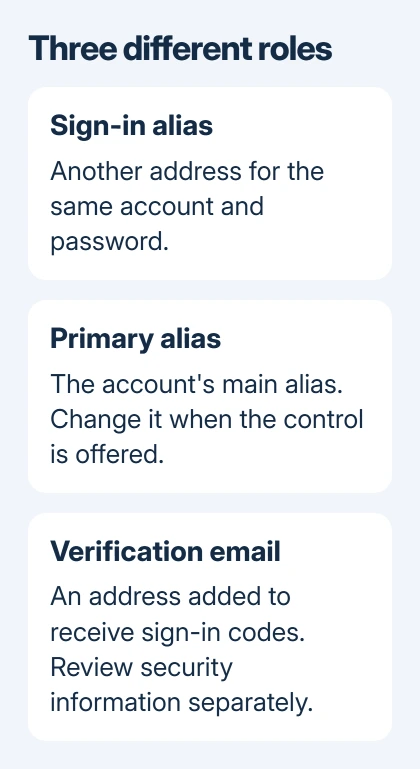
A sign-in alias and an address used to receive security codes serve different purposes. Adding an alias doesn't mean every address on the account will automatically receive email verification codes.
Email codes can go to your primary alias or another email address you've added for sign-in verification. Review the account's security information separately if the old inbox is closing, and complete any verification the account requests.
If signing in is already failing, follow the Microsoft account recovery steps first. The alias-change process requires access to the account; creating a fresh account won't recover its purchases or files.
Remove an old alias only when you intend to lose it
Keep the old address if you still want it on the account. Before removing it, confirm that the replacement is accepted and passes the sign-in check. Then select Remove beside the unwanted alias.
Removing an @outlook.com, @hotmail.com, @live.com or @msn.com alias permanently deletes that address. It can't be attached to a Microsoft account again, so remove it only if you're ready to lose it permanently.
For a failed verification or primary change, open the guided support tool linked on the change-email page. Include the error and failed step. Don't post passwords or verification codes in public discussions.
The Short Version
Add and verify the alias, then use Make primary when offered. Check the new sign-in and security details. Keep the old address unless removal is intentional, especially for a Microsoft email domain.
Checked November 7, 2026.

Isaac Smith is the founder and editor of PC Glance, a website that covers computers, laptops, and technology. He is a tech enthusiast and a computer geek who loves to share his insights and help his readers make smart choices when buying tech gadgets or laptops. He is always curious and updated about the latest tech trends.