
OneDrive can be running without showing a normal app window. Start by opening OneDrive from Windows Search and checking the cloud icon near the clock; if no cloud or sign-in prompt appears, reset the desktop sync app.
A work or school PC can also have a policy that blocks OneDrive from starting. When that policy is responsible, reinstalling the app won't remove the block. The administrator needs to change it.
1. Check whether the sync app is already running
Select Start, type OneDrive, and open the desktop app. Then check the notification area beside the clock, including the hidden-icons menu. Click the cloud to see its activity and sign-in state.
If a cloud appears, the app has started. If the folder is empty or a file won't sync, use the OneDrive sync checks rather than troubleshooting app startup.
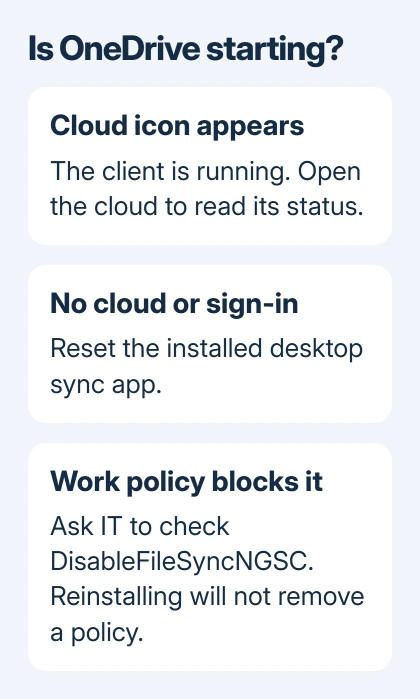
If nothing appears, restart the PC through Start > Power > Restart, then try OneDrive again. Save open work first. If the sign-in prompt is still missing, check the installed app next.
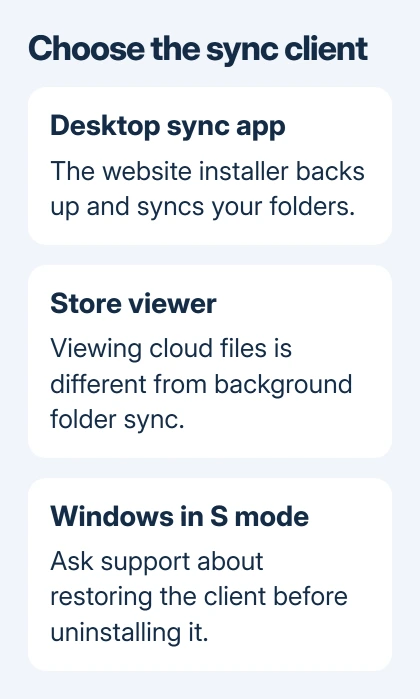
Check which app you're opening: the desktop sync app or the Microsoft Store viewer. The desktop app backs up and syncs folders. The Store app can display your OneDrive without syncing folders in the background.
If Windows shows OneDrive.Sync.Service.exe Bad Image, follow the specific Bad Image repair instead. That named component error has its own limits, especially on a PC using S mode.
2. Reset the installed desktop client
Press Windows + R, enter wsreset.exe, and select OK. A blank command window briefly appears, followed by the Microsoft Store. Close those windows when they've finished, then continue with the desktop client reset.
Microsoft's OneDrive reset instructions list that Store-cache step before resetting the sync client. They do different jobs: wsreset.exe alone doesn't reset OneDrive's sync settings.
Press Windows + R again and run:
%localappdata%\Microsoft\OneDrive\onedrive.exe /resetIf Windows says it can't find that file, try this installation path:
C:\Program Files\Microsoft OneDrive\onedrive.exe /resetIf that also isn't found, try:
C:\Program Files (x86)\Microsoft OneDrive\onedrive.exe /resetOpen OneDrive from Start again after the reset. A returning cloud icon or setup window shows the app can launch. If none of those paths exists, reinstall the desktop app in step 4.
The reset disconnects your sync connections and triggers a full sync. If you previously selected only certain folders, check those choices again once syncing finishes, for each connected personal, work or school account.
I'd try the reset before uninstalling an app that Windows can still find.
3. Have IT check a work or school policy
On a managed computer, a policy can prevent onedrive.exe from starting without showing a sign-in window. This can appear after installation or an operating-system update.
Ask IT to check DisableFileSyncNGSC under this registry location:
HKEY_LOCAL_MACHINE\Software\Policies\Microsoft\Windows\OneDriveA DWORD value of 1 blocks the sync app in this case. IT needs to remove the blocking policy or set the value to 0, depending on the organization's settings.
Don't override a company policy yourself. A local registry edit can be reapplied by Group Policy after restarting, signing in or a later policy refresh, leaving the same startup failure.
Send IT the time the problem began and whether personal OneDrive still runs while the work account doesn't. That helps them check which account the policy affects.
4. Reinstall the desktop app if it's missing or still broken
On Windows 11, open Settings > Apps > Installed apps and locate Microsoft OneDrive. On Windows 10, use Settings > Apps > Apps & features. Select Uninstall when the existing desktop client needs replacing.
On a PC in S mode, ask support how to restore the installed client before removing it. The Store viewer isn't a replacement for the desktop sync app, and S mode restricts installers from outside the Store.
Download the backup-and-sync app from the official OneDrive download page. Run the installer, then sign into the account holding the files you expect. Adding another account by mistake can make a working installation look empty.
Finish setup and check the cloud icon again. If you had chosen specific folders, review those settings. If OneDrive launches but shows an account or sync error, use that message to choose the next fix.
If the client still never opens, use Contact Microsoft Support from the OneDrive reinstall help page. Provide your Windows version, whether it's S mode, account type, reset result and any installer error. For a managed PC, keep IT involved.
The Short Version
Check the cloud icon, then reset the desktop app using an installed path. Ask IT to remove a blocking work policy. Reinstall the sync client when it's missing or damaged, taking extra care with S mode.
Checked November 7, 2026.

Isaac Smith is the founder and editor of PC Glance, a website that covers computers, laptops, and technology. He is a tech enthusiast and a computer geek who loves to share his insights and help his readers make smart choices when buying tech gadgets or laptops. He is always curious and updated about the latest tech trends.