
An unexpected restart with a problem warning means a failure forced macOS to restart. Software or a connected device is a common cause. Update first, then compare with nonessential accessories unplugged.
A single app quitting is different: that leaves the Mac running. This message appears after the computer itself restarts. A Mac that never reaches the desktop needs startup and recovery checks, not repeated attempts to reopen apps.
1. Update macOS and the apps involved
After signing in, save open work and check Apple menu > System Settings > General > Software Update. On older macOS versions, look in System Preferences > Software Update. Apply the available updates for that Mac.
Update the apps in use around the restart too. Use the App Store for apps installed there, or the developer's own update control for other apps. A restart after a macOS update can involve older apps that need updating too.
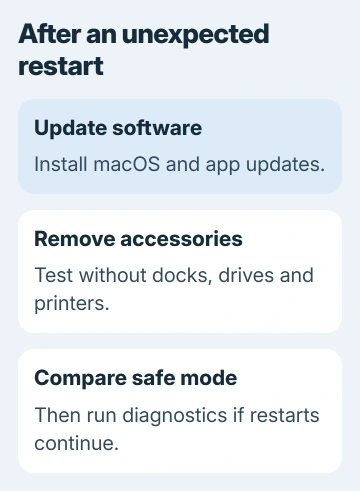
Apple recommends software checks in its unexpected-restart guidance. If macOS identifies a particular app and offers Move to Trash, follow that prompt, then ask its developer whether a compatible update is available.
Note what was happening when the restart occurred: opening an app, connecting a device, waking from sleep or ordinary browsing. Use the Mac again after updating. A repeatable trigger helps support more than unrelated setting changes.
If it happens specifically overnight or on waking, the Mac sleep-restart article covers that narrower pattern. Don't assume every unexpected restart has the same sleep-related cause.
2. Run the Mac without nonessential accessories
Shut the Mac down and disconnect external drives, printers, hubs, docks and other nonessential accessories. On a desktop Mac, keep the display, keyboard and mouse or trackpad connected. Leave a MacBook's power adapter attached.
Turn it on and use it for roughly as long as it normally takes for the problem to happen. A machine that usually restarts after an hour hasn't had a useful comparison after only a minute at the desktop.
If the restarts stop, add accessories individually, checking the Mac after each addition. Include its cable and any hub in your notes. If a reconnected device brings the restarts back, have its maker check the device, cable and hub.
If the Mac still restarts with the accessories removed, leave them disconnected for the next checks. You can then check the Mac itself without a troublesome dock or drive affecting the result.
For a particular M4 desktop, the M4 Mac mini restart checks cover model-specific display patterns. Those details shouldn't be treated as a diagnosis for every MacBook or Intel Mac.
3. Compare startup in safe mode
Safe mode blocks some startup software and runs basic disk and cache checks. If your Mac behaves differently there, check the software that loads during normal startup. Working in safe mode doesn't rule out every hardware problem.
First check Apple menu > About This Mac. Chip followed by an Apple chip name means Apple silicon. Processor with an Intel name means the Intel procedure applies. The safe-mode button sequence is different.
Apple silicon: use the startup options
Shut down. Keep the power button held until startup options appear. MacBooks equipped with Touch ID use that button for the power-button hold.
Select your startup disk. Hold Shift, then click Continue in Safe Mode. Log in when asked; a second login prompt can be normal. Look for Safe Boot in the login window's menu bar.
On an Intel Mac
Turn on or restart the Mac, then immediately hold Shift. Release it when the login window appears. Log in, and log in again if prompted. Safe Boot should appear in the login window's menu bar.
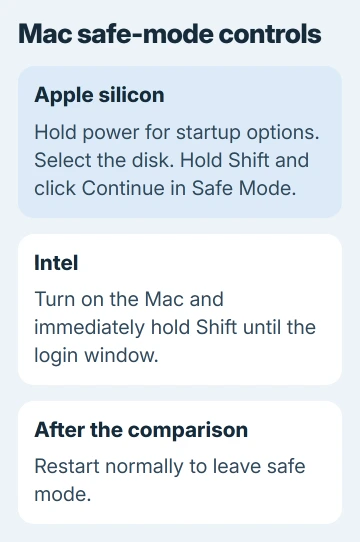
Use the Mac long enough to compare with its usual restart pattern, then leave safe mode with an ordinary restart. If the issue returns only during normal startup, check login items and software that loads with your account.
On recent macOS versions, open System Settings > General > Login Items & Extensions. Note the current entries before removing an item from Open at Login. Test after restarting, then restore items that don't affect the problem.
If updates can't install during normal startup, try them in safe mode. When the restart happens in both modes, continue to the hardware check rather than assuming a particular app is responsible.
4. Run Apple Diagnostics with accessories removed
Keep the Mac on a hard, stable surface with ventilation. Disconnect external devices except the keyboard, mouse, display, power and an Ethernet connection if needed. Shut down before starting the test.
On Apple silicon, hold power and wait for Options to appear, then release it. Hold Command + D until the Mac restarts into diagnostics.
On Intel, turn on the Mac and immediately hold D. Release it when a progress bar or language choice appears. If D doesn't work, try Option + D at startup.
Follow the onscreen instructions. With macOS Tahoe 26 or newer, the tool may ask you to choose a particular diagnostic, such as the built-in display or keyboard test. Earlier versions run the diagnostic automatically.
Save any reference code from the result. Arrange service for a reported hardware issue and give support the code. If the test finds no hardware issue but restarts continue, try recovery or ask support to review the recurring crash.
5. Reinstall macOS when software checks don't settle it
Back up your files before recovery work. A normal macOS reinstall keeps personal files, but an erase is a different operation. Choose Reinstall macOS, not a disk-erasing option, when repairing the installed system.
On Apple silicon, shut down, keep power held for startup options, then select Options > Continue. On Intel, turn on the Mac and immediately hold Command + R to enter macOS Recovery.
Choose Reinstall macOS in Recovery and follow the prompts. If asked to unlock the disk, use the account password requested. Keep power connected and leave a MacBook's lid open throughout installation.
If Recovery fails or the restarts continue, ask Apple Support to help diagnose your Mac's unexpected restarts. Give them the model, macOS version, diagnostic code, accessory comparison and whether safe mode also restarted.
The Short Version
Update macOS and apps, then compare without accessories. Use the right safe-mode steps for Apple silicon or Intel, save diagnostic codes, and back up before reinstalling macOS. Repeated crashes need a service assessment.
Checked November 9, 2026.

Isaac Smith is the founder and editor of PC Glance, a website that covers computers, laptops, and technology. He is a tech enthusiast and a computer geek who loves to share his insights and help his readers make smart choices when buying tech gadgets or laptops. He is always curious and updated about the latest tech trends.