
Outlook's We can't sign you in message can mean an account problem or a failed app or browser sign-in. Try a fresh session: if the inbox opens, repair the app or browser. If you can't get in there either, check the account.
Save the full message, especially any error number. A password prompt, a request for a security code and an Error 400 screen need different next steps, even when each stops you reaching your email.
1. Open the correct mailbox in a fresh session
For a personal Outlook.com, Hotmail, Live or MSN address, open outlook.live.com. For a work or school Microsoft 365 mailbox, use outlook.office.com/mail. Enter the full address rather than accepting a suggested account tile.
On Windows, Ctrl+Shift+N opens an Incognito window in Chrome or an InPrivate window in Edge. On a Mac, use Command+Shift+N in those browsers. This lets you try signing in without the normal window's existing session.
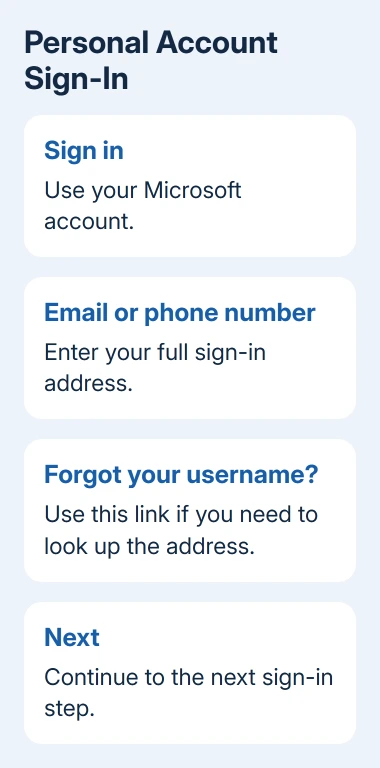
Microsoft says you sign into personal Outlook.com mail with your Microsoft account details. Its Outlook.com sign-in help points to the account troubleshooter when access fails.
If the same address offers Personal account and Work or school account, select the type that has your mail. Your personal and work accounts can use the same email address but still have separate mailboxes.
If the inbox opens, keep it available for urgent mail while you work through the app or browser repairs. If it doesn't, follow the account message next. A rebuilt Outlook profile won't restore an unrecognized username.
2. Follow the account message rather than retrying
A request for a password shows that sign-in has recognized the address. If the password is rejected, use Forgot password? and follow the offered recovery method. Use the account's password, rather than the PIN that unlocks your Windows PC.
For That Microsoft account doesn't exist or We couldn't find an account with that username, check spelling and the domain. Try an existing alias (another sign-in address for that account) or its linked phone number.
The Microsoft account recovery guide covers the recovery form when the account exists but its normal verification methods aren't available. You don't need to start with that form for every Outlook sign-in error.
If a security code is requested, complete that verification using the method on screen. Travel and a new device can trigger extra checks. Changing Outlook's mail settings won't replace an account verification step.
When a personal account remains inaccessible, open the Sign-in Helper from the account sign-in support page. Enter the address or phone number you're trying to use and follow its result.
For work or school mail, send IT the full message. Ask whether the account is enabled and which sign-in requirement failed. An employer's account isn't managed through the personal account recovery form.
3. Treat Error 400 as a failed sign-in request
Something went wrong and we can't sign you in right now can appear with Error 400. The Error 400 procedure covers repeated attempts and problems involving the app, browser, device or network.
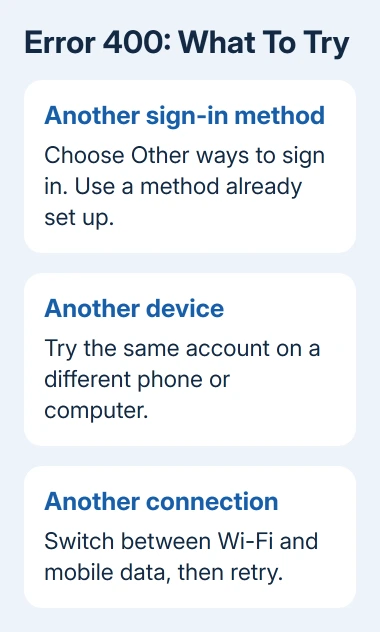
Stop sending the same password repeatedly. At the prompt, choose Other ways to sign in, if offered. Use a method you've already set up, such as an authenticator approval, security key or code sent to your recovery email.
Those choices depend on the account. A Windows Hello PIN on one computer isn't a new password to type into any Outlook password field. Pick the named option on the sign-in screen and follow its own instructions.
Next, try another device. If that also fails on Wi-Fi, try the phone's cellular data connection instead. If signing in works over cellular data, use that connection for now. Tell support that Wi-Fi sign-in failed.
If Error 400 appears only inside a Microsoft app, install its current version from the official store. The same procedure suggests reinstalling the app later if needed. Check that needed local information is saved before removing an app.
4. Repair the browser session when private sign-in works
In the normal window, sign out of the unwanted Microsoft account and close its browser windows. Reopen the browser and enter the intended address. This helps when personal and work accounts share a computer.
If it still fails there, use the browser's Settings search to find site data. Remove data for the affected Microsoft sign-in and Outlook sites, then try again. This signs you out of those sites, so have your verification method ready.
I'd remove the affected sites' data before clearing all cookies. That keeps unrelated services signed in. Keep reading mail in the working private window while repairing the normal session.
A private session can fail if needed sign-in content is blocked. Try another updated browser once. If you change a security setting, follow your organization's rules and limit the change to the affected site.
If both browsers reach the same account error, return to account support. If they reach the mailbox but show a numbered server error, use the Outlook error 500 checks when that is the number actually displayed.
5. Keep a working web inbox while fixing the app
When webmail works, verify that Outlook is adding the same address and account type. For a personal Outlook.com account, use its Microsoft sign-in flow rather than manually forcing it into an old password-only mail setup.
On Android or iPhone, update Outlook through its official store. If a work login requires Authenticator or an organization's management app, follow IT's setup instructions. Keep that required sign-in app installed.
On Windows or Mac, note the Outlook version and whether adding an account or opening existing mail fails. Tell support those details and that webmail works, so they can check why the app won't connect.
Don't remove your desktop profile just because the error message is vague. Your next step should match the result: account help when web sign-in fails, app help when only Outlook fails, and IT when a work-account requirement blocks access.
6. Send support the failed attempt's details
For a personal account, use Sign-in Helper first. If webmail opens, you can also reach Outlook support through its Help menu.
For work or school mail, ask IT to check the failed sign-in. Include the error and time, plus the request ID or correlation ID shown. Those details help them look up the attempt.
Include whether a private window, another device or cellular data worked. Keep the full screenshot for a private support request; remove your address and session details before posting it publicly. Never send a password or security code.
The Short Version
Start a fresh session for the intended mailbox and keep the full error. Use account recovery for a rejected account, the alternate-method and connection checks for Error 400, and app repairs when webmail already works.
Checked November 9, 2026.

Isaac Smith is the founder and editor of PC Glance, a website that covers computers, laptops, and technology. He is a tech enthusiast and a computer geek who loves to share his insights and help his readers make smart choices when buying tech gadgets or laptops. He is always curious and updated about the latest tech trends.