

A Victus laptop usually needs a fresh pairing when Bluetooth headphones won't connect. Start with the headphones' pairing mode, then remove a failed saved connection. A missing Bluetooth switch needs an adapter check instead.
A connected headset that plays through the laptop speakers is a different problem. Check the sound output before removing drivers.
In this guide
1. Make the headset discoverable
Charge your headset first. Keep it beside the Victus, then activate pairing mode. Turning them on isn't always enough: a headset that remembers your phone can reconnect there without becoming visible to the laptop.
Disable the phone's Bluetooth temporarily while adding the Victus. Use the headphone maker's instructions for the button and light pattern. Don't borrow a reset sequence from another model, even if its buttons look similar.
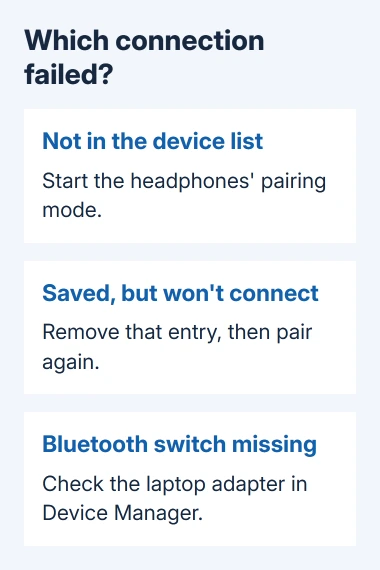
On Windows 11, open Settings > Bluetooth & devices. Turn Bluetooth on, select Add device, then Bluetooth. Wait for the headphones' model name and select it.
On Windows 10, open Settings > Devices > Bluetooth & other devices. Switch Bluetooth on and choose Add Bluetooth or other device > Bluetooth. Select the matching model when it appears.
Keep the window open until Windows completes the connection; seeing the name isn't the final step. If the headset never appears, confirm that its pairing light is still active. Some headphones leave pairing mode after waiting.
For Sony headphones, the model-specific pairing controls differ between headbands and earbuds. I'd check that control before changing anything on a Victus that still discovers other accessories.
2. Remove the saved connection and add it again
A name already in Settings can be an old pairing that no longer works. Removing that entry lets the laptop and headphones create a fresh connection instead of retrying the saved one.
In Windows 11, find the headphones in Settings > Bluetooth & devices, open their More options menu and choose Remove device. Confirm the removal. In Windows 10, select their name in Bluetooth & other devices, then Remove device.
Start manual pairing on the headset again, then follow your Windows version's Add device route. This time, check that the newly added headphones connect. A remembered name alone doesn't show that the headset is currently available.
Microsoft says removing and adding the device again can repair a failed connection. Leave your other Bluetooth accessories in the list; only the headphones need a fresh pairing.
If the entry still fails, disable Bluetooth in Settings for 10 seconds, then re-enable it. Retry once. If it connects, try playing audio. If it fails again, compare how the headphones and laptop work with other devices.
3. Check whether pairing or sound is failing
Connect the headphones to another device, such as your phone, and play audio. If they won't connect there either, follow the headphone maker's troubleshooting for that exact model before changing the laptop's software.
If phone playback works, disconnect the headphones from it again. Try another Bluetooth accessory on the Victus if available. If several accessories won't connect, the laptop needs attention rather than just one headset's saved pairing.
For headphones shown as connected, open Settings > System > Sound and choose them under Output. Play a familiar audio clip. If sound now reaches the headphones, Bluetooth was working; Windows was sending the audio to the wrong output.
If only one meeting app or game stays silent, check its speaker selection. An app can use a different output from Windows, so testing an ordinary audio clip first keeps that app setting separate from the Bluetooth connection.
When the headset connects but has no selectable output, use the missing headphone output checks. That guide addresses the audio service rather than repeating discovery steps.
4. Run the Windows check and inspect the adapter
On Windows 11, open Get Help from Start, search for Bluetooth connection trouble and run its Bluetooth troubleshooter. Follow its results, then attempt the same connection again. This lets Windows check its Bluetooth settings for problems.
Next, right-click Start > Device Manager and expand Bluetooth. Note the adapter's exact name. Victus is the laptop family, so don't assume another owner's Intel, Realtek or MediaTek driver belongs on your machine.
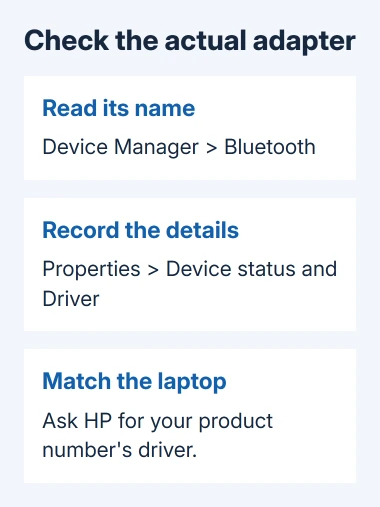
If Bluetooth is missing from Settings, look for the adapter here before editing the headphones' settings again. Tell support whether the adapter is missing entirely or appears with a warning; those need different checks.
Open the adapter's Properties and record any message in Device status. On Driver, note the provider, date and version. These details help support match your installed driver to the hardware in your Victus.
5. Update the matching driver, then escalate a missing radio
In Device Manager, right-click the Bluetooth adapter and choose Update driver > Search automatically for drivers. If Windows finds an update, finish it, restart when requested, and check the headphones again.
Also check Settings > Windows Update on Windows 11, or Settings > Update & Security > Windows Update on Windows 10. Install applicable updates offered to the laptop and finish any pending restart before comparing the result.
If Windows can't supply a driver, ask HP Support for the package matching your Victus product number and Windows version. Include the adapter name. A driver listed for another Victus model might not work with yours.
The vendor instructions leave adapter removal until later. Before trying that, have the matching driver ready so you can reinstall it. If you're unsure which entry is the radio, let HP identify it from your Device Manager details first.
If the switch stays missing, ask HP why Windows can't detect the adapter and whether the wireless hardware needs service. Send the product number, Windows version, Device status message, and whether other Bluetooth accessories fail too.
The Short Version
Start headphone pairing, then recreate a failed saved connection. Check Output for an already connected headset. A missing Bluetooth switch needs an adapter check and driver support matched to your exact Victus hardware.
Checked November 15, 2026.
 If you have any business, I can build it online






