

When Windows 11 keeps switching sound output back to laptop speakers, disable those speakers temporarily and select the intended output. An owner with a Sound Blaster X3 confirmed this stopped the switchback.
An output that isn't listed needs connection or driver checks instead. If Windows keeps the new choice but only one app still uses the speakers, check that app's output setting rather than disabling devices across the computer.
In this guide
1. Disable the output that keeps taking over
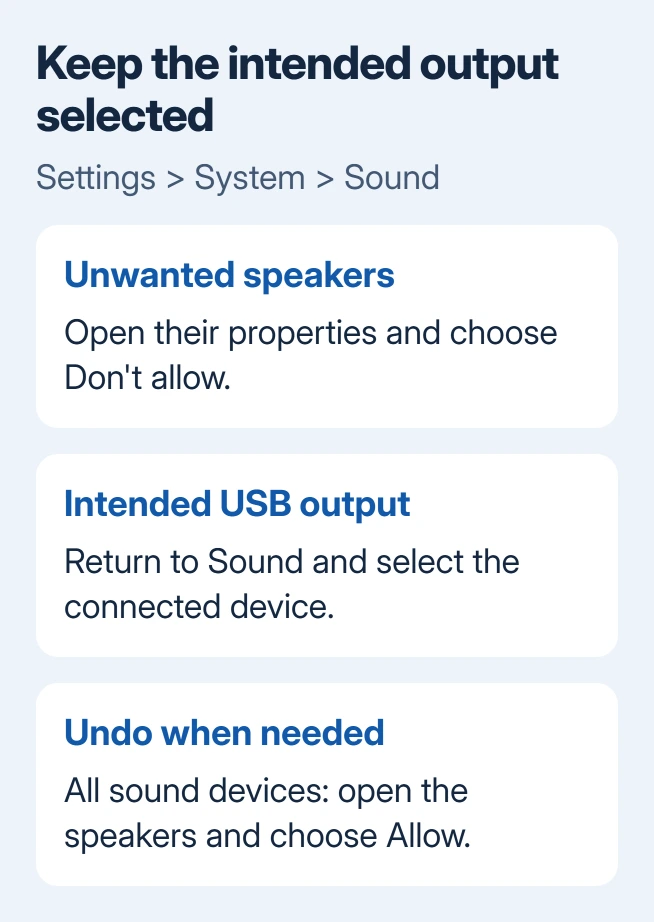
Open Settings > System > Sound. Under Output, select the unwanted laptop speakers to open their properties. Where shown, choose Don't allow beside Allow apps and Windows to use this device for audio.
Return to Sound and select the intended USB interface, headphones or monitor. Start with the volume low. Check whether Windows now keeps that output selected. Make sure the intended device is connected before disabling your current output.
If your Settings layout differs, press Windows + R, enter mmsys.cpl, and press Enter. On Playback, right-click the unwanted speakers and select Disable. Select the intended device and use Set Default if needed, then OK.
This disables a playback choice, not the computer's whole audio controller. Avoid disabling a broad device in Device Manager at this stage. A controller can serve more than the single output you meant to remove.
To restore speakers, open Sound > All sound devices, select them and choose Allow. In Playback, right-click empty space and enable Show Disabled Devices. Right-click the speakers, then Enable.
I'd use this reversible workaround while checking the driver. Disabling the laptop speakers removes that fallback when you unplug the USB device, but it can stop the repeated switchback interrupting your listening.
2. Check that the intended device is actually available
For a USB interface such as the Sound Blaster X3, check both its USB connection and the attached speakers or headphones. A selected Windows output can't correct the interface's own muted volume or disconnected headphones.
Move the USB plug to a port built into the laptop. If it disappears from the Output list during switchback, check the connection first. A device that disconnects can't remain the selected output.
For an HDMI or DisplayPort monitor, confirm that the screen has speakers or a connected headphone output. Windows can list a display for audio even when it has no built-in speakers.
For Bluetooth headphones missing from Sound altogether, use the Bluetooth output checks. Pairing and having an available playback output aren't the same check.
If the desired output is disabled, enable it before making it the default. If it remains absent in both Settings and the classic Playback list, continue to the driver section rather than repeatedly clicking a different default.
3. Separate the Windows default from an app's choice
Select the intended device in Settings > System > Sound, then play a system sound and audio from the affected app. If one follows the new output and the other doesn't, Windows isn't simply reverting its overall default.
On Windows 11, open Settings > System > Sound > Volume mixer. Find the app under Apps, expand its controls when needed, and check its Output device. Choose the intended device or Default to follow Windows.
An app generally needs to be running and producing sound to appear in the mixer. Start a track or video first if the list doesn't show it. Restart the app if it keeps playing through the old output.
Meeting and music apps can also keep their own speaker selection inside the app. Change that setting when its audio stays on the old output despite a correct Windows default. Check headphones at a low level before joining a call.
The Windows sound settings guide explains the separate system and app controls. Use those controls when your choice stays selected in Settings but an app ignores it. In the original Sound Blaster case, Settings switched back immediately.
4. Repair the device driver after an upgrade
The X3 owner also installed audio, Windows and Lenovo Vantage updates alongside disabling the previous default. Since they made those changes together, we can't tell from their reply which update, if any, helped.
Microsoft's audio troubleshooting steps include selecting the right output and repairing the audio driver. Right-click the Start button, then choose Device Manager.
Expand Sound, video and game controllers. Identify the USB sound device or the laptop audio device that is failing. Open Properties > Driver and record its version before changing it.
If the problem began directly after its driver changed, try Roll Back Driver when available. Otherwise try Update driver. A manufacturer support app can provide model-specific audio packages that aren't offered by a simple automatic search.
Have the manufacturer's installer or support utility ready if this device requires a separate driver package.
If the driver still fails, remove that specific device using Device Manager's Uninstall device command. Restart the PC to give Windows a chance to load its driver again.
After restarting, reconnect the external device and retest selection. A BIOS update belongs in this repair only if its maker identifies a relevant fix for your exact model.
5. Check whether the workaround survives reconnecting
A returning output problem
Keep the intended device selected while restarting the affected app. Restart Windows once, then check Sound again. For a laptop, test the docked and direct-USB connections separately if both are part of your normal setup.
If the USB device vanishes only through the dock, give the dock maker that result. If the output stays listed but Windows returns to another enabled device, give the audio-device maker the exact names and driver versions of both outputs.
Another owner later reported no audio after moving to an Insider build, but didn't confirm a repair. That report gives no reason to assume the X3 workaround will solve the later build's no-audio problem too.
If it keeps happening, tell the audio-device or laptop maker that Windows switches back to the old output immediately. Include the build from winver, the connection type, and whether disabling the previous default stops it.
The Short Version
For immediate switchback, disable the unwanted output and select the intended device. Keep the change reversible. Then check what Sound shows: whether the device disappears, only one app uses the wrong output, or the driver needs repair.
Checked November 17, 2026.
 If you have any business, I can build it online






