Bluetooth device records in Windows are stored at HKEY_LOCAL_MACHINE\SYSTEM\CurrentControlSet\Services\BTHPORT\Parameters\Devices. Open that key in Registry Editor and read Name to identify an accessory.
Remove a stubborn pairing through Windows Settings first. The registry also holds driver settings and protected pairing information. Deleting everything named Bluetooth can damage working connections.
In this guide
Open the device records in Registry Editor
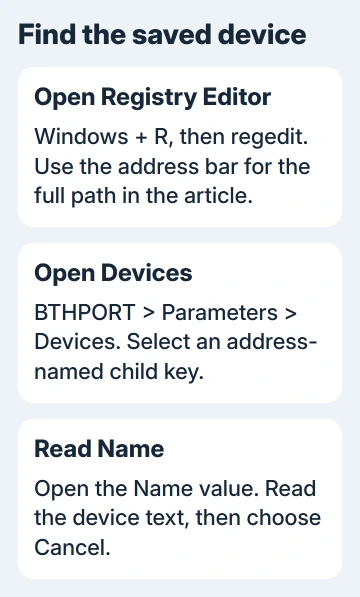
Press Windows + R, enter regedit, and press Enter. Approve the administrator prompt if your account has permission. On a managed work PC, ask the administrator when that prompt blocks access.
Click Registry Editor's address bar, paste the following location, then hit Enter:
HKEY_LOCAL_MACHINE\SYSTEM\CurrentControlSet\Services\BTHPORT\Parameters\DevicesExpand Devices in the left pane. The keys inside it have address-like names made from twelve hexadecimal characters (digits and letters), rather than the names in Bluetooth settings. Select one to see its values on the right.
Use CurrentControlSet as written. A similarly named ControlSet001 branch isn't a reason to switch paths when the current branch is available. You want to read the settings Windows is using now.
Leave the values unchanged while identifying the accessory. You only need to open a key and read its data here. Don't import a registry file or change a service's startup value.
Match a device key to its readable name
Select one child key and look for Name. When it has the REG_BINARY type, double-click it to open the binary editor. The text beside the bytes can reveal the accessory name. Close the window with Cancel after reading it.
For example, a headset's key name can look unrelated to its product name, while the Name value contains recognizable words. Work through the entries until the text matches the accessory you're checking.
A matching name tells you which saved record belongs to the accessory. It can't show whether your headset has charge, is connected, or is selected for sound output. Check those separately in Windows.
Some accessories create several entries for different functions. A headset can have audio and microphone entries, and a mouse can have extra controls. Similar names don't mean you've found duplicates you can delete.
If the name is missing or unclear, stop short of guessing. Open Device Manager, expand Bluetooth, and inspect the accessory's Properties > Details. Compare identifying information such as its device instance path when available.
Keep the Bluetooth radio separate from the accessory. An Intel, Realtek, or MediaTek adapter entry usually refers to the computer's radio. Removing its driver is a much wider change than identifying one paired mouse.
Separate Devices from driver settings and pairing keys
The Parameters branch contains more than a list of accessories. Microsoft's Bluetooth registry reference describes values there that control how the PC identifies its own Bluetooth device class.
Those class settings aren't names for your headphones or a list of currently connected devices. Changing them won't turn a missing accessory into a working pairing.
Keys in the parent branch holds pairing security information. Access can be restricted even when device-name records are readable. A permissions error there isn't a reason to take ownership.
I'd stop at identifying the device unless a support technician has asked for a specific record. Copying pairing data to a different computer or reinstalling Windows isn't the same as exporting a readable device name.
Exporting the registry isn't a complete Bluetooth backup. It doesn't include the accessory's own saved pairing or every part of its driver, and that connection might not work with another Bluetooth radio.
Remove a saved accessory through Windows Settings
For Windows 11, open Settings > Bluetooth & devices > Devices. Find the accessory, open its three-dot menu, and select Remove device. Confirm that the name matches before accepting the removal.
For Windows 10, open Settings > Devices > Bluetooth & other devices. Select the accessory and choose Remove device, then confirm. The older Settings layout uses a selected device card rather than Windows 11's three-dot menu.
After removal, put the accessory in discoverable mode so the PC can find it before you add it again. Powering on a headset can send it back to a phone's connection instead. Check the accessory's manual for which button to hold and how long.
If the PC no longer has a Bluetooth switch, use the missing Bluetooth controls checks first. Deleting a saved accessory record can't restore an absent adapter or its driver.
If a headset is paired but absent from the speaker choices, use the Bluetooth sound-output checks. A saved pairing doesn't always mean the headset is available for sound.
When the record stays or returns after removal
One owner on Super User removed and paired a Windows 10 headset again after deleting its specific device key and restarting. That's why deleting a registry entry sometimes gets suggested, but it won't fix every stubborn pairing.
Another asker deleted the registry record but still saw the unwanted device. They later removed it successfully through Device Manager. The cause matters, so don't assume deleting its registry entry will fix it.
If Windows removal keeps failing, restart the PC and try normal removal once more. Note whether the accessory returns immediately, only after restarting, or only when an old USB Bluetooth adapter is attached.
Take those details to Get Help in Windows and request Bluetooth pairing-removal support. Include the PC model, Windows version, adapter name, accessory name, and whether an older Bluetooth dongle was replaced.
If a technician requests a registry change, ask which exact key is involved and how to restore it first. A general instruction to clear the whole BTHPORT branch is too broad for a problem with one accessory.
The Short Version
Look under BTHPORT\Parameters\Devices, then read each child key's Name value to identify the accessory. Use Windows Settings to remove pairings, and keep device records separate from radio settings and protected pairing keys.
Checked November 12, 2026.