

Zoom can send meeting sound through Bluetooth headphones once they're connected and selected for meeting audio. Connect them to the device you're using for the meeting, join Zoom's audio, and select their name as the speaker.
If music already plays through them but Zoom doesn't, check Zoom's audio selection before pairing again. Hearing a meeting and being heard are separate checks: the speaker can be right while the microphone is still wrong.
In this guide
1. Connect the headphones to the meeting device
Use the headset maker's button sequence to start pairing mode. Select the headphones in Bluetooth settings on the device running Zoom. Wait until they show as connected; a name in the list doesn't confirm a connection.
On Android, open Settings > Connected devices > Pair new device. Some phones place the list under Connections > Bluetooth. On iPhone or iPad, use Settings > Bluetooth, then select the headphones.

On Windows 11, open Settings > Bluetooth & devices > Add device > Bluetooth. Windows 10 uses Settings > Devices > Bluetooth & other devices > Add Bluetooth or other device. Select your headset and finish the pairing prompts.
On current Macs, connect the headset in Apple menu > System Settings > Bluetooth. Older releases put Bluetooth in System Preferences. Both Intel and Apple silicon models need that connection before Zoom can select it.
Temporarily disconnect the headset from another tablet or laptop while setting up the meeting. Its saved pairing on the meeting device isn't enough if another device has the active audio connection.
For Sony headphones, the model-specific pairing steps help when the accessory won't enter pairing mode. Return to Zoom once your device shows the headphones as connected.
2. Join meeting audio on Android or iPhone
Open the Zoom Workplace app and enter the meeting. The first time you use it, allow the audio permissions it requests for the call. Joining the meeting video alone doesn't necessarily join its sound.
Tap Join Audio if that is still shown, then choose Wifi or Cellular Data. The label may appear in your app's language. This joins the meeting's sound over the internet rather than dialing in by telephone.
Look for the meeting's Bluetooth audio control near the top. Tap it when available and check the selected headphones. If only the phone-speaker control appears, check the headset connection.
Zoom's Bluetooth headset instructions recommend disconnecting and reconnecting the headset during the meeting if the Bluetooth option isn't appearing.
Use the phone's volume buttons after you've joined meeting audio. That way, you're adjusting the call's sound rather than a different volume setting. Check that the headset's own volume isn't too low either.
If you're using a Bluetooth speaker, check whether it supports calls before expecting it to carry your voice too. A headset that supports calls is easier when you need to listen and speak.
3. Select speaker and microphone separately on a computer
In the Windows or Mac meeting window, click Join with Computer Audio if requested. Then open the audio options beside the meeting's microphone or mute control. Click the small menu control to see the available devices.
Under Select a Speaker, choose the Bluetooth headphones by name. Under Select a Microphone, choose the headset microphone if that's what you intend to use. Don't assume that changing the speaker changes both entries.
If you want to listen through headphones and speak into a separate USB microphone, select those two different devices. That setup works too. Just check that the selected microphone is the one you're actually speaking into.
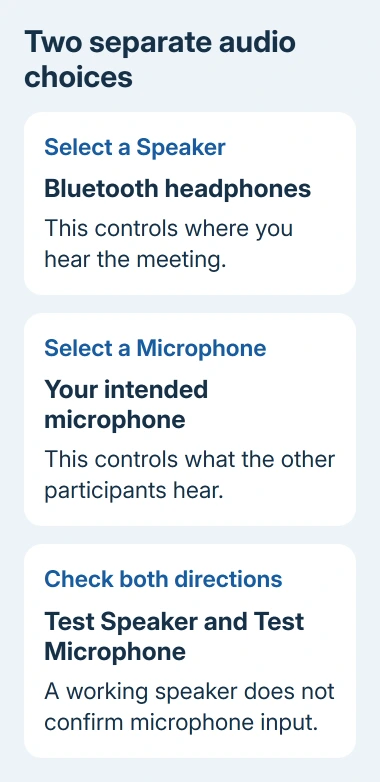
If your headset isn't listed, check whether it still shows as connected in the computer's Bluetooth settings. Reconnect it, then reopen Zoom's device menu. Zoom can't use it until that connection is back.
On Windows, a headset missing from the operating system's output list needs the Bluetooth sound-output checks before Zoom can use it. That's a different fault from selecting the wrong available speaker.
4. Test listening and speaking before relying on the setup
On the desktop app, open profile picture > Settings > Audio. Use Test speaker to play the tone through the selected output. If it plays on the laptop, recheck the speaker choice rather than changing microphone permissions.
Use Test microphone and speak into your chosen microphone. Watch the input indicator and listen to the playback. A moving indicator shows sound is reaching Zoom; listening back helps you check whether it's using the right microphone.
Then confirm you're unmuted when you need to speak in the meeting. A working microphone test won't override a meeting mute. To check what you can hear, choose your speaker first, then ask another participant to speak.
I'd test both directions before a presentation. It takes less time than trying to describe an audio menu to the rest of the meeting after it starts.
Bluetooth microphone quality can be lower during meetings. That doesn't automatically mean the headset is faulty. If speech is unclear, compare a separate microphone while leaving the headphones selected as the speaker.
5. Restore the route when another app interrupts it
Pause music and close other apps using sound, then return to the meeting. Incoming calls and competing audio can interrupt the Bluetooth route. Recheck the selected speaker after the interruption ends.
If the headset keeps switching devices, disconnect its other active connections. Some accessories support multiple connections, but that doesn't mean every app can share the microphone and speaker smoothly at the same time.
On Android, open Settings > Apps > Zoom > Permissions and allow Nearby devices if that permission is offered. Check Microphone too when you can hear the call but others can't hear you. Menu labels vary by Android version.
The Android Bluetooth repair steps cover reconnecting an accessory and its available media or phone-audio controls. Some devices don't expose all of those switches, so use the controls actually present on yours.
If reconnecting doesn't help, forget the headphones in Bluetooth settings and pair them again. Test a second headset if one is available. If the second headset works, ask support about the original headset or its connection.
For a Zoom-only failure, send Zoom Support your system and app versions, headset model, audio selections, and test results. If every app fails, ask the headset maker about the connection.
The Short Version
Connect the headset, join meeting audio, and choose its output. Computers need a separate microphone choice. Test both directions; if the sound stops, check competing apps, other connected devices, and Android permissions.
Checked November 12, 2026.
 If you have any business, I can build it online






